
You can't run several personal LinkedIn accounts yourself, because LinkedIn allows one account per person, in their real name. Agencies and ghostwriters manage client profiles by having each client connect through LinkedIn's official sign-in to a LinkedIn management tool for agencies that keeps a separate workspace per client, and by using page-admin roles for company pages. No passwords change hands, and every account stays in the client's name.
Below: what LinkedIn's rules say, four common setups ranked by risk, a weekly workflow for 5 to 10 clients, the free options LinkedIn builds in, how to fix a client who already has two accounts, and the mistakes that get accounts restricted.
Can I manage two LinkedIn accounts?
It depends whose accounts they are. You can manage accounts that belong to different people, such as two clients, with each client's permission, and you can administer a Company Page from your own profile. You can't run two personal profiles of your own, because LinkedIn allows one account per person, in their real name. For client profiles, use official sign-in and keep every account in the client's name.
What LinkedIn allows (personal profiles vs company pages)
LinkedIn's User Agreement sets the ground rules. In short:
- One account per person, in their real name (section 2.1). A second profile counts as a duplicate, and a merge carries over only connections and the email address.
- No profiles for other people (section 8.2). The client signs up themselves.
- No sharing or transferring an account, and the password stays confidential (section 2.2). The account holder remains responsible for everything posted through it.
- No bots, scrapers or browser plugins that automate activity such as messaging, commenting or liking (section 8.2). LinkedIn's Help page on prohibited software says accounts using such tools risk restriction or shutdown.
Company Pages work differently. A Page is not an account. People manage it from their own profile through admin roles (super admin, content admin and analyst), and a super admin adds the others.
| Personal profile | Company Page | |
|---|---|---|
| Held by | One real person | The company, through admins |
| How an agency gets access | Client authorizes a tool through official sign-in | Client's super admin adds your own profile as admin |
| Avoid | Sharing the password, creating it yourself | Being the only super admin |
The 4 ways agencies do it, ranked by risk
Risk here means the chance of a restricted client account or a security problem, from highest to lowest.
1. Antidetect or multi-login browsers (highest risk)
These browsers give each login its own fingerprint and often its own proxy, so several accounts look like separate devices. They exist for people who hold many accounts, which section 2.1 rules out, and the credentials sit with you, which section 2.2 warns against.
Pros: one machine, every account live, no per-seat software cost. Cons: it masks where the client really logs in from, breaks the one-account and no-sharing rules, and can trigger verification codes on the client's phone mid-session. The client has no real control over what happens on their account.
2. Shared passwords (high risk)
The client emails you their login.
Pros: nothing to set up. Cons: against section 2.2, the password ends up in inboxes and spreadsheets, logins from new devices usually trigger verification codes that go to the client, nothing records who posted what, and cutting access means changing the password.
3. The client logs in themselves (low risk, doesn't scale)
You draft in a shared document and the client pastes and posts.
Pros: no credentials leave the client, no automation, nothing for LinkedIn to flag. Cons: posts depend on the client's calendar, formatting breaks on paste, and there is no scheduling. At five clients you spend Thursdays chasing people.
4. Official-API tools with per-client workspaces (low risk, scales)
The client signs in once on LinkedIn's own permission screen, and the tool publishes with the access they granted.
Pros: no password is shared, each client's drafts, voice and assets stay separate, and scheduling and approvals are built in. The client disconnects to cut access. Cons: you only get what LinkedIn's API exposes, so no inbox management or connection automation. Each client has to complete one connect step, and pricing is usually per client.
Multi-network schedulers built for agencies, such as Sendible, Planable and Pallyy, also connect through official sign-in and collect client approvals. The difference is how much of the LinkedIn work they take on: they schedule what you wrote elsewhere, while a LinkedIn-first tool also drafts in each client's voice from their own material.
What a per-client workspace looks like in Postiv
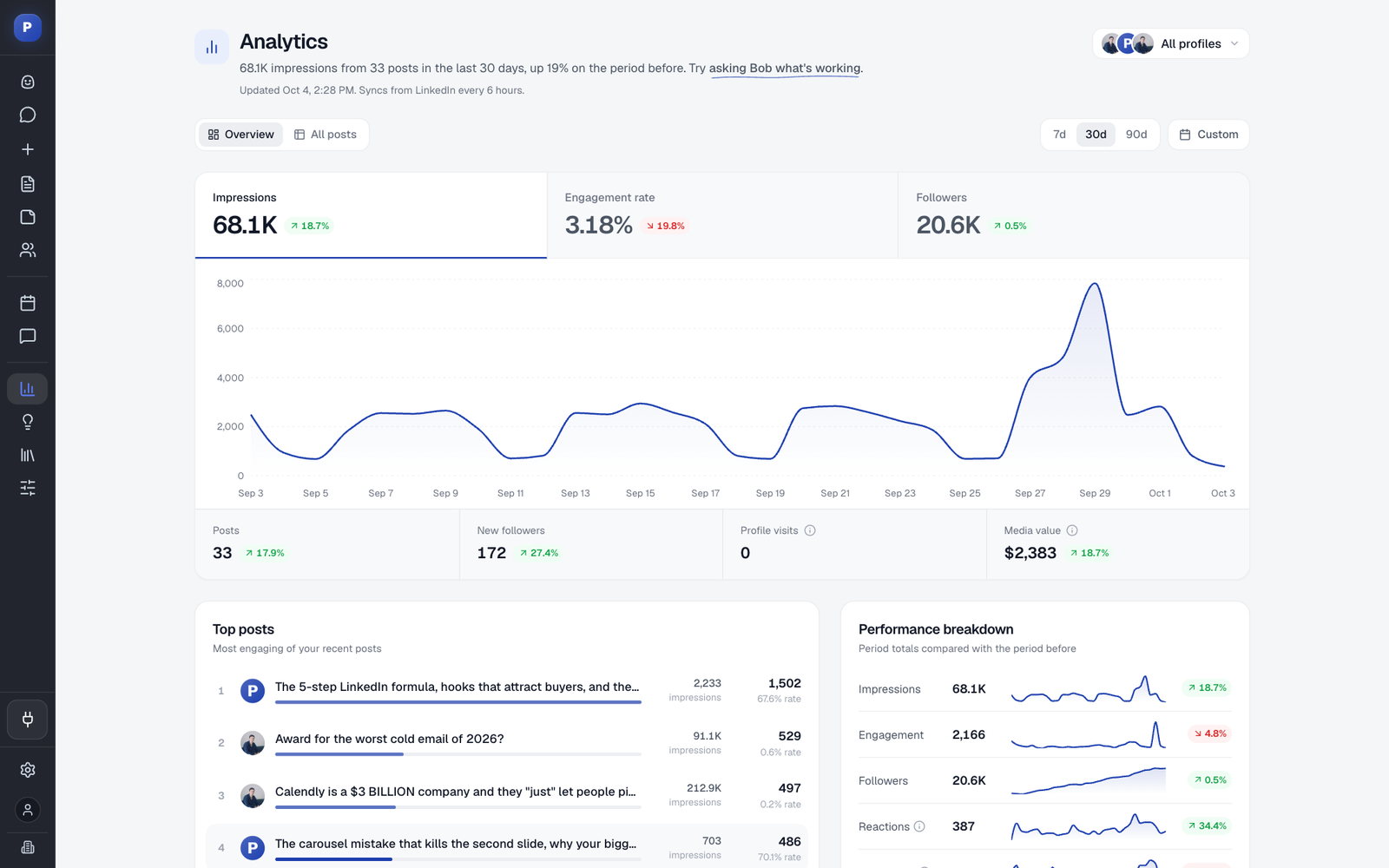
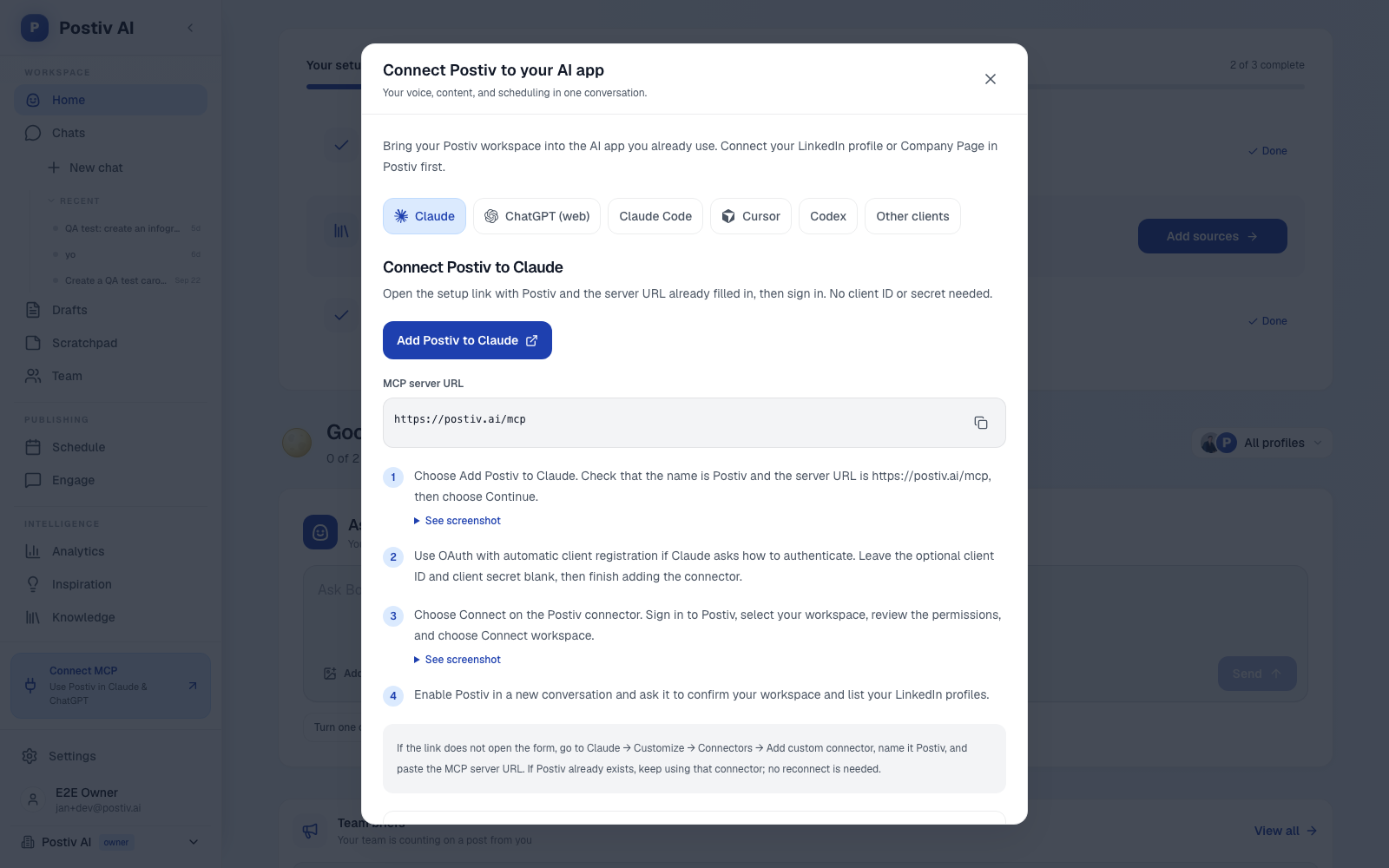
Postiv's client workspaces take this fourth route. Each client gets a separate workspace holding their voice, knowledge base and brand assets, so a founder's blunt tone never leaks into a CFO's drafts. Agency admins can open every client workspace and see all scheduled posts on one calendar. Clients approve from a reusable link without a Postiv account, a post waits until they do, and an edit after approval sends it back for review. Posts schedule to personal profiles and company pages. Clients connect through LinkedIn's official sign-in, so no passwords are shared (how connecting works). Agency plans are set up around your client roster.
A weekly workflow for 5 to 10 client profiles
Onboarding, once per client (about 90 minutes). The client connects through official sign-in. Collect their 10 best past posts, a recorded 20-minute call about how they talk, topics that are off limits, three content pillars and the reader they want. Keep all of it in that client's own workspace so voices don't blend.
The weekly rhythm, using planning estimates you should adjust:
| Day | Task | Per client |
|---|---|---|
| Monday | Content plan: three slots tied to pillars. Send the client three questions to answer by voice note | 15 min |
| Tuesday and Wednesday | Draft the week's posts from the voice notes, one client at a time | 40 min |
| Thursday | Send drafts for approval, deadline Friday noon | 10 min |
| Friday | Schedule approved posts and keep two days of buffer | 10 min |
| Daily | Engagement: reply to comments and comment on target accounts, written for that client | 10 min |
| Month end | One-page report | 20 min |
That is roughly two hours per client per week, so 10 to 20 hours for 5 to 10 clients.
Approvals. If an approver stays silent, the post holds. Never default to publishing. The client is responsible for what appears on their account, so the approval step protects them.
Engagement. This is where accounts get into trouble. Browser extensions and bots that comment or like from a logged-in session are the prohibited kind. Use tools that act through LinkedIn's official API, and make every comment specific to the post and the client.
Reporting. Impressions, reactions, comments, follower change, best and worst post, plan for next month. Posts rarely carry trackable links, so pair the numbers with the client's own "how did you hear about us" question.
Pricing the service. Ghostwriters typically charge $1,500 to $5,000 per client per month, per our LinkedIn ghostwriting cost breakdown, and our social media management pricing guide shows how agencies package broader retainers. The two hours above is what keeps your margin intact at 10 clients, and an AI ghostwriter cuts the drafting block further. Still setting the service up? Start with how to become a LinkedIn ghostwriter.
What is the 4-1-1 rule on LinkedIn?
The 4-1-1 rule is a content-mix guideline from social media marketing, and LinkedIn does not require it. In its usual form, for every six items you share, four come from other people, one is your own content and one is a direct promotion.
For ghostwritten feeds that are mostly original, use it as a promotion check: keep hard-sell posts to about one in six, and make the rest useful without a pitch. Comments written for that client on other people's posts cover the "from others" share without reposting.
Managing company pages for clients (page admin roles)
- Connect with the client's super admin before kickoff. LinkedIn sets eligibility rules for who can be added as an admin, and they involve your network connection to the person adding you.
- Ask the super admin to add your own profile. In the Page's super admin view they go to Settings, then Manage admins, and pick a role. Content admin covers posting, analyst covers reporting. LinkedIn's role permissions page lists what each can do.
- Sign in to your own profile and open the Page's admin view. You never need the client's login.
- Ask for two super admins on the client side, so the Page doesn't depend on one person.
- Remove access at the end. When a teammate leaves or a contract ends, take their admin role off every client Page.
The Page admin connects the Page to a scheduling tool the same way a person connects a profile. For strategy beyond access, see our LinkedIn company page best practices.
Free options and managing from your phone
Part of this needs no extra software, because LinkedIn builds it in. Once a client's super admin has added your own profile as an admin, you reach their Page from your own profile:
- On desktop: sign in to your own profile, find the My pages pane on the left of your homepage and click the Page name.
- In the LinkedIn mobile app: tap your profile picture, then tap the Page name under Pages you manage. Tap Show more if the Page isn't listed.
LinkedIn then routes you to the super admin, content admin or analyst view that matches your role. Paid media roles don't get the Page admin view, and LinkedIn points them to Campaign Manager. These are LinkedIn's own steps for desktop and mobile.
The admin view covers Pages only. A client's personal profile has no equivalent, so the free routes are the client posting from their own app, as in setup 3 above, or you drafting while the client approves. Signing in to a client's profile on your own phone means holding their password, which section 2.2 rules out, and a second profile of your own is a duplicate under section 2.1.
The built-in route gives you access but no workflow. Each Page is its own admin view, so planning, drafting in each client's voice and approvals still happen elsewhere. Once you pass a handful of clients, that gap is where a per-client workspace tool (setup 4 above) starts to matter.
What to do if a client already has two LinkedIn accounts
Clients sometimes arrive with an old profile and a newer one, each holding part of their network. Sort that out before you connect any tool, because a tool connects to one specific profile.
How to get rid of duplicate LinkedIn accounts?
If one of the two accounts has no connections, the client signs in to it and closes it from the account management settings. If both have connections, the client asks LinkedIn to merge them through its Help page on duplicate accounts. They must be able to sign in to both, and only the closed account's connections and email address carry over.
The client does the work, and you never take their credentials. A safe order:
- Pick the account to keep. Choose the profile with the posts, recommendations and endorsements worth keeping, because those do not carry over from the account being closed.
- Download the old account's data first. LinkedIn Help advises this before closing, and says the closed account's data is purged.
- Clear anything tied to the old account. LinkedIn asks that Premium subscriptions, job postings and ad campaigns be cancelled before a merge.
- Let the client file the request. Closing needs a sign-in to that account, and a merge needs both. If an account was closed rather than merged, LinkedIn says to wait 48 hours before adding its email address to the remaining account.
- Connect the surviving profile. Disconnect any tool from the old account, then have the client connect the remaining one through official sign-in, and check that scheduled posts point to the right profile.
How do I transfer data from one LinkedIn account to another?
LinkedIn's duplicate merge moves only the connections and email address of the account being closed. Posts, recommendations and endorsements do not carry over. Download a copy of the old account's data before closing it, as LinkedIn Help advises, then rebuild the profile content on the account you keep and ask for fresh recommendations.
Content tools vs outreach tools
They do different jobs, and LinkedIn's rules treat them differently.
| Content tools | Outreach tools | |
|---|---|---|
| Job | Plan, draft, approve, schedule posts | Connection requests and messages in sequences |
| Typical connection | Official API sign-in | Often automate the website or a browser session |
| Rule exposure | Low | Higher, since unauthorized bots that message or comment are prohibited |
A client's personal profile is the asset you are paid to grow. Don't run browser automation on it. If a client wants outreach anyway, get written sign-off that they accept the restriction risk and keep it apart from the content workflow. Our breakdown of LinkedIn automation tools sorts which are which, and the best social media management tools for agencies covers the wider stack. Teams paying per seat for a suite can compare Sprout Social alternatives that bill per client instead.
Commenting sits in between. What matters is the connection: a bot or extension that comments from a logged-in browser session is the prohibited kind, while a tool acting through LinkedIn's official API with the member's authorization is not.
Mistakes that get client accounts restricted
The first four come from LinkedIn's rules, the last two from practice.
- Creating the profile for the client. Section 8.2 bars making a profile for anyone but yourself. Have the client sign up, then connect.
- Keeping passwords in a team spreadsheet. Section 2.2 says not to share them, and a shared sheet is exactly that.
- Running auto-comment, auto-like or scraping extensions. Section 8.2 and the Help page both name these, with restriction as the consequence.
- Opening a second profile. LinkedIn treats it as a duplicate, and a merge keeps only connections and the email address, so posts and recommendations are lost.
- Posting near-identical comments across clients. Ten accounts leaving "Great insights!" within minutes looks like the inauthentic engagement the rules prohibit. Write each comment for that client.
- Tying a Page or workspace to one employee. When that person leaves, nobody can edit anything. Two admins per Page, and removals on your offboarding checklist.
If a client account does get restricted, stop all tool activity on it, don't open a replacement profile, and have the client follow LinkedIn's own process through its Help center.
Frequently Asked Questions
Can you have more than one personal LinkedIn account?
No. LinkedIn's User Agreement allows one account per person, in their real name, and its Help center treats a second profile as a duplicate. An agency can manage several client profiles because each one belongs to a different person, with the client's permission. You never need a second profile of your own for that.
Is it safe to give an agency my LinkedIn password?
No. The User Agreement says to keep your password confidential and not share or transfer your account. Have the client connect through LinkedIn's official sign-in instead. They approve the access on LinkedIn's own screen, so the password never reaches you or the tool.
How do I manage multiple LinkedIn accounts from one dashboard?
Use a tool with a separate workspace per client that connects through LinkedIn's official sign-in. Each client's voice, drafts and brand assets stay in their own workspace, and one agency login can reach all of them. Postiv works this way for agencies and ghostwriters.
Is LinkedIn automation safe for multiple client accounts?
It depends on how the tool connects. LinkedIn's rules prohibit unauthorized automation: bots, scrapers and browser extensions that drive the website or a logged-in session to message, comment or like, and accounts using them risk restriction. Tools that act through LinkedIn's official API, with each client signing in and authorizing them, are a different category. For client accounts, use official connections only.
What tools help manage LinkedIn commenting for multiple clients?
Look for a tool that connects through LinkedIn's official API, drafts comments in each client's voice and keeps every client's activity separate. Avoid browser extensions and bots that comment from a logged-in session, which LinkedIn's rules prohibit. Write each comment for that client rather than reusing one line across accounts.
How do I manage a client's LinkedIn company page?
Ask the client's Page super admin to add your own profile as an admin with the lowest role that covers your work, such as content admin for posting. Then open the Page's admin view from your own profile. You never need the client's login, and the client can remove you at any time.
Can I manage two LinkedIn accounts?
Yes, if the accounts belong to different people who have given you permission, such as two clients, or if one is a Company Page you administer from your own profile. No, if you mean two personal profiles of your own: LinkedIn allows one account per person, in their real name, and treats a second profile as a duplicate.
How to get rid of duplicate LinkedIn accounts?
The client closes the extra account if it has no connections, or asks LinkedIn to merge the two if both have connections. A merge keeps only the closed account's connections and email address, so keep the profile with the content worth saving and download the old account's data first. The client does this, so you never need their login.
How do I transfer data from one LinkedIn account to another?
A merge does not carry over posts, recommendations or endorsements, only the connections and email address of the closed account. Download the old account's data before closing it, as LinkedIn Help advises, then rebuild the content on the account you keep and ask for fresh recommendations.
What is the 4-1-1 rule on LinkedIn?
It is a content-mix guideline: for every six items shared, four come from other people, one is your own content and one is a promotion. LinkedIn does not enforce it, so use it as a rough check on how promotional a client's feed has become.
Ready to run client profiles without sharing a single password? See how Postiv's client workspaces handle voice, approvals and scheduling to profiles and Pages, or start a 7-day free trial.