
Best Content Calendar Software for Marketing Teams in 2026
Postiv is our #1 pick for content calendar software at a B2B team, ahead of CoSchedule, Planable, Loomly, Buffer, Hootsuite, Notion, Asana, Airtable and ClickUp. Those ten are two different kinds of tool, and it helps to know which one you are shopping for. Six are social calendars that also publish: Postiv, CoSchedule, Planable, Loomly, Buffer and Hootsuite. Four are planning tools that hold the calendar but publish through other apps: Notion, Asana, Airtable and ClickUp. Many B2B teams end up running one of each.
If LinkedIn is your main channel and you want to schedule LinkedIn posts rather than only plan them, that guide goes deeper than this one. Facts about each vendor come from that vendor's own pages, checked October 2026.
Every pick has a screenshot, what it does well for B2B teams, a good first workflow, plan and setup notes, and its strengths and limits. Prices are left out on purpose, because they change and vary by plan and billing period.
Picks at a glance
| # | Tool | Best for | Why it made the list |
|---|---|---|---|
| 1 | Postiv | LinkedIn-first B2B teams, founders and agencies | Calendar, Drafts board, approvals and publishing in one workspace, with Bob planning each week |
| 2 | CoSchedule | Teams that plan social and wider marketing on one calendar | Publishes to 11 networks, and Suite adds Kanban, Table view and custom statuses |
| 3 | Planable | Agencies and multi-brand teams with many reviewers | Approval modes from optional to multi-level, unlimited users per workspace |
| 4 | Loomly | Small agencies and brand teams | A calendar per client, approval workflows from the entry plan, LinkedIn PDF carousels |
| 5 | Buffer | Solos and small teams posting to many channels | Twelve channels, a visual calendar and a permanent free plan |
| 6 | Hootsuite | Larger social teams | Planning, inbox, listening and advocacy modules in one suite |
| 7 | Notion | Teams that already plan in Notion | A database calendar with board and status views, free to start |
| 8 | Asana | Teams that run campaigns as projects | Calendar view on every plan, approvals and proofing on Advanced |
| 9 | Airtable | Teams that want a custom content database | Calendar, kanban, timeline and interfaces on one base |
| 10 | ClickUp | Teams that run tasks and content together | Calendar view and custom statuses on every plan |
What is content calendar software?
Content calendar software shows what you will publish, on which channel, on which day, and who is responsible for each piece. For a B2B team it replaces the spreadsheet that goes stale by the second week with one view people actually open. The useful versions add statuses (idea, writing, review, ready), owners, comments and an approval step, so the calendar tells you what is stuck as well as what is planned.
The category splits in two. Social calendars such as Postiv, CoSchedule, Planable, Loomly, Buffer and Hootsuite connect to your social accounts, so a post on the calendar is a real scheduled post and goes out at its time. Planning tools such as Notion, Asana, Airtable and ClickUp are general workspaces where the calendar is one view of a database or a task list. They are flexible and cover articles, webinars and email as easily as posts, but they publish through other apps, Zapier or Make.
Neither kind wins in general. A founder who posts on LinkedIn three times a week mostly wants the first. A marketing team coordinating a webinar, a launch email and twenty posts around it often wants both. If all you need is a layout to copy, a free LinkedIn content calendar template will get you started, and this post is for the point where the template stops being enough. For narrower comparisons, see the best social media schedulers for B2B teams.
Comparison table
Cells say "check their docs" where the vendor's pages did not confirm a detail. Prices are left out on purpose.
| Tool | Kind | Publishes to LinkedIn | Approvals | Free plan or trial | Claude or MCP access |
|---|---|---|---|---|---|
| Postiv | Social calendar | Profiles and Company Pages, plus X accounts | Approvers per profile, review links for clients | 7-day free trial | Hosted MCP for Claude, ChatGPT and others |
| CoSchedule | Social calendar with marketing calendar | Profiles, Pages and Showcase Pages | Professional plan, approvers take no seat | Limited free plan, 14-day trial on Starter and Professional | Read-only Claude connector |
| Planable | Social calendar | Company pages and personal profiles | Optional on Basic, required on Pro, multi-level on Enterprise | First 50 posts free, no time limit | MCP connector on every plan, creates drafts only |
| Loomly | Social calendar | Profiles and Company Pages | Approval workflows and roles on Starter | 7-day trial, no card | Check their docs |
| Buffer | Social calendar | Pages and profiles | Team plan | Free plan, 14-day trial on paid plans | Claude, ChatGPT, Cursor and Perplexity integrations on all plans |
| Hootsuite | Social suite | Pages and profiles | Advanced plan | 14-day trial, no card, no free plan | Official MCP servers for Claude and ChatGPT, plan requirement: check their docs |
| Notion | Planning tool | Not natively, webhook actions via Zapier or Make | A status value you set up yourself | Free plan | Hosted MCP server |
| Asana | Planning tool | Not natively, third-party apps | Advanced plan and above | Free Personal plan for two users | Claude named among its AI connectors |
| Airtable | Planning tool | Not natively, via Zapier | Status and reviewer fields plus automations | Free plan | Claude connector |
| ClickUp | Planning tool | Not natively, Zapier or an outside app | Proofing on Business and above, dedicated approval workflow: check their docs | Free Forever plan | Official MCP server on all plans |
How to choose a content calendar tool
Ten tools will not all fit your week. These are the checks we would run before you start a trial.
Does the calendar have to publish? This is the first fork. If a post on the calendar should go out by itself at its time, you need a social calendar: Postiv, CoSchedule, Planable, Loomly, Buffer or Hootsuite. If the calendar also tracks articles, webinars and email, or your team already runs its work in a planning tool, Notion, Asana, Airtable and ClickUp hold it well, and the posts go out through another app.
Where do approvals start? They sit on different tiers. Planable has optional approvals on Basic and required ones on Pro, CoSchedule starts at Professional, Buffer at Team, Hootsuite at Advanced and Asana at Advanced. Loomly lists approval workflows and roles on Starter. In Postiv a scheduled post waits for the approvers set on that profile, and approvers are part of the Team plan. Notion has no built-in approval, so a status value stands in.
Who reviews, and do they need an account? A client who only wants to read a post and say yes should not have to create a login. Planable approvers need a free account, Loomly collaborators must register and count as a user, and CoSchedule's Approver role takes no seat but works in the browser only. Postiv sends clients a review link that needs no account.
How is LinkedIn handled? "Supports LinkedIn" can mean a Company Page only, personal profiles only or both, with or without PDF carousels and a first comment. If LinkedIn is the only channel you care about, our LinkedIn scheduling tools comparison goes narrower than this list.
How does the bill grow? Planable charges per workspace, Buffer per channel and Hootsuite per user. Loomly sells flat plans tied to social accounts and users. A tool that is cheap for one brand can get expensive across twelve clients, so count your profiles and reviewers first.
Can an AI assistant work in it? Buffer, Planable, Hootsuite and Postiv offer connectors for Claude and similar apps, and CoSchedule's is read-only. Notion, Asana, Airtable and ClickUp connect to Claude too, and our guide to the best Claude connectors shows which actions to keep behind approval.
Will people open it on Monday? Run one real week of content through your shortlist instead of judging from a feature list.
The 10 best content calendar tools for B2B teams
1. Postiv
Best for: B2B teams, founders, consultants and agencies who want one calendar where the plan becomes the published post, with approvals in between.
Postiv is a social workspace for you, your team and your AI agent, and its calendar is where the work lands. Every post on it is scheduled and goes live at its time, so the plan and the posting are the same thing. One calendar holds every connected LinkedIn personal profile, Company Page and X account, each post marked with the profile's picture. LinkedIn publishing goes through LinkedIn's official API, with no password, session cookie, scraping or browser automation.
Calendar and slots
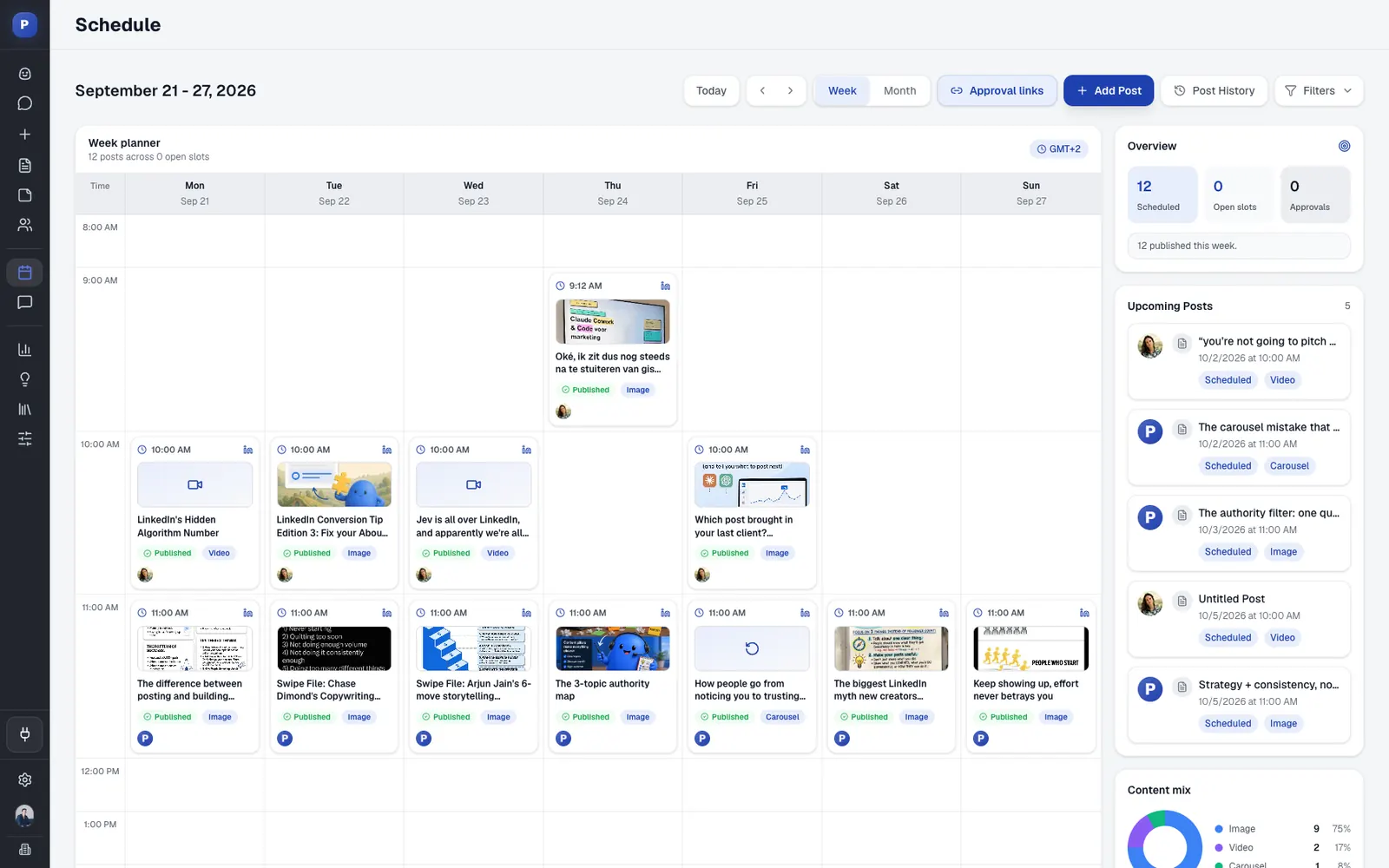
- Week and month views. Week view shows each day by the hour with your posting slots, and month view shows the whole month at a glance.
- Posting slots per profile are the days and times each profile posts. Empty slots appear as Add post, and Add to next slot drops a post into the first free one.
- Drag a queued, scheduled or waiting-for-approval post to a new day or time in week view.
- A weekly overview shows how many posts are scheduled, how many slots are still open, how many wait for approval and the mix of text, image and carousel posts.
- LinkedIn profiles and Company Pages take text, image, carousel (PDF document) and native video posts. On X you can schedule single posts, threads, images and X Articles.
- An automatic first comment, called Comment Plug, goes up two minutes or more after the post is live, with up to five comments per post.
Planning that fills the slots
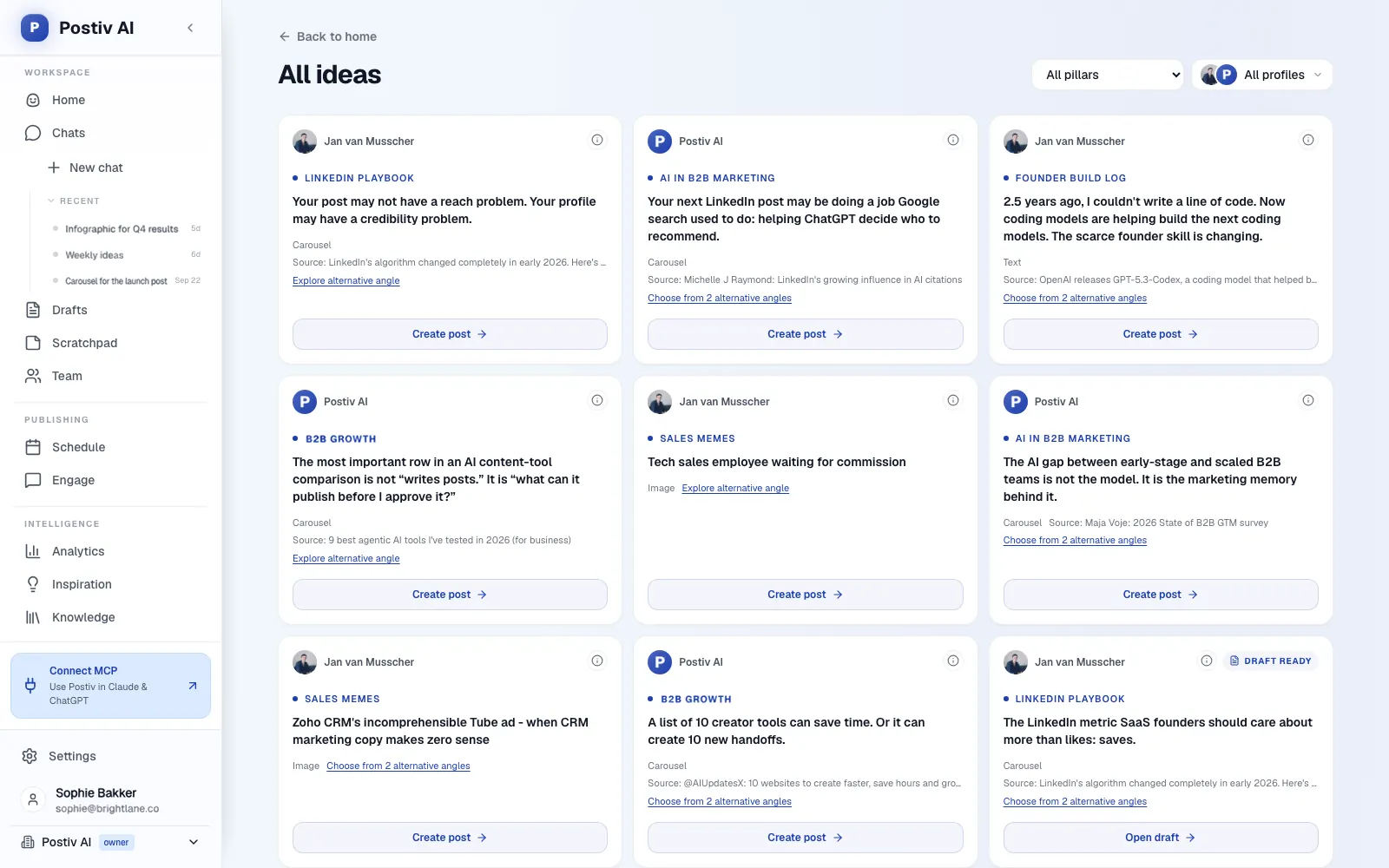
Bob, Postiv's planning and writing agent, builds each week's plan from your content pillars, sources and past results: one idea per posting slot, tied to a pillar (up to five active per profile). Plans follow the week, which starts on Monday, and every idea has a Create post button. The sources are your knowledge base (your website, documents, YouTube, Notion and newsletters) and an inspiration library of LinkedIn posts taking off in your niche. For a content calendar, that means the empty cells arrive with ideas already in them.
From idea to ready
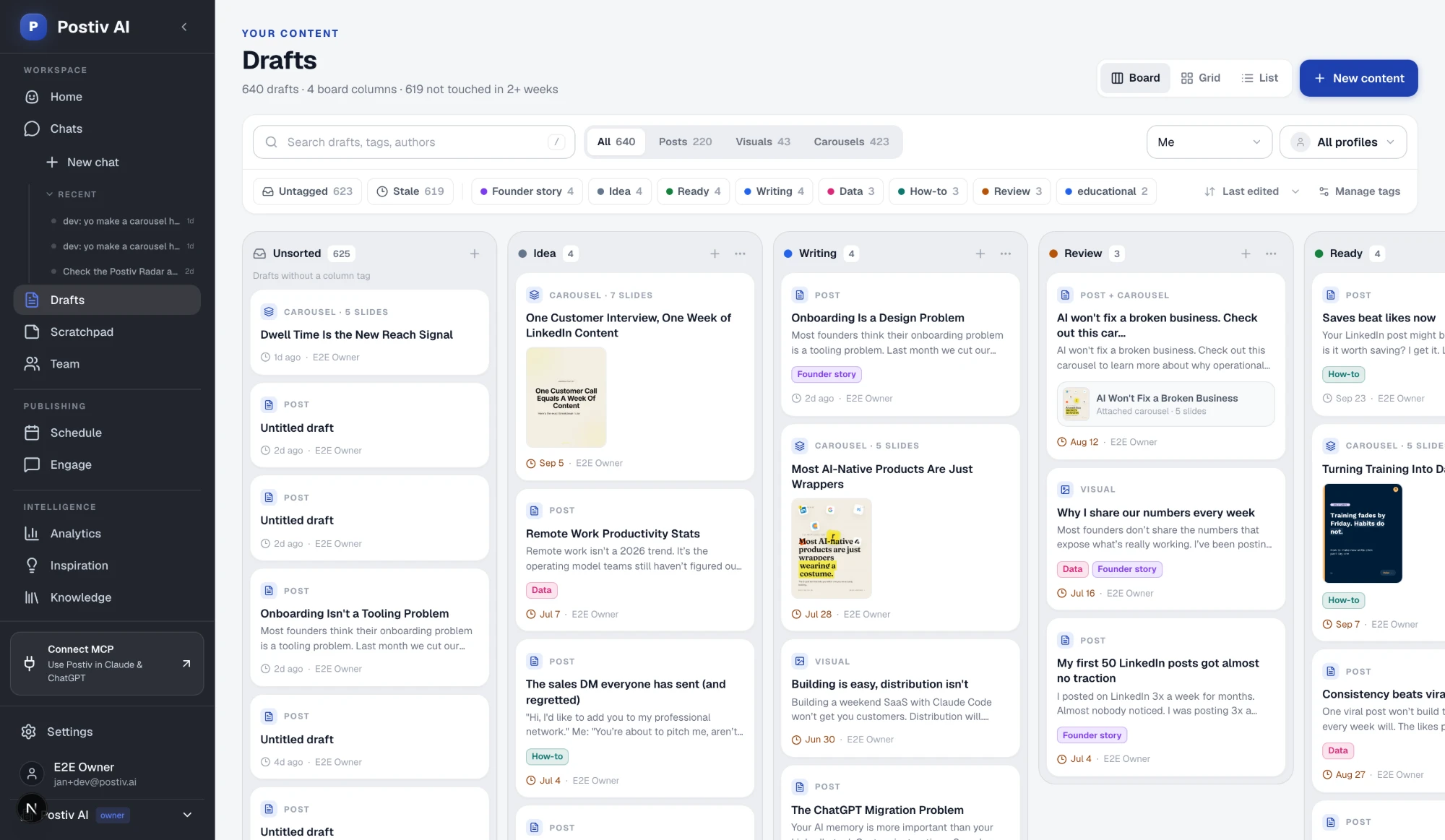
The Drafts board moves each post through Idea, Writing, Review and Ready, so you can see which stage everything is in before it reaches the calendar. Posts, carousels, images and infographics are built on your brand, with Bob drafting alongside you.
Approvals and teams
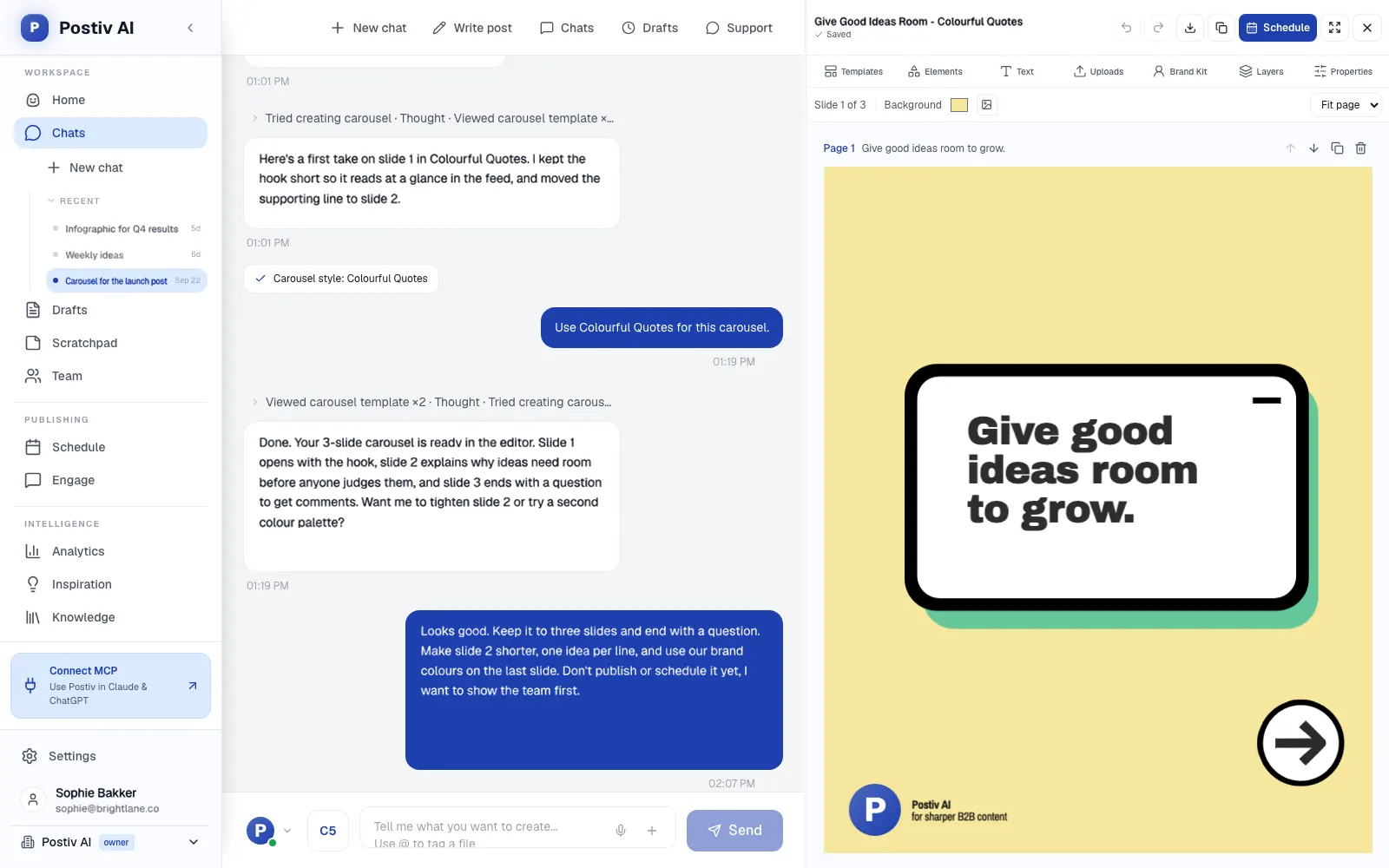
- Add approvers to a profile or page, and every scheduled post waits until each approver has approved it. Approvers can approve, request changes or deny.
- Edit a post after approval and it goes back for review. A post still waiting at its scheduled time does not publish.
- Approvers are set per profile, so the Company Page can need sign-off while a founder's own profile does not.
- Send a client a review link and they approve or comment without a Postiv account.
- Every profile and Company Page sits in one team workspace with member roles and a Team Hub. Agencies keep each client in its own workspace, so drafts, brand and approvals never mix.
The workspace also holds an Engage inbox with every comment on every profile, analytics for reach, engagement and followers per post, and a hosted MCP server at https://postiv.ai/mcp so Claude, ChatGPT and other AI apps can work in it under the same approval rules.
Good first workflow: Connect your LinkedIn profile and the Company Pages you admin, then set posting days and times for each profile. Ask Bob to plan next week, move the ideas you like through the Drafts board and drag the finished posts into open slots. Add an approver to the Company Page before you schedule anything. At the end of the week, check what each post did and let that steer the next plan.
Setup and plan notes: Postiv has a 7-day free trial. Calendar and scheduling are on every plan, and approvers per profile and the Team Hub are part of the Team plan. You connect LinkedIn through LinkedIn's own sign-in screen, and Company Pages appear as publishing targets where your LinkedIn account is an administrator.
Strengths:
- The calendar is where posts publish, so there is no copy step between the plan and the post.
- Planning, the Drafts board, approvals and analytics share one workspace.
- Approvers per profile, with review links for clients who have no account.
Limits:
- It is a paid product with a 7-day free trial.
- It is built for content, not outreach: no direct messages or connection requests.
- Analytics are scheduled imports, not live reads.
2. CoSchedule
Best for: teams that want social and wider marketing planning on one calendar.
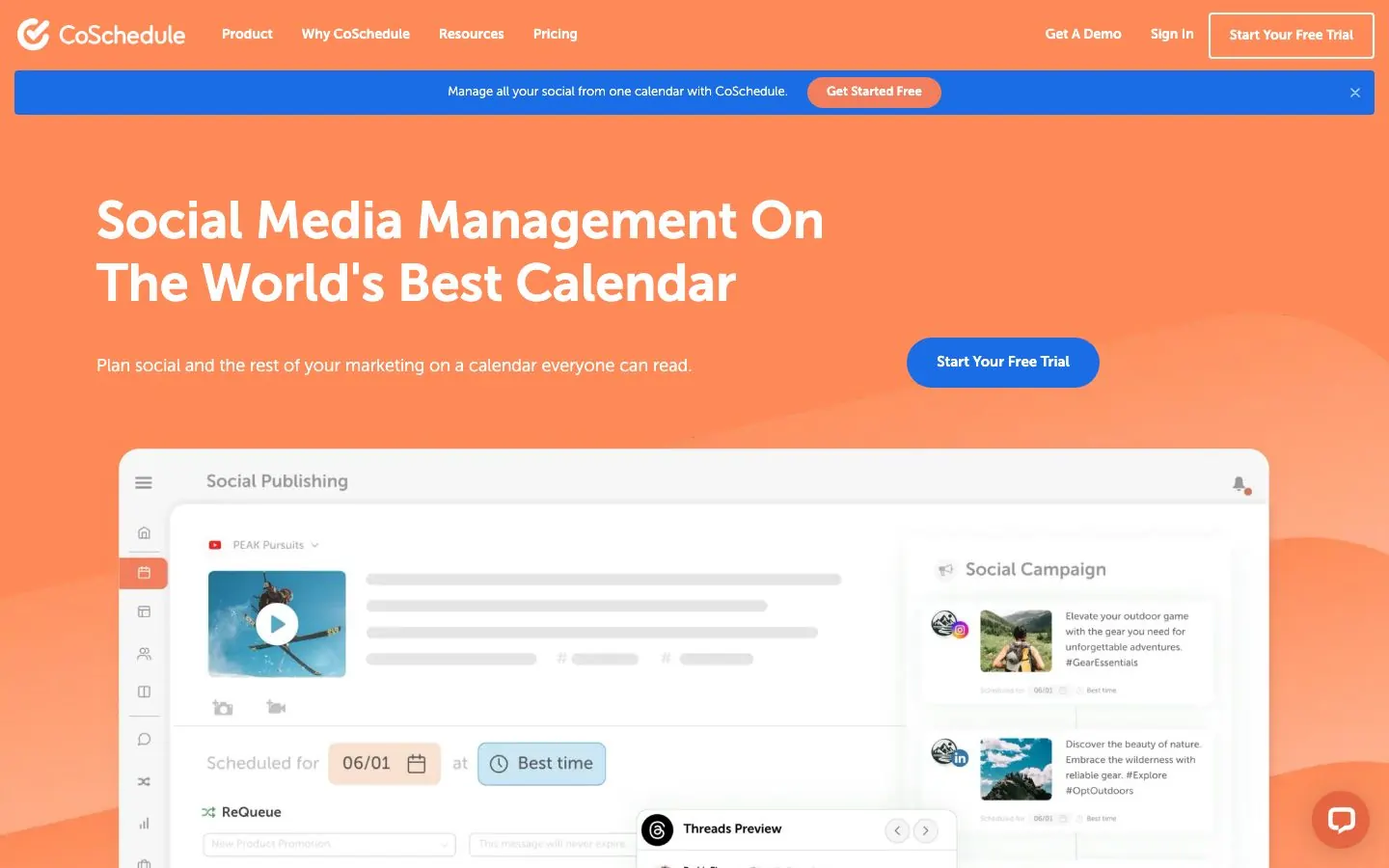
CoSchedule describes itself as social media management software built on a calendar, and it sits between the two kinds in this list. Its plan taglines show the range: Starter for the one-person marketing department, Professional for small marketing teams and agencies, and Suite for teams coordinating social and content across brands or departments. Every paid plan publishes to 11 networks, including LinkedIn profiles, Pages and Showcase Pages. Suite adds the project side of a marketing calendar.
What it does well for B2B teams:
- A drag-and-drop calendar with color labels, project tags and saved, filtered calendars on every plan, Starter included.
- ReQueue reshares the evergreen posts you pick to fill empty days. Best-time scheduling, reusable social templates, social campaigns and bulk scheduling (up to 365 messages in one import) come with all paid plans.
- Social Message Approvals hold a message until a teammate or client signs off, from Professional up. The client Approver role uses no seat and sees only the Approvals dashboard.
- First-comment scheduling covers Instagram, Facebook, LinkedIn and X.
- The AI Social Assistant and the AI Campaign Assistant, which drafts a whole campaign with images onto the calendar, are on every paid plan.
Good first workflow: Start on Professional if more than one person touches posts. Save one filtered calendar per brand, set up Social Message Approvals with the client as Approver, and let ReQueue keep evergreen posts running between campaigns. Move to Suite when blog and campaign work should share the calendar, in Kanban or Table view with your own statuses.
Setup and plan notes: The tiers are Starter, Professional and Suite. Starter and Professional each have a 14-day free trial with a card, and Suite starts with a demo. A free plan exists, limited to one social profile and up to 15 scheduled or draft messages at a time, though CoSchedule's support article and marketing page describe how to reach it differently, so confirm before you rely on it. Starter is one user, Professional includes two and allows up to three. Included social profiles are capped per plan, and X is a paid add-on. The Claude connector works on every plan, free included, but it is read-only: it answers questions about your calendar, tasks and social results and cannot create or move anything.
Strengths:
- One calendar can span social and wider marketing work on Suite.
- The client Approver role costs no seat.
- It publishes natively to 11 networks.
Limits:
- Agenda, Kanban and Table views, custom statuses and custom fields are Suite-only, and Suite starts with a sales demo.
- Approvals are not on Starter, and Professional caps at three users.
- LinkedIn document carousel posting is not confirmed on the pages we read, so check their docs.
3. Planable
Best for: agencies and multi-brand teams with many reviewers per brand.
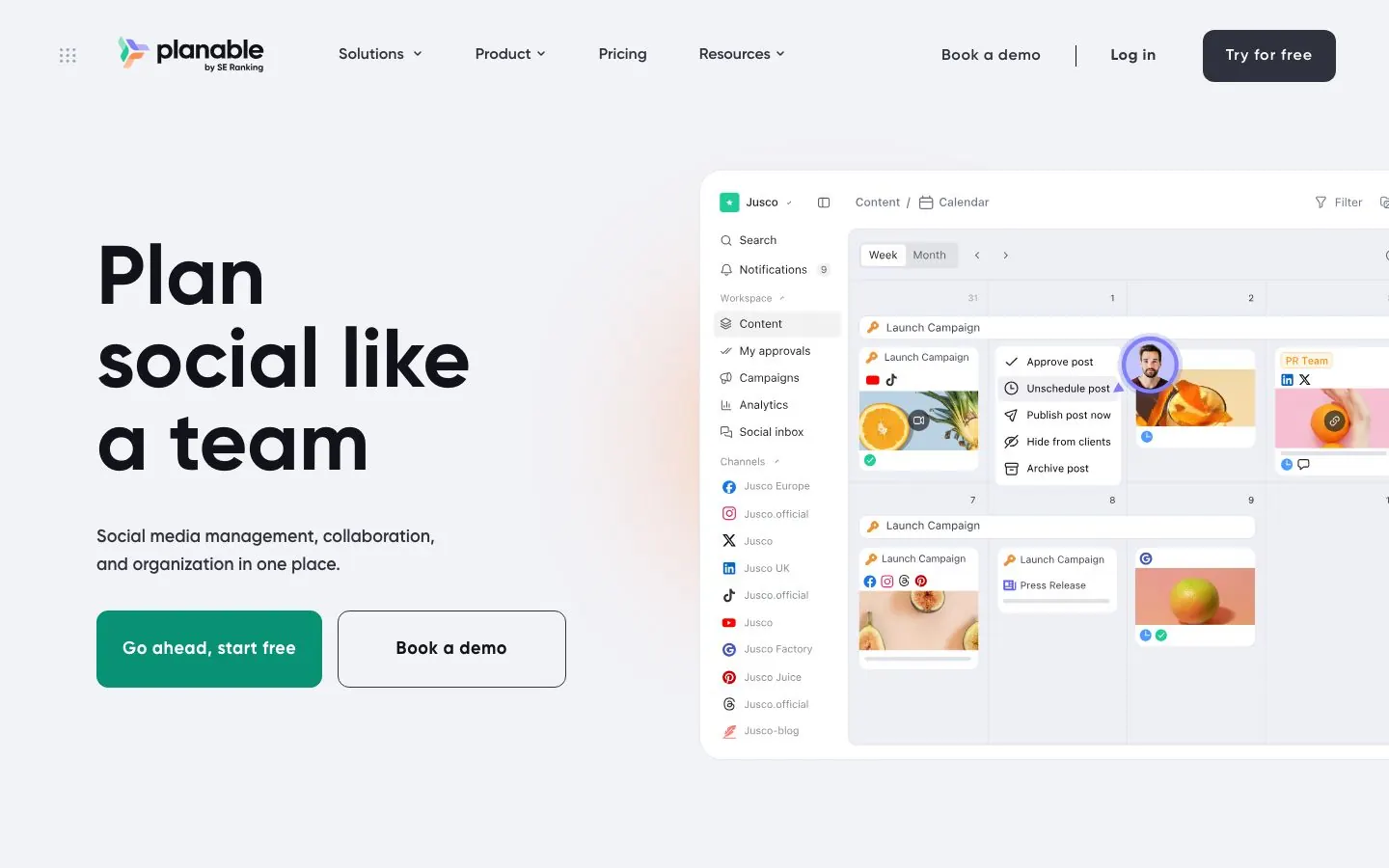
Planable is built around collaboration. A workspace holds one client, brand or location with its own pages, calendar, team, campaigns and approval flow, and pricing follows workspaces rather than seats: every plan has unlimited users. It publishes to nine networks, including LinkedIn company pages and personal profiles, and previews look like the real feed. If you are weighing it against close rivals, our Planable, Loomly and Kontentino comparison covers the agency angle.
What it does well for B2B teams:
- Four approval modes per workspace: None, Optional, Required (at least one approver must sign off before a post can schedule or publish) and Multi-level (sequential stages such as team lead, client and legal).
- Optional settings schedule a post automatically on approval, lock content after approval and send reminders. Pro adds team-only drafts, internal notes and bulk approval.
- A "My approvals" queue gives people who approve in several workspaces one place to look.
- On LinkedIn it handles company pages and personal profiles, PDF document posts, tagging company pages and first-comment scheduling.
- AI post rewrite and generation are on all plans, and an MCP connector works with Claude, ChatGPT and Gemini.
Good first workflow: Create a workspace per client, invite the client's reviewers as Approvers and switch approval to Required on Pro. Plan in Calendar view, keep early drafts team-only, and give anyone who approves across several clients the My approvals queue.
Setup and plan notes: The tiers are Basic, Pro and Enterprise. There is no permanent free plan: a free trial plan gives you the first 50 posts with no time limit and no card, 4 social pages per workspace, Feed and Calendar views, 3 campaigns and the MCP connector, but no X publishing. Social pages per workspace are 4 on Basic, 10 on Pro and 50 on Enterprise. Analytics, Social Inbox and Social Listening are paid add-ons per workspace. The MCP connector signs in with OAuth, reads posts and comments, creates and edits drafts, uploads media and approves or rejects where your role allows. It creates drafts only and does not publish. The Public API is on Pro and Enterprise.
Strengths:
- Unlimited users in every workspace.
- A clear approval ladder, from optional to multi-level.
- An MCP connector on every plan.
Limits:
- A client approver needs a free Planable account, because public share links are view-and-comment only.
- Each extra client or brand is another workspace, so cost grows with your client list.
- LinkedIn analytics need the paid Analytics add-on, and Planable builds LinkedIn PDF posts from uploaded images without an in-app slide designer.
4. Loomly
Best for: small agencies and brand teams that want ideas, scheduling and approvals in one calendar-first tool.
Loomly is calendar-first. Each brand, client, project or location gets its own calendar with its own permissions and social channels, and calendars are unlimited on every plan. Plans are flat and driven by the number of social accounts and users, not by seats or brands. It covers ten or more channels, including LinkedIn personal profiles and Company Pages and Google Business Profile, and a built-in AI Assistant helps with posts and captions.
What it does well for B2B teams:
- Approval workflows and roles are listed on the entry plan. Each calendar has three preset approval workflows, and a Custom Workflow with assignment triggers and state guards sits on higher tiers.
- Multi-tier approvals, batch approval of a month of content, private internal comments hidden from clients, post history and asset versions, and Slack and Microsoft Teams notifications.
- Five roles: Owner, Editor, Contributor, Viewer and Client.
- On LinkedIn it auto-publishes posts, PDF carousels and polls to personal profiles and Company Pages, with a first comment, post boosting and segmentation on Company Pages, and mentions and comments in a social inbox with saved replies and assignment.
- The AI Assistant detects your brand voice and learns from past performance.
Good first workflow: Open one calendar per client and give each client reviewer the Client role. Build the month's posts, batch-approve them in one pass and keep internal comments hidden from the client.
Setup and plan notes: The tiers are Starter, Beyond and Enterprise. There is no free plan, but you get a 7-day trial with no card. Starter covers 12 social accounts and 3 users, Beyond 60 accounts and unlimited users, and Enterprise 61 or more accounts. Every person in a calendar, clients included, counts as a user, though someone in several calendars counts once. Invited collaborators must create a free Loomly account, and content can be exported to PDF for people who do not want access. Scheduled reports are Beyond only, and Beyond adds custom branding for a client-facing dashboard. Loomly's pricing page is inconsistent about which plan includes custom roles and workflows, so confirm before you buy. We found no MCP server on Loomly's site, so check their docs for assistant access.
Strengths:
- Approval workflows from the entry plan.
- Unlimited calendars, with a calendar per client.
- LinkedIn PDF carousels, polls and first comments.
Limits:
- On Starter, a client reviewer takes one of three user seats and has to register.
- The PDF is uploaded, because Loomly shows no in-app slide designer for LinkedIn.
- Custom workflows and scheduled reports point toward the higher plan.
5. Buffer
Best for: solos and small teams that post to many channels and want a free plan.
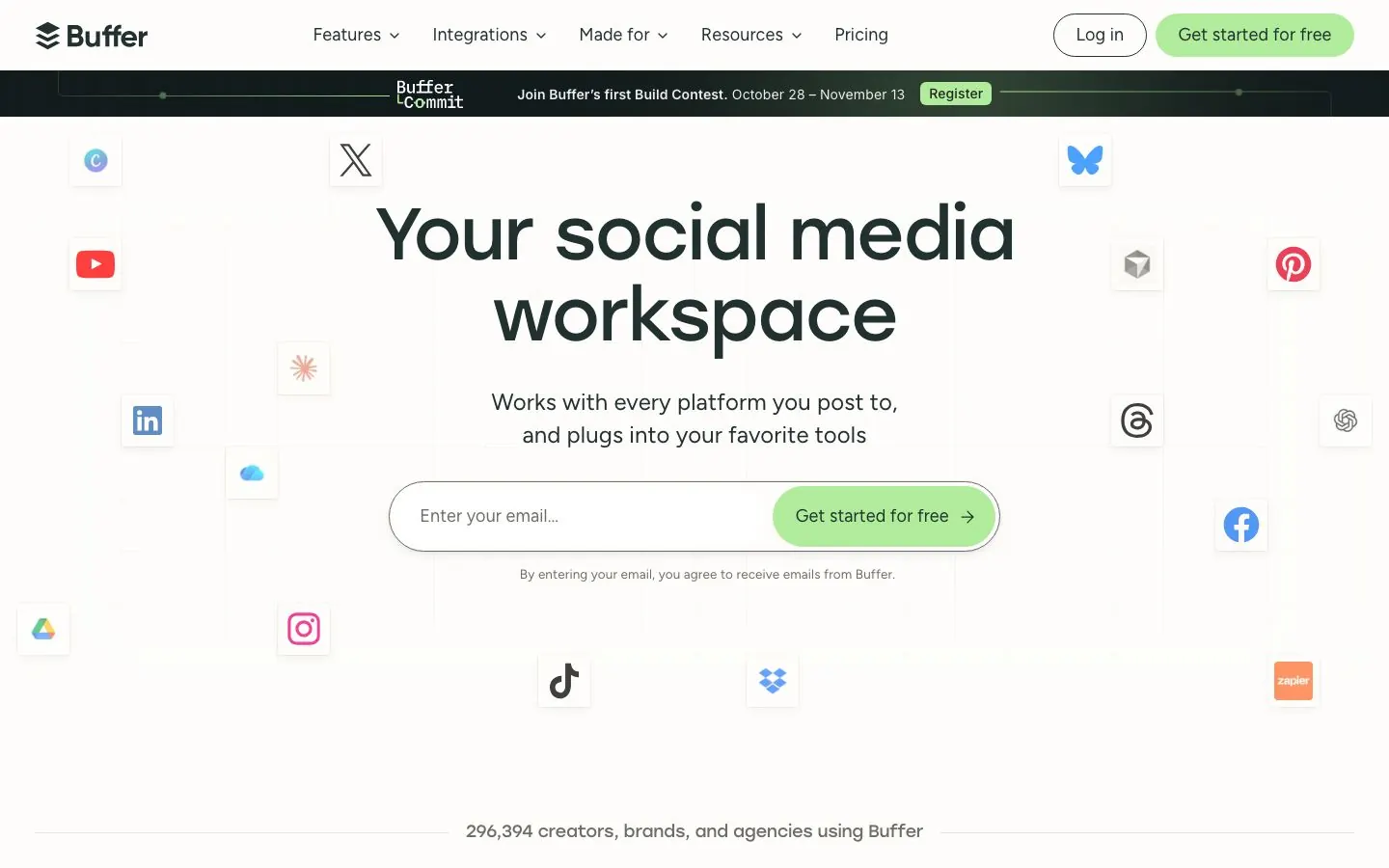
Buffer is a general multi-platform scheduler, and LinkedIn is one of its twelve channels: Bluesky, Facebook, Google Business Profile, Instagram, LinkedIn, Mastodon, Pinterest, Substack, Threads, TikTok, X and YouTube. The visual content calendar, queue and board view are on every plan, and pricing is per channel. For LinkedIn, pages get automatic publishing and advanced analytics, while profiles get automatic publishing and basic analytics. If it stops fitting, our Buffer alternatives roundup shows where to go next.
What it does well for B2B teams:
- A queue plus a visual calendar, so a team can see the slots as well as the order.
- An ideas inbox with tags, templates and a kanban-style board, with 100 ideas on the free plan and unlimited on paid.
- First-comment scheduling for Instagram or LinkedIn posts on Essentials and Team.
- A community inbox on every plan for replying to comments, with AI reply suggestions that learn your voice.
- An AI Assistant on every plan to refine and repurpose content, and integrations for managing the queue and drafting posts from Claude, ChatGPT and Codex, Cursor and Perplexity.
- Insights on every plan, with exports, custom analytics and a performance overview on paid plans.
Good first workflow: Connect up to three channels on the free plan and collect ideas in the inbox through the week. Use the queue to fill slots for each channel, and check Insights after a month before you decide whether paid features such as first comments are worth adding.
Setup and plan notes: The tiers are Free, Essentials and Team. Free covers 3 channels, 10 scheduled posts per channel, 100 ideas and one user. Paid plans have a 14-day free trial. Essentials is a single user, while approval workflows and custom access (which channels each member can use) are on Team, which has unlimited members. Buffer's FAQ says agencies pay per channel, not per brand, and we found no client-isolated workspaces.
Strengths:
- A permanent free plan.
- A mature queue and calendar.
- Assistant integrations for Claude and others on every plan.
Limits:
- Approvals start on Team.
- There is no native carousel designer, only Canva and Unsplash imports, and the AI assistant cannot ingest your own documents.
- LinkedIn profile analytics are basic, and there are no separate client workspaces.
6. Hootsuite
Best for: larger social teams that want planning, an inbox, listening and advocacy in one suite.
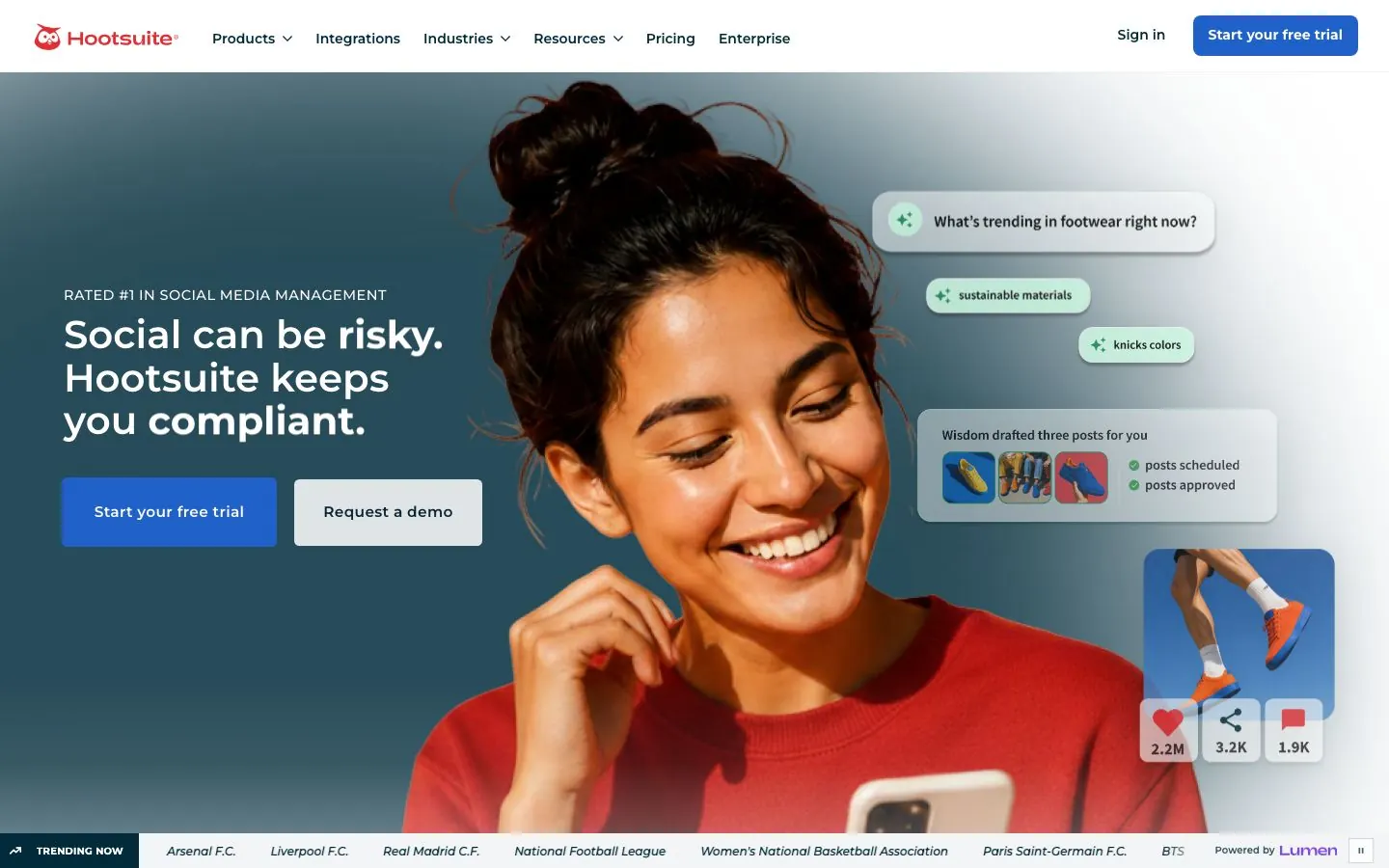
Hootsuite is a broad suite for mid-market and enterprise teams. Its plans page groups the product into Perch for content planning and publishing, Nest for messaging, Lumen for listening and Parliament for employee advocacy, which is tied to Enterprise. The AI is now branded Wisdom, an AI teammate. The content calendar has a list and a calendar view, with recommended times to post on all plans. If it feels like more suite than you need, our Hootsuite alternatives post lists lighter options.
What it does well for B2B teams:
- Unlimited scheduling on all paid plans, with LinkedIn profiles and pages supported, best-time recommendations and post boosting.
- Bulk scheduling of up to 350 posts through a CSV upload on Advanced and Enterprise.
- Content approval is listed first on Advanced.
- Official MCP servers for Perch, Nest, Lumen and Parliament, with pre-built connectors for ChatGPT and Claude. The Perch server drafts, schedules and publishes, including to LinkedIn pages, from chat.
- Departmental organization and permission management on all plans, with custom user access permissions and SSO on Enterprise.
- A shared inbox and listening for teams that handle conversations as well as posts.
Good first workflow: Use the 14-day trial to check the calendar, best-time suggestions and LinkedIn publishing for your own profiles and pages. Trial accounts have daily posting limits and no bulk scheduling, so decide early whether you need Advanced for approvals and bulk upload.
Setup and plan notes: The tiers are Standard, Professional, Advanced and Enterprise. There is no free plan, and the trial is 14 days with no card. Standard allows up to 10 social accounts, and the other tiers are unlimited. Pricing is per user. Whether the MCP servers need a particular plan is not confirmed, so check their docs.
Strengths:
- Planning, inbox, listening and advocacy modules in one place.
- Official MCP servers for ChatGPT and Claude.
- Unlimited accounts from Professional.
Limits:
- Approvals start on Advanced, the third of four tiers.
- There is no native LinkedIn carousel designer, since Canva and Adobe Express link out.
- No client-isolated workspaces, and no free plan.
7. Notion
Best for: teams that already plan in Notion and want the content calendar next to their briefs and docs.
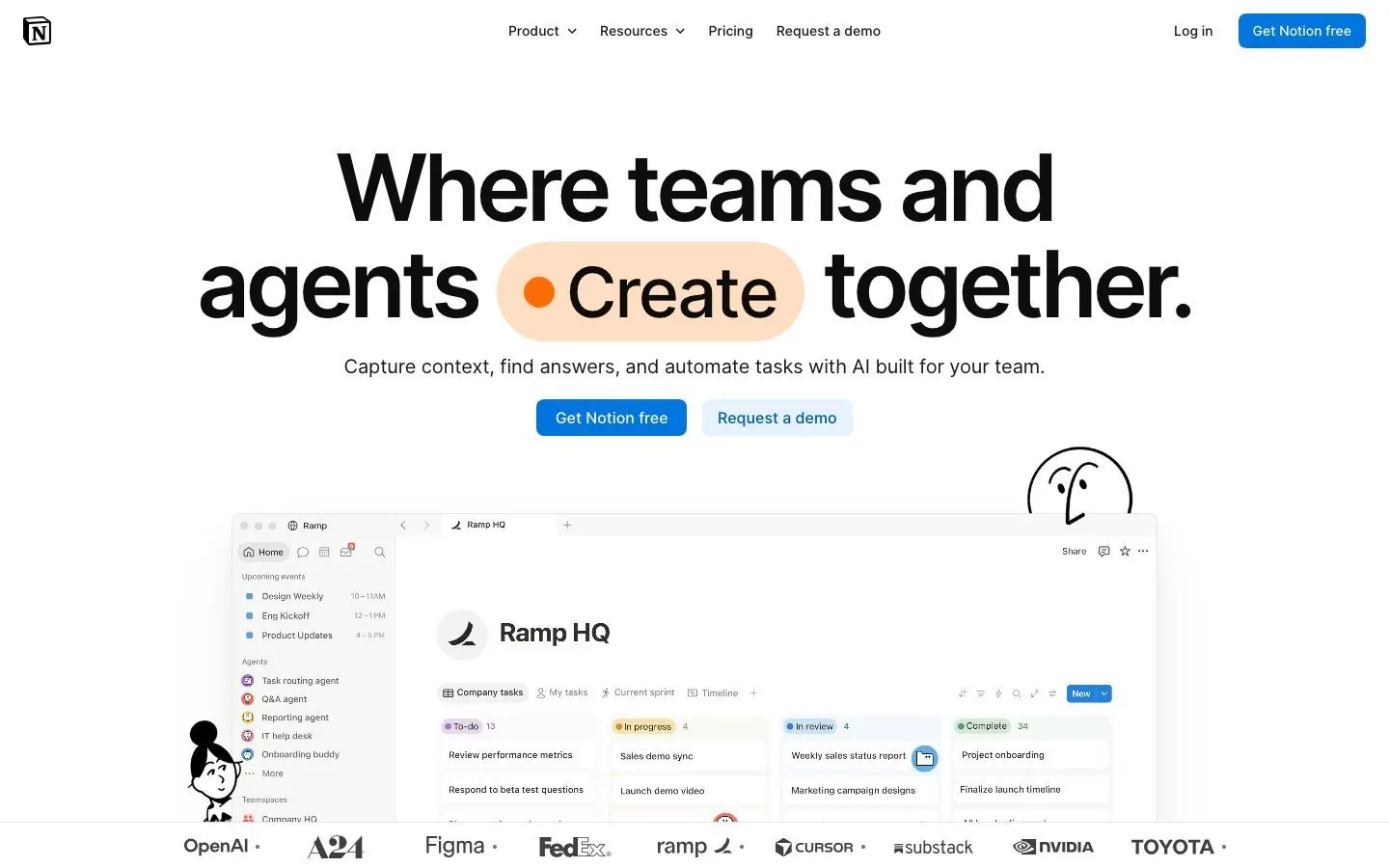
Notion is a general workspace, and a content calendar in it is a database with a calendar view. Notion's own marketing guide recommends one database that schedules and tracks the status of content, with a board grouped by a status property. You decide the columns, the statuses and the review rules.
What it does well as a content calendar:
- The calendar view shows database items by a Date property, and items drag to other days. It is monthly by default with a weekly option, and with several date properties you can choose which one drives it.
- A board grouped by status lets you drag content into a new column to update it, with Person, Date and Select properties for writer, deadline and type.
- Comments on any piece of content, and nested pages for briefs and assets.
- A Content Calendar template category with a Notion-made Basic Content Calendar. It held 1,115 templates when we checked, and most are community-made, so quality varies.
- A hosted MCP server that lets Claude, ChatGPT and Cursor read from and write to Notion pages. Notion's help center lists editorial calendar generation as a use case.
Good first workflow: Start from the Basic Content Calendar template and add Channel, Pillar, Owner and Approver properties. Group a board by status for the editorial view and keep the calendar view for dates. On a paid plan, a webhook action can send a post marked Approved to Make or Zapier, which is how Notion's own worked example publishes to LinkedIn.
Setup and plan notes: The tiers are Free, Plus, Business and Enterprise. The Free plan includes the calendar view, which has no plan restriction listed, but limits file uploads to 5 MB and page history to 7 days. Free allows 10 external guests, and paid plans show unlimited guests. Custom database automations and webhook actions need a paid plan. Notion AI is a limited trial on Free and Plus, and Notion Agent and Custom Agents are listed with Business. Notion's content calendar guide predates its 2022 database redesign, so some steps look different today.
Strengths:
- Free to start, with the briefs, the calendar and the comments in one workspace.
- A calendar and a board over the same data.
- A hosted MCP server for AI apps.
Limits:
- No native publishing, post previews or social analytics found on the pages we read.
- Approval is a manual Status value, not a built-in step.
- The calendar is month or week only, with no daily view.
8. Asana
Best for: teams that run campaigns as projects and want the calendar beside tasks, forms and approvals.
Asana is a work-management platform with a dedicated content calendar use-case page and free templates. Its calendar view is on every plan, including the free Personal plan. A content calendar in Asana is a project whose tasks are posts, each with an assignee, a due date, custom fields and comments, which suits a team where social posts are one strand of a larger campaign.
What it does well as a content calendar:
- Calendar view in month and week form, with drag-and-drop due dates, task colors by custom field and multi-filter. Only tasks with due dates in the project appear.
- A free Social media calendar template with custom fields for platform, creative assets and schedule, and status values such as writing, in design and published. An Editorial calendar template tracks content progress, platform, type and approval status.
- Approvals as a task type with three outcomes: Approved, Request changes or Reject. Anyone can complete an approval, not only the assignee, unless you use comment-only projects.
- From Starter, forms for content requests, custom fields, custom templates, unlimited automations and unlimited free guests.
- AI Teammates (30 or more prebuilt, including marketing), Asana Dash and AI Studio from Starter, with usage limits.
Good first workflow: Copy the social media calendar template into a project and give every post a due date, because the calendar only shows tasks that have one. Add a request form for the rest of the company and an approval task for the reviewer. Since Asana does not publish, pair it with a scheduler: the Hootsuite app publishes from Asana through Hootsuite Plan, and Sociana turns tasks into social posts. Outside developers build both, and Asana says it does not endorse them.
Setup and plan notes: The tiers are Personal, Starter, Advanced, Enterprise and Enterprise+. Personal is free forever for two users, with unlimited tasks and projects, list, board and calendar views and more than 100 free integrations. Approvals and proofing need Advanced or above, and approval tasks lose the feature if you downgrade below it. Timeline and Gantt views start on Starter, where AI use is limited to 5 requests per user per month, up to 50 per account. Asana says its AI connectors let teams work from Claude, ChatGPT and other assistants.
Strengths:
- The calendar view is on every plan, free included.
- Approvals have three clear outcomes.
- Unlimited free guests from Starter.
Limits:
- No native publishing or social previews found, so you need a third-party app.
- The calendar shows only tasks with due dates.
- Personal is capped at two users, and approvals start on Advanced.
9. Airtable
Best for: teams that want to shape their own content database, with several views and forms on the same data.
Airtable is a database and app builder, so the content calendar is a view of whichever fields you set up. That makes it the most customizable planning tool in this list and the one that asks the most of you at the start. Its social media calendar and content calendar templates give you a head start.
What it does well as a content calendar:
- The social media calendar template has day, week and month calendars, kanban and grid views, and a timeline that works like a Gantt chart.
- Status values (draft, in review, scheduled, published), assignee and reviewer fields, forms for content requests and dashboards come with it.
- Automations can send a notification when a post moves into review, which is how Airtable handles approvals: status plus reviewer, not a separate product.
- The content calendar template adds a pipeline interface with cards by status, owner and channel, embedded AI agents to draft briefs, copy and social posts, and Omni for natural-language reporting and customizing the base.
- A Claude connector can read data, update records (such as the status of a deliverable) and add or edit tables and fields.
Good first workflow: Start from the social media calendar template and trim it to the fields in the table later in this post. Give reviewers an interface that shows only posts in review, and send a notification when a status changes. Add a Zapier step if you want approved posts to go to LinkedIn.
Setup and plan notes: The tiers are Free, Team, Business and Enterprise Scale. Free includes unlimited bases, 1,000 records per base, up to 5 editors and 50 commenters, 100 automation runs, Interface Designer and 500 AI credits per editor per month. Team has unlimited editors and 50,000 records per base. The calendar view works on every plan, while advanced calendar features such as date ranges from an end date and extra date fields on one calendar need a paid plan. Guest access through Portals is a paid add-on.
Strengths:
- Calendar, kanban, timeline and forms over one set of records.
- Templates that already include statuses and reviewer fields.
- A Claude connector that can update records.
Limits:
- It is a build-it-yourself database, and templates need adapting.
- No native publishing or social previews found. Airtable's LinkedIn integration is listed as iPaaS only and points to Zapier.
- Free caps a base at 1,000 records.
10. ClickUp
Best for: teams that already run their work in ClickUp and want content in the same task system.
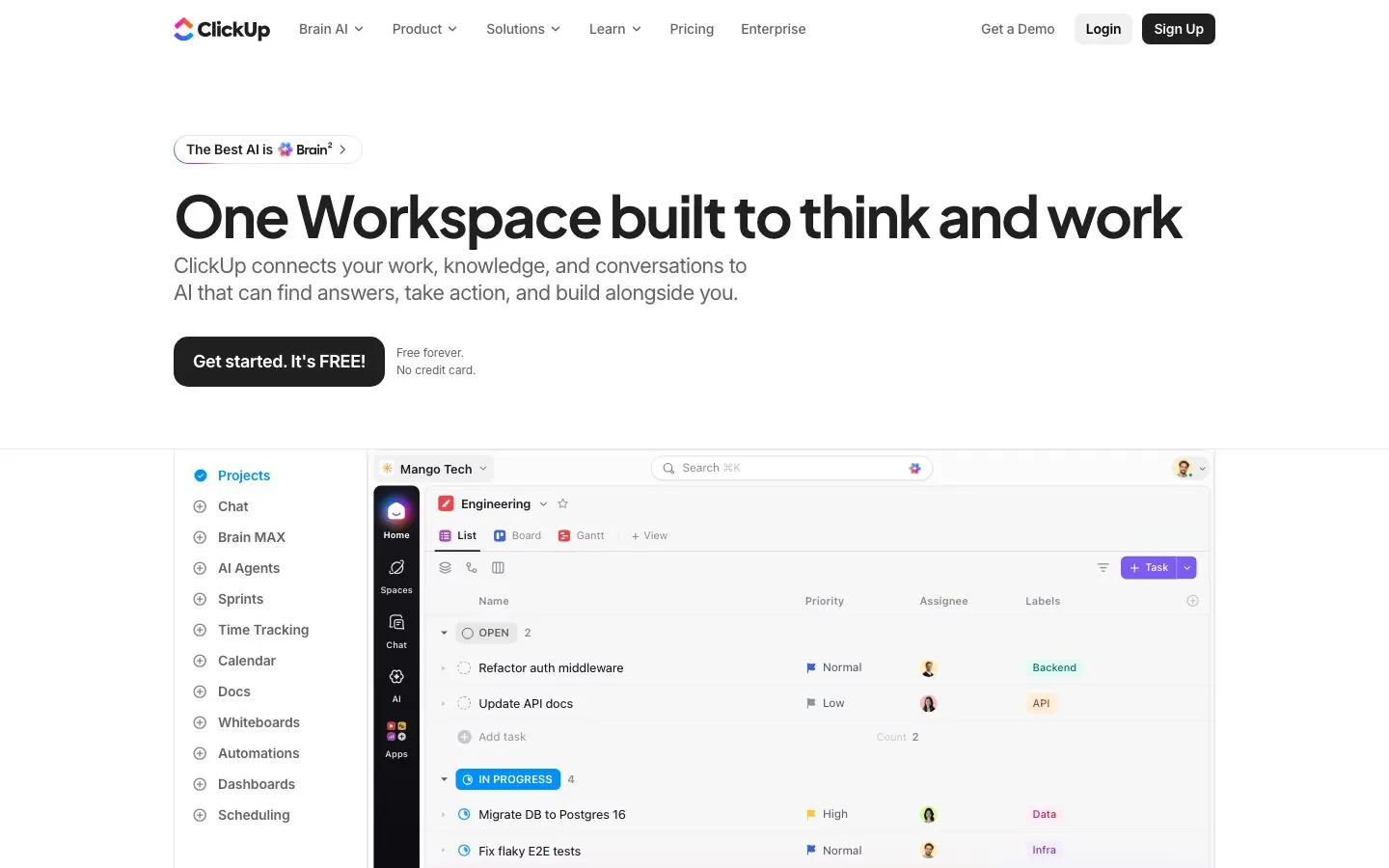
ClickUp is a general work-management platform, and its help center has a guide to using it for social media management. A content calendar in ClickUp is a calendar view over tasks, with statuses and custom fields doing the content-specific work. ClickUp's help center says workspaces are being upgraded to new plans and not all have moved yet, so we name only two tiers below, Free Forever and Business, and suggest you check the live pricing page.
What it does well as a content calendar:
- Calendar view is on every plan, Free Forever included, in day, four-day, week and month periods, and a task drags to a new date.
- Custom statuses are on all plans. The Modern Social Media Calendar template ships statuses (Design, Ideas, Internal Review, Published, Scheduled), custom fields (Theme, Publish Date, Channel, Final Output, Hashtags) and five views including a calendar.
- Proofing lets you comment and assign comments on images, video and PDFs, and annotating attachments is included on Business and above.
- ClickUp Brain can generate post ideas for all platforms and improve captions and scripts.
- An official MCP server on all plans works with Claude, ChatGPT, Cursor and VS Code to create and route tasks, track time and search tasks, Docs and comments.
Good first workflow: Import the social media calendar template and keep its statuses. Write the approval rules in a ClickUp Doc and link it from the list, since a dedicated approval workflow is not confirmed on the pages we read. Route finished posts to a publishing tool through Zapier or an outside app such as Postflow, which ClickUp's help center lists for marketing teams.
Setup and plan notes: Free Forever includes unlimited tasks and members, Calendar view, Kanban boards, Docs, 60 MB of storage and one form. Many paid features appear on Free only as a usage-limited trial. Guests on Free Forever must be given full access, while guest permissions, full dashboards, proofing, webhooks and email or SMS automations start on Business and above. Each plan carries an AI credit allowance, and Free gets 500 per workspace.
Strengths:
- Calendar view and custom statuses on every plan.
- Docs, chat and tasks in the same workspace as the calendar.
- An official MCP server on all plans.
Limits:
- No native publishing found, so posts route through Zapier or another app.
- A dedicated approval workflow is not confirmed on the pages we read.
- The calendar is a task-date view, so the content structure comes from statuses and fields you build.
How to set up a content calendar that people actually use
Any of the tools above will hold a calendar. What decides whether anyone opens it is the setup, and these are the steps we would follow.
1. Pick three to five pillars first. The calendar says when to post, and pillars say what. Without them the cells fill with one-offs and the mix drifts toward whatever happened this week. In Postiv each profile can have up to five active pillars, which keeps the list honest.
2. Choose a cadence you can keep. Two or three posts a week that actually go out beat a daily plan that stalls in week two. Set the days and times per profile, and treat them as slots to fill rather than ideas to invent. For a ready-made weekly rhythm to adapt, see our LinkedIn content calendar template.
3. Agree on a short list of statuses. Idea, Writing, Review, Ready, Scheduled and Published is plenty. Every extra status is another column to maintain, and people stop updating them. The point is that anyone can see what is stuck.
4. Give every row one owner, and an approver where it matters. The owner writes and moves the post forward, and the approver signs off. Decide which profiles need sign-off: the Company Page might, a founder's own profile might not. A post with three owners has none.
5. Write the approval rule down once. Say who reviews, how long they have and what happens if nobody answers. In a social calendar such as Postiv, a post still waiting for approval at its scheduled time does not publish. In a planning tool the rule lives in your team's habits, so put it at the top of the calendar.
6. Fill four weeks, then review monthly. Plan in one session, then once a month compare what went out with what you planned, look at the posts that did best and adjust the pillars. Bob in Postiv does part of this by planning each week from your pillars and past results. In a planning tool you do it by hand.
Content calendar fields worth tracking
You do not need many columns. These nine cover what a B2B team asks of a calendar every week, whether you build them as properties in Notion, custom fields in Asana or ClickUp, fields in an Airtable base or use a social calendar where most of them come built in.
| Field | What it holds | Why it earns its column |
|---|---|---|
| Date | Publish date and time, with the time zone | The one field every calendar view depends on |
| Channel | LinkedIn, X, blog, newsletter | Lets you filter one channel at a time |
| Profile | The person or Company Page that posts | LinkedIn posts go out as a specific profile or page |
| Pillar | The topic theme the post belongs to | Shows when one theme is crowding out the others |
| Format | Text, image, carousel, video, thread | Keeps the weekly mix varied |
| Status | Idea, Writing, Review, Ready, Scheduled, Published | Shows what is stuck without opening a post |
| Owner | The person writing it | Makes one person responsible |
| Approver | The person who signs off | Stops a post from going out unreviewed |
| Link | The draft, brief or published post URL | Saves the search when someone asks where it lives |
In Postiv the profile, pillar, status and approver are part of the workspace, so you set them up once. In Notion, Asana, Airtable and ClickUp they are properties or custom fields that you create and keep consistent yourself.
Calendar stacks by team
Nobody needs all ten. These are the stacks we would start with, and Postiv sits in each one for the social side.
| Team | Stack | What the mix covers |
|---|---|---|
| Solo founder or consultant | Postiv, plus Notion for notes | Your own posts and the ideas behind them |
| In-house B2B marketing team (up to about 200 people) | Postiv, plus Asana, ClickUp or Notion | Social posts and the wider campaign plan |
| Agency running several clients | Postiv, plus Airtable or Notion, and Planable or Loomly where a client needs other networks | LinkedIn client work and cross-client planning |
Solo founder or consultant. You are the whole team, so the calendar's job is to keep you posting. One tool that plans, drafts and publishes is enough: Postiv holds the slots, Bob's weekly plan and the Drafts board. Notion works well as the place where interview notes and half-formed ideas live before they become a post. If you are not ready to pay for anything yet, start from a free calendar template and move to software when the spreadsheet becomes a chore.
In-house B2B marketing team, up to about 200 people. The social calendar and the campaign plan rarely live in the same place, and that is fine. Postiv carries the LinkedIn side, with posting slots per profile, approvers on the Company Page and a Team Hub for the people who post. Asana, ClickUp or Notion carries the launch plan, the webinar and the blog schedule, with owners and due dates. Link the two by putting the post's date and a link to the Postiv draft in the planning tool.
Agency running several clients. Each client needs a clear boundary. In Postiv every client has its own workspace, with its own pillars, drafts and approvers, and clients review through a link without an account. Airtable or Notion can hold the cross-client plan, so you can see who owes what this week. Where a client also needs other networks, Planable or Loomly can run alongside, since both give each client a calendar and an approval flow.
More quick answers
What is the best content calendar software?
It depends on whether the calendar has to publish. For a B2B team that posts mainly on LinkedIn, Postiv is our pick: one calendar for profiles, Company Pages and X accounts, with approvals and a Drafts board. CoSchedule, Planable, Loomly, Buffer and Hootsuite also publish. Notion, Asana, Airtable and ClickUp hold the plan but publish through other apps.
Why do I need content calendar software?
A spreadsheet shows dates, but it does not publish, hold a post for approval or remind anyone. Content calendar software keeps owners, statuses and channels in one view, so gaps show up before the week starts. Teams use it to plan a month in one session, keep a steady rhythm and stop two people posting the same thing.
How should I choose a content calendar creation tool?
Start with the job. If posts must go out from the tool, pick a social calendar and check how it handles your channels and approvals. If the calendar tracks articles, newsletters and campaigns, a planning tool such as Notion or Asana may fit. Then count seats, reviewers and client workspaces, and test with one real week of content.
Can I schedule posts across channels?
Yes, with a social calendar. CoSchedule publishes to 11 networks, Planable to nine, Buffer reaches 12 channels, and Postiv covers LinkedIn profiles, Company Pages and X accounts. Planning tools such as Notion, Asana, Airtable and ClickUp do not publish on their own, so posts go through Zapier, Make or another publishing app.
Can I try content calendar creation with Asana for free?
Yes. Asana's Personal plan is free forever for up to two users and includes the calendar view, list and board views and more than 100 integrations. Asana also offers a free social media calendar template. Approvals and proofing start on the Advanced plan, and Asana does not publish posts itself.
How do I automate review processes?
Use a tool with approval steps and set them per profile or workspace. Postiv holds a scheduled post until each approver signs off. Planable offers optional, required and multi-level modes by plan. Asana approvals need the Advanced plan, while Notion treats approval as a status value and Airtable uses status and reviewer fields with automations.
Is there free content calendar software?
Yes, several tools have free plans. Buffer's free plan covers three channels, and CoSchedule has a limited free plan with one social profile. Notion, Asana, Airtable and ClickUp all include a calendar view on a free plan. Planable gives you your first 50 posts free, and Postiv has a 7-day free trial.
Can I use Notion or Airtable as a content calendar?
Yes, as a planning surface. Notion's calendar view needs a Date property and shows month or week. Airtable's calendar view works on every plan, and its templates add status, assignee and reviewer fields. Neither publishes to LinkedIn natively: Notion's own guide routes posts through Make or Zapier, and Airtable points to Zapier.
Plan the week in one calendar
If you want a calendar that plans next week with you, holds every post for approval and publishes at the slot you set, start a 7-day free trial of Postiv and connect your LinkedIn profile.