How to Connect Claude to LinkedIn with MCP (2026)
Claude can write a LinkedIn post, but writing is only one part of the workflow. Researching ideas, checking analytics, creating visuals, scheduling drafts, and moving posts between tools still takes time.
The solution is to connect Claude to a LinkedIn content platform through MCP. With Postiv's LinkedIn MCP for Claude, Claude can use the research, creation, scheduling, and analytics workflows available in your Postiv workspace.
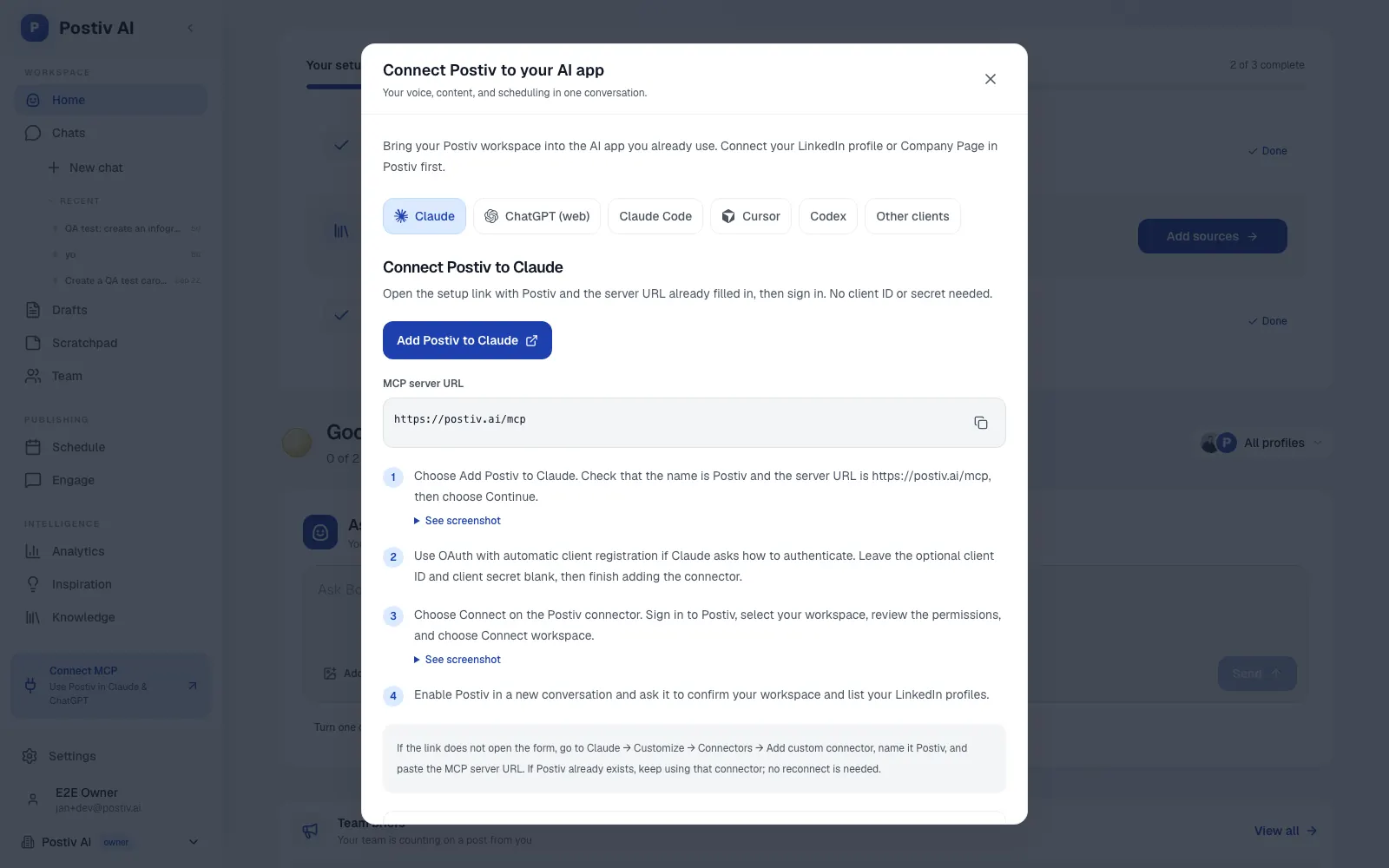
Ready to connect? Use the Postiv connection guide. It includes the Claude setup link, current instructions for ChatGPT and other AI apps, and troubleshooting in one place.
Setup guide updated September 28, 2026: The video and transcript below show the earlier API-key setup. Use the current connection guide for a new connection.
Can Claude connect directly to LinkedIn?
No, Claude does not have a native connector for managing LinkedIn content. It needs a controlled bridge that exposes specific LinkedIn-related capabilities.
Postiv provides that bridge. Your LinkedIn account connects to Postiv through its supported authentication flow. Claude then connects to Postiv through MCP. Claude never needs your LinkedIn password.
This distinction matters because “connect Claude to LinkedIn” can describe very different jobs:
- researching high-performing public content;
- reading your available analytics;
- writing posts from your company knowledge;
- creating LinkedIn images and carousels;
- scheduling approved content;
- scraping profiles or automating outreach.
Postiv focuses on the content workflow: research, grounded writing, visual creation, scheduling, and performance analysis. It is not a tool for mass DMs or connection requests.
What is a LinkedIn MCP server?
A LinkedIn MCP server gives an AI assistant a defined set of LinkedIn-related capabilities. MCP stands for Model Context Protocol, a standard for connecting AI assistants to external software and data.
An MCP server tells Claude which operations are available, which inputs each operation needs, and what result it returns. Instead of controlling linkedin.com through a browser, Claude works with the specific functions exposed by the connected service.
Postiv's hosted MCP documentation covers the current configuration for Claude, Claude Code, ChatGPT, and other MCP clients.
What can Claude do with the Postiv LinkedIn MCP?
The connection turns Claude from a standalone writer into an interface for your LinkedIn content workflow. Here are the most useful applications.
Research high-performing LinkedIn content
Ask Claude to search the inspiration data available through Postiv and identify patterns in content that is already performing.
Find the top-performing lead-magnet posts from the last 90 days. Group them by hook, format, and call to action. Use them as inspiration, but do not copy the wording.
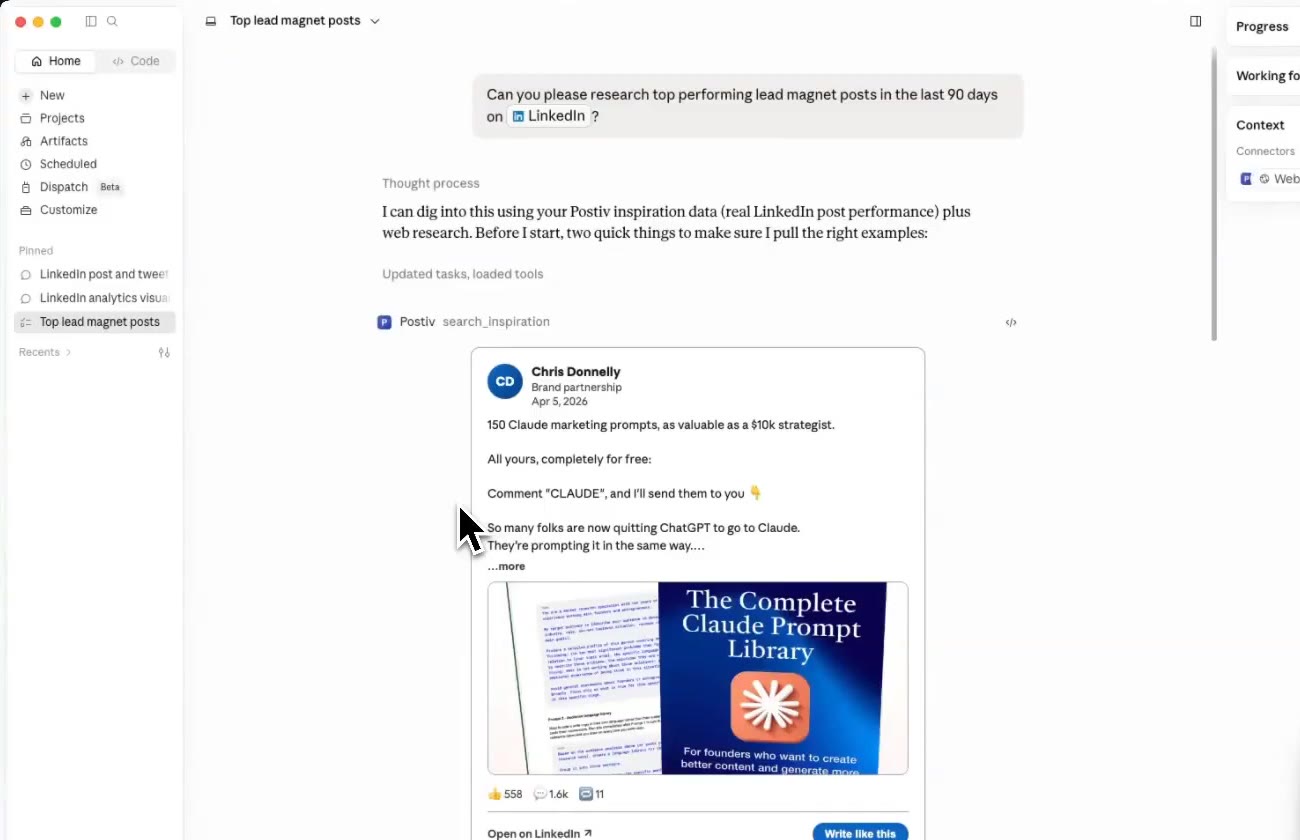
This gives Claude concrete source material instead of asking it to guess what is working on LinkedIn.
For e-commerce research beyond LinkedIn posts, AdBase lets you explore competitors' Meta ads, emails, and landing pages through Claude or Codex. Use those sources to compare messages and offers before developing your own content ideas.
Disclosure: AdBase is built by Postiv co-founder Jan van Musscher.
Analyze LinkedIn performance in plain English
Claude can read the analytics available through your Postiv workspace and turn them into a useful explanation, table, or chart.
Show yesterday's impressions, engagement, reactions, comments, and follower change. Compare the results with the previous period and explain the biggest change.
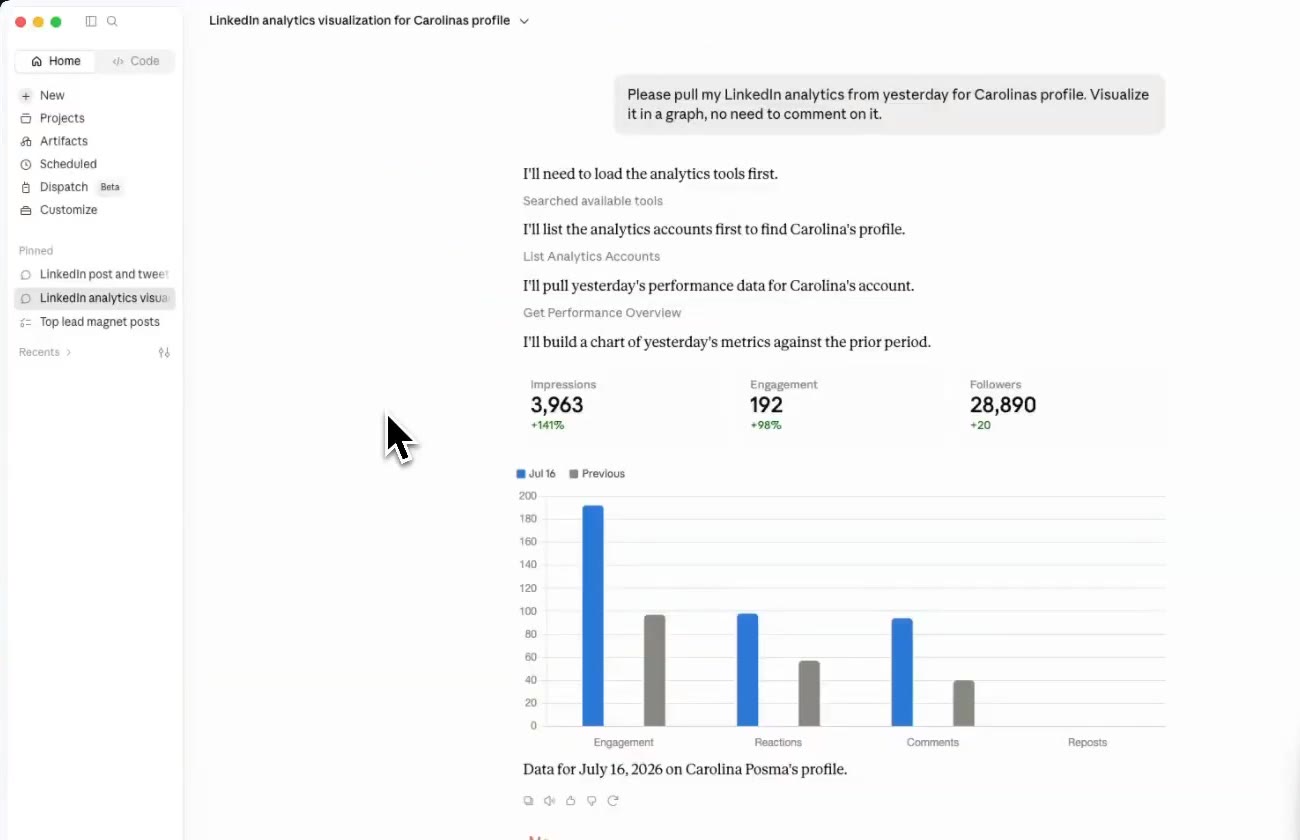
Useful follow-up questions include:
- Which topics generated the most comments?
- Which formats produced the strongest engagement rate?
- What did my five best posts have in common?
- Which successful post should I repurpose next?
- What three experiments should I run this week?
Create and edit LinkedIn posts
Claude can create a draft through Postiv instead of returning a disconnected block of text. It can confirm the target LinkedIn profile, use your workspace knowledge, create the post, and return the result inside the conversation.
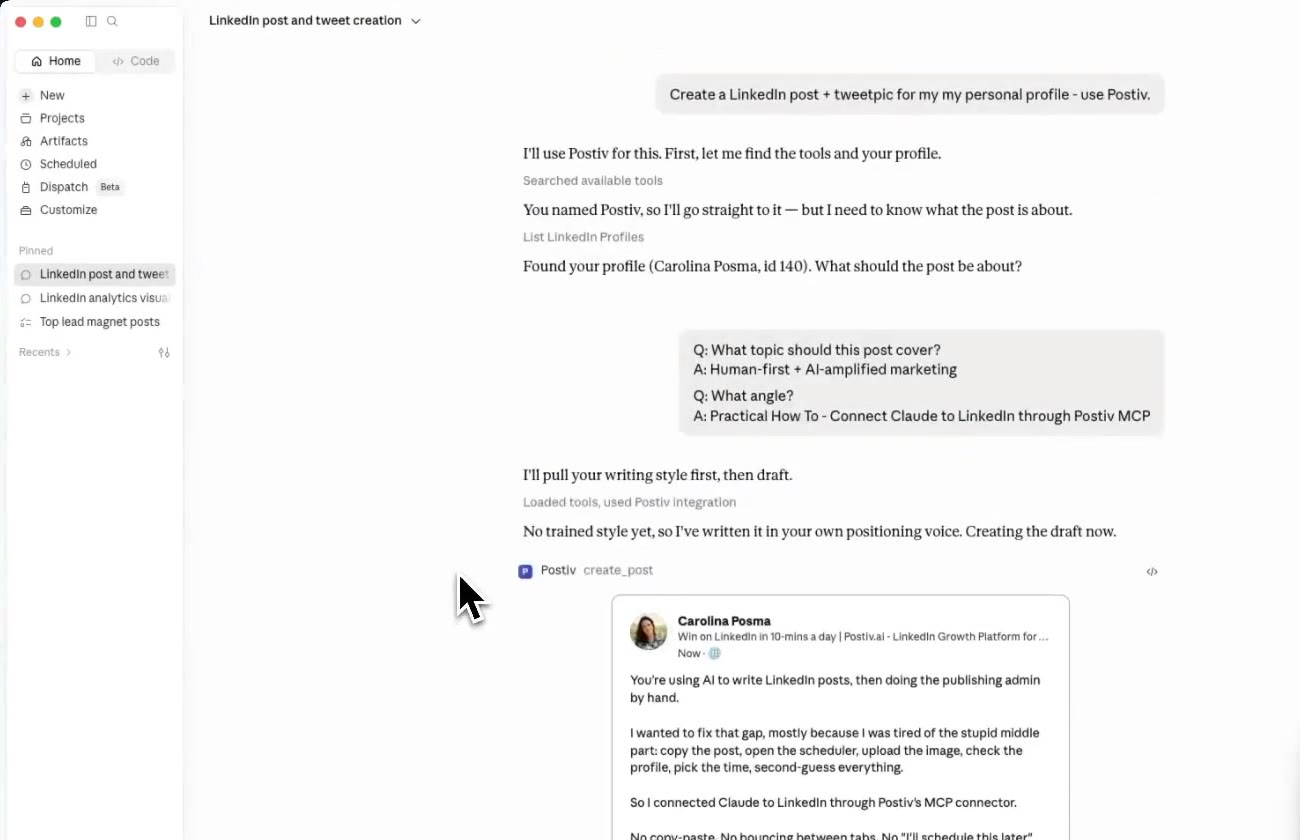
You can keep editing with normal requests:
- Make the hook more specific.
- Cut 20 percent without removing the example.
- Add evidence from our knowledge base.
- Turn this into a contrarian post.
- Save this version as a draft.
- Create a five-slide carousel outline from the approved post.
Create images, infographics, and carousels
Postiv's MCP is not limited to text. Claude can use Postiv workflows to create images, infographics, and LinkedIn carousels.
Review the idea, copy, and outline before rendering. Fixing a five-line outline is faster than rebuilding a finished visual.
Schedule, reschedule, and unschedule posts
Once a post is approved, ask Claude to schedule it for a connected LinkedIn profile or Company Page.
Move Monday's scheduled post to Tuesday at the same time.
Show my unscheduled drafts and recommend a balanced order for next week.
Unschedule the Friday post, but keep it as a draft.
The scheduling workflow follows the settings of the selected profile, including approval requirements when they are enabled.
Ready to try it? Follow how to schedule LinkedIn posts with Claude for a worked example: create a draft, review its preview, choose a publishing time, and confirm it in Postiv's calendar. The tutorial includes a timestamped video walkthrough.
What you need before starting
Before starting, you need:
- a Postiv workspace (MCP access is included on every plan on our pricing page);
- a LinkedIn profile or Company Page connected to Postiv;
- access to custom connectors in your Claude client;
- permission to manage the LinkedIn target you intend to use.
Claude's menus and connector availability can change by account, plan, client, and organization policy. If the connector option is missing, confirm availability for your Claude account before troubleshooting Postiv. Postiv also works next to other connectors in the same conversation; our list of Claude connectors worth adding for marketing covers CRM, design and SEO tools.
Connect Claude to your Postiv workspace
Connect your LinkedIn profile or Company Page in Postiv first, then follow the shared connection guide. The guide walks you through adding Postiv, signing in, choosing your workspace and permissions, and checking that your assistant can see the right profiles.
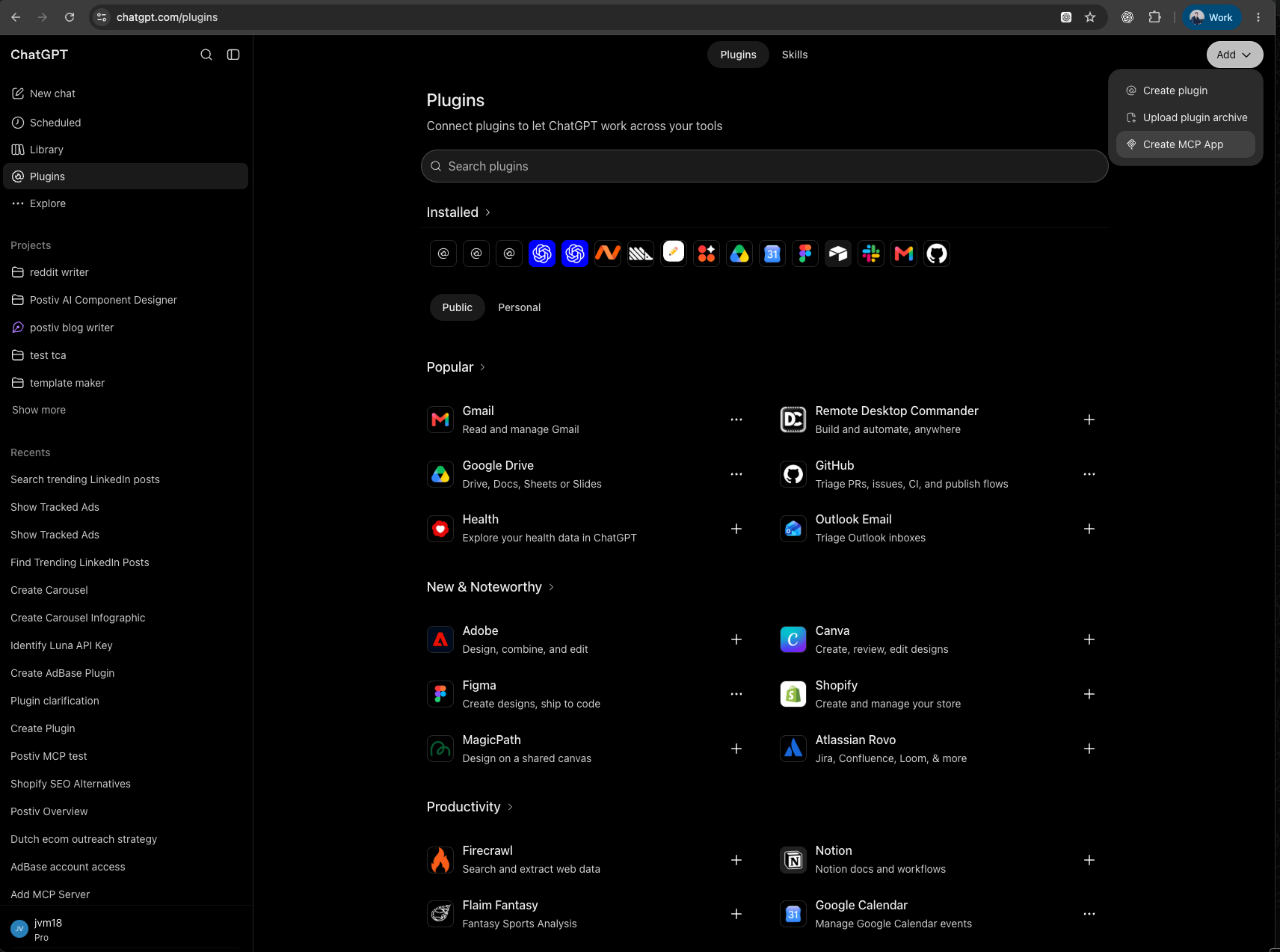
Using another AI app? Choose ChatGPT, Claude Code, Cursor, or Codex in the same guide. You can also open it inside Postiv from Connect MCP in the sidebar or Settings → Integrations. For full walkthroughs, see how to connect ChatGPT to LinkedIn and how to use Claude Code with LinkedIn from your terminal.
Once connected, try the prompts below with the workspace and LinkedIn profile you want to use.
10 useful Claude prompts for LinkedIn
Specific prompts produce safer and more useful results. Include the target profile, source material, desired format, and whether Claude may save or schedule anything.
Research prompts
Find strong educational posts in my inspiration data from the last 90 days. Group them by hook type and content format. Explain the patterns without copying the original wording.
Analyze my five highest-performing posts. Identify the recurring topics, structures, opening lines, and calls to action.
Writing prompts
Draft a LinkedIn post about [topic] using my Postiv knowledge. Ask me two clarifying questions before creating the draft. Save nothing until I approve the angle.
Give me three hook options for this draft. Keep the body unchanged until I choose one.
Repurposing prompt
Take my best-performing post from the last 90 days and propose three genuinely different follow-up angles. Do not reuse sentences from the original.
Visual prompts
Turn the approved post into a five-slide carousel outline. Show the slide copy and structure, then wait for approval before rendering it.
Create an infographic concept that explains these three points. Show the copy and layout plan before generating the image.
Scheduling prompts
List my approved, unscheduled drafts and recommend a posting order for next week. Do not schedule anything yet.
Schedule the approved post for [date and time] on [exact profile]. Repeat the final text, time zone, and target before scheduling.
Analytics prompt
Compare this month's LinkedIn performance with last month. Explain the three biggest changes and recommend three content experiments based on the data.
Postiv MCP vs a scraper vs an analytics connector
Not every product described as a “LinkedIn MCP” solves the same problem. Compare the connector's actual capabilities with the job you need it to perform.
| Need | Postiv MCP | Browser-scraping MCP | Analytics connector |
|---|---|---|---|
| Research content inspiration | Yes | Varies | Usually no |
| Create grounded posts | Yes | Varies | Usually no |
| Generate images and carousels | Yes | Usually no | No |
| Schedule and reschedule posts | Yes | Varies | Usually no |
| Work with approval settings | Yes | Varies | No |
| Analyze performance | Yes | Varies | Yes |
| Automate DMs or connection requests | Not its purpose | Often a core use case | No |
Choose a scraper when you specifically need public web data and understand its operating model. Choose an analytics connector when reporting is the only requirement. Choose Postiv's LinkedIn MCP when the goal is a connected content workflow from research through publishing and analysis.
For a server-by-server breakdown, including open-source scrapers, data APIs and scheduler MCPs, read our comparison of LinkedIn MCP servers.
Security checklist for Claude and LinkedIn MCP
The connector can create or schedule content when the relevant scopes are enabled, so set it up with the same care you would use for any publishing integration.
- Check the signed-in Postiv account and requested workspace on the consent screen.
- Choose Read only when research and reporting are all you need.
- Revoke unused authorizations from connected apps.
- Start with read-only tests.
- Confirm the Postiv workspace and LinkedIn target before write requests.
- Grant only the scopes you need.
- Review final copy, visuals, profile, date, time, and time zone before scheduling.
- If you use the optional API-key method, keep the key and any URL containing it private; regenerate an exposed key.
Troubleshooting Claude's LinkedIn connector
See connection troubleshooting for missing tools, workspace permissions, and sign-in problems. You can manage connected apps in Postiv.
If Claude chooses the wrong LinkedIn profile, ask it to list available profiles and name the exact personal profile or Company Page in your request. Posts that need approval still follow the profile's approval workflow.
Video transcript: How to connect Claude to LinkedIn MCP
Historical API-key walkthrough: The video predates OAuth account sign-in. Use the current connection guide for a new connection. The transcript below is lightly edited from the video's automatic captions for clarity. Product names, punctuation, and obvious caption errors have been corrected while preserving the walkthrough.
0:00 What Claude can do with your LinkedIn
Hi there. In this video, I will show you how you can easily connect Claude to LinkedIn to give Claude access to your analytics, help you schedule posts, get inspiration, and much more.
Let me give you some examples first of what you can do inside Claude with LinkedIn. You can ask Claude to research the top-performing lead-magnet posts from the last 90 days. Claude will come back with the best-performing posts, and you can use them as inspiration.
You can also ask Claude about your LinkedIn analytics. You can ask Claude to create a LinkedIn post and schedule it, perhaps creating visuals or even a carousel to go with it. You can ask Claude to reschedule a post. For example: “I have this post scheduled on Monday. Can you reschedule it for Tuesday?”
All of this is possible once you connect LinkedIn to Claude. So how do you actually connect LinkedIn to Claude? Let me show you.
0:52 Why you need the Postiv bridge
There is no direct way to connect LinkedIn to Claude because LinkedIn does not have a Claude connector. However, tools such as Postiv AI let you connect Claude to LinkedIn content workflows.
Postiv AI is an all-in-one LinkedIn growth platform for building your personal brand. It helps with content strategy and inspiration. It also helps with content creation, from posts in your voice using your company knowledge to carousels in your style, images, scheduling, and analytics about what is and is not working.
You can use Postiv inside its platform, where you can see your drafts and schedule. If you want to use Postiv inside your existing Claude workflow, that is also possible. You connect the Postiv MCP to Claude.
1:57 Find your Postiv MCP URL and API key
You can find the setup on the Postiv documentation pages. You need the MCP URL and your Postiv API key, which you can find under Settings > Integrations.
Copy your API key there. I will not show mine because I do not want anyone to be able to post to my LinkedIn profile. Copy the URL and add your API key as shown in the documentation.
2:32 Add Postiv as a custom connector in Claude
Head to Claude and click Customize. Then click Connectors, followed by Add custom connector.
Give the connector a name, such as “Postiv AI,” and paste the MCP URL into the URL field. Make sure you add your API key as shown in the documentation, then click Add.
Once you have clicked Add, you will see Postiv in your connectors.
3:01 Research, create, schedule, and design from Claude
The Postiv MCP lets you research your analytics, research posts, create posts, and edit posts inside Claude. You can save a post, open it inside Postiv, or schedule it directly.
You can also use tools such as the carousel creator, image creator, and infographic creator from within Claude.
If you have questions, send a message through Postiv's customer support or leave a comment on the video.
Frequently asked questions
Can Claude connect directly to LinkedIn?
Claude does not include a native LinkedIn content connector. It needs a third-party bridge such as a hosted MCP server. Postiv connects Claude to the LinkedIn content workflows available in your Postiv workspace.
What is a LinkedIn MCP server?
A LinkedIn MCP server exposes specific LinkedIn-related capabilities to an MCP-compatible AI assistant. Providers may focus on analytics, scraping, outreach, or content. Postiv focuses on research, content creation, visuals, scheduling, and performance analysis.
Can Claude write and schedule LinkedIn posts?
Yes. With Postiv connected, Claude can create a draft and schedule approved content for an available LinkedIn target. You can also ask it to reschedule or unschedule posts.
Can Claude create LinkedIn carousels and images?
Yes. Postiv exposes visual creation workflows through MCP, including images, infographics, and carousels. Approve the copy and outline before asking Claude to render a final visual.
Can Claude analyze my LinkedIn performance?
Yes. Claude can use Postiv to read available cached analytics, summarize top posts, compare periods, and suggest experiments. The exact metrics depend on the connected account and data available in Postiv.
Can Postiv's MCP send LinkedIn DMs or connection requests?
No. Postiv's MCP is designed for LinkedIn content workflows, not mass outreach or connection-request automation.
Does this work with Claude Code?
Yes, but Claude Code uses a different configuration from the claude.ai custom connector. Follow the hosted MCP documentation for the current command and authentication-header setup.
Do I need a Postiv API key?
No API key is needed for Claude or ChatGPT. Sign in with OAuth and approve your workspace. Keys remain supported for other clients and the REST API. Treat any key and URL containing it like a password.
Give Claude LinkedIn superpowers
The setup takes a few minutes. The useful part comes afterward: Claude can move from research to a grounded draft, help create the visual, schedule the approved post, and analyze what worked without forcing you to rebuild the workflow in every conversation.
Explore Postiv's LinkedIn MCP server or open the hosted MCP documentation for the latest configuration.
More Questions
Can Claude analyze LinkedIn performance?
Claude can use Postiv to read available cached analytics, summarize top posts, compare periods, and recommend content experiments. Available metrics depend on the connected account and data in Postiv.
Does the Postiv LinkedIn MCP automate DMs or connection requests?
No. Postiv's MCP is designed for LinkedIn content workflows, not mass outreach, automated DMs, or connection-request automation.
Does this LinkedIn MCP work with Claude Code?
Yes, but Claude Code uses a different setup from the claude.ai custom connector. Follow Postiv's hosted MCP documentation for the current command and authorization-header configuration.