How to Connect ChatGPT to LinkedIn (2026): Write, Schedule and Analyze Posts
You can connect ChatGPT to LinkedIn, but "connect" covers two very different jobs. One is looking up other people. The other is working with your own posts: writing them, scheduling them and reading how they performed.
LinkedIn's own app in ChatGPT handles the first job. For the second, you need a LinkedIn MCP connector for ChatGPT, such as Postiv's hosted MCP, which gives ChatGPT controlled access to your content workspace. This guide covers every method, the exact Postiv setup steps, and what ChatGPT can and cannot see afterwards.
Using Claude instead? Read the Claude version of this guide.
The short answer
To connect ChatGPT to LinkedIn for lookups, install LinkedIn's app from the ChatGPT plugin directory. To write, schedule and analyze your own posts, add Postiv to ChatGPT as an MCP app.
The setup for Postiv takes a few minutes: open Plugins in ChatGPT, create an MCP app with the server URL https://postiv.ai/mcp, sign in to Postiv, and pick a workspace. The live version of these steps is in the ChatGPT setup guide.
Is it possible to connect ChatGPT to LinkedIn?
Yes, in two different ways. LinkedIn's own app inside ChatGPT lets you look up other professionals. To write, schedule and analyze your own LinkedIn posts from ChatGPT, you add an MCP connector from a content platform such as Postiv, which uses LinkedIn's official API to publish.
LinkedIn publishes its own app in the ChatGPT directory. OpenAI's page for it describes looking up a professional and seeing their title, company, location and follower count, then opening their LinkedIn profile. The example prompts on that page are about preparing attendee briefs, verifying a profile and reviewing speaker backgrounds. It is a research tool for people you do not know yet.
That page does not list writing posts, scheduling, publishing or analytics for your own account. If that is what you want, you need a connector built for content, which is where MCP comes in.
MCP (Model Context Protocol) is the standard that lets an AI assistant call a defined set of tools in another product. Postiv runs a hosted MCP server, so ChatGPT can use your Postiv workspace instead of driving linkedin.com through a browser. For a deeper look at how the options differ, see our guide to comparing LinkedIn MCP options.
How do I give my LinkedIn profile to ChatGPT?
Connect your LinkedIn profile to a content platform such as Postiv through LinkedIn's official sign-in, then add that platform to ChatGPT as an MCP app. ChatGPT then sees your profile's posts, writing style and cached analytics through the tools you allow. You never hand ChatGPT your LinkedIn password.
In practice:
- Connect your LinkedIn profile (and any Company Pages) to Postiv.
- Add Postiv to ChatGPT as an MCP app and sign in with your Postiv account.
- Choose a workspace and an access level.
If you only want ChatGPT to critique your headline, copy and paste also works, and costs nothing.
Ways to connect ChatGPT to LinkedIn
Here is how the main methods compare (checked October 2026). The last column matters more than most people expect.
| Method | Look up people | Write in your voice | Post or schedule | Your analytics | Approvals | Account risk |
|---|---|---|---|---|---|---|
| LinkedIn's app in ChatGPT | Yes | No | Not listed | Not listed | No | Low, official app |
| MCP connector (Postiv) | No, by design | Yes | Yes | Yes (cached) | Yes | Low, official LinkedIn API |
| Automation platforms (Zapier, Make) | Depends on the module | Yes, with setup | Depends on the module | Depends on the module | Build it yourself | Depends on how the module connects, check its docs |
| Chrome extensions | Varies | Varies | Varies | Varies | Rarely | Higher if they act inside your logged-in browser session |
| Copy and paste | No | Yes | No | Only what you export | No | None |
A few honest notes on each:
- LinkedIn's app in ChatGPT. Good for meeting prep and recruiting research. OpenAI says availability depends on the plugin, your plan and your workspace settings, and that some connections need admin setup or approval.
- MCP connector (Postiv). Built for content: research, writing, visuals, scheduling, approvals and analytics. It is a paid product, it does not do outreach, and its analytics are imports, not live reads.
- Automation platforms. Flexible if you like building flows. You wire up the steps, the approval logic and the error handling yourself. What each module can do is set by that vendor, so check their docs.
- Chrome extensions. Quick to try. Anything that automates linkedin.com through your logged-in session depends on access LinkedIn can restrict, so read LinkedIn's rules on automation before relying on one.
- Copy and paste. The honest baseline. It works until you want to schedule, reuse your writing style or compare results across posts.
For the account-safety side in more depth, see how Postiv approaches LinkedIn safety.
How to connect Postiv to ChatGPT
Postiv's MCP server is built and run by Postiv, not by LinkedIn. Postiv connects LinkedIn profiles and Company Pages through LinkedIn's official API (OAuth). There is no password sharing, no session cookie and no scraping.
Before you start: ChatGPT availability depends on your plan and your workspace policy. If you do not see the option to create an MCP app, check the troubleshooting section below.
- Open chatgpt.com and go to Plugins.
- Choose Add (top right), then Create MCP App.
- Set the name to
Postiv. - Under Connection, set the server URL to
https://postiv.ai/mcp. - Keep Authentication on OAuth.
- Review the custom-server notice, select I understand and want to continue, then choose Create.
- Choose Sign in with Postiv.
- Pick your workspace and an access level: Read & write (the default) or Read only. Then choose Connect workspace.
- Open a new chat and enable Postiv for it.
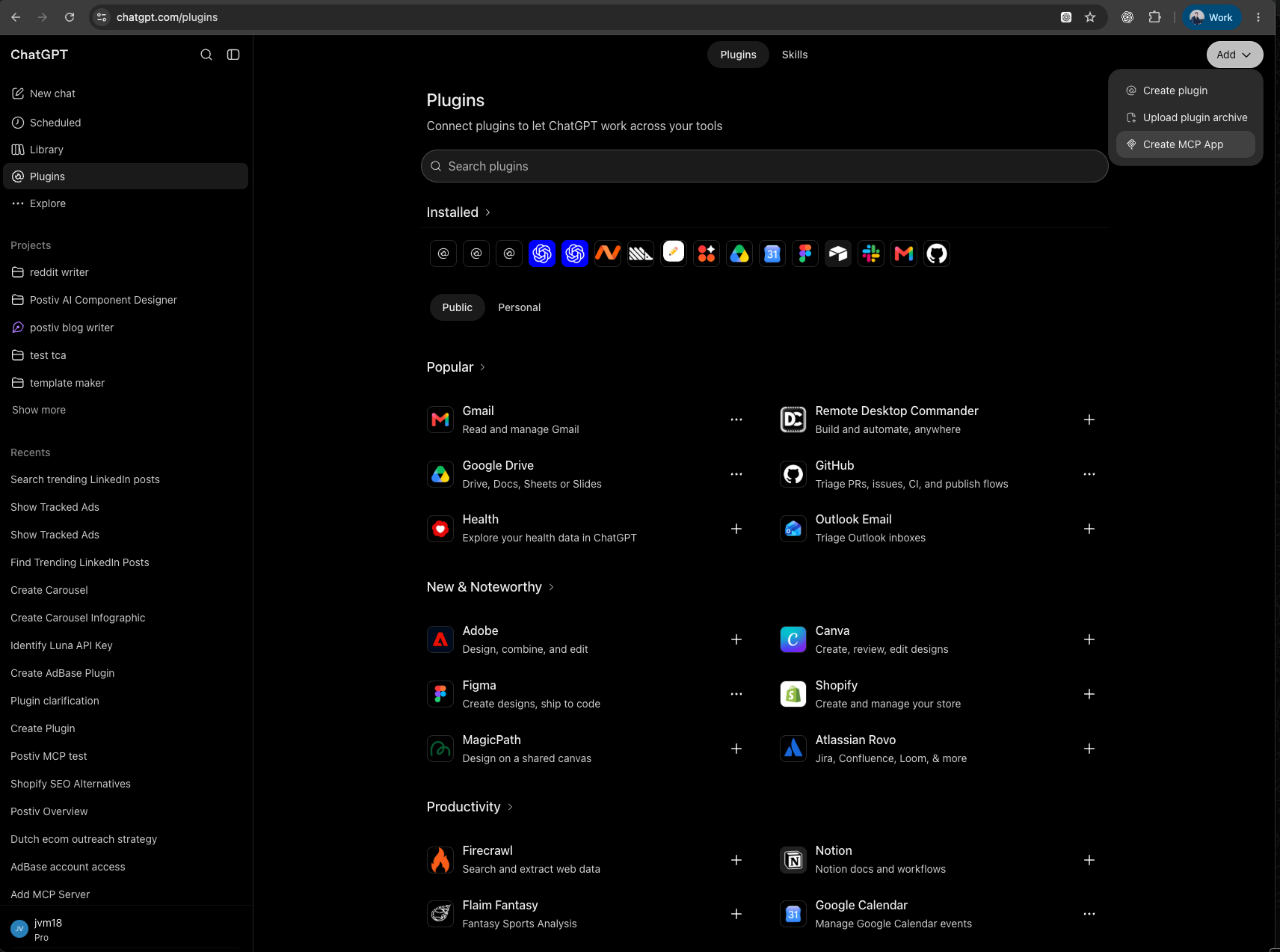
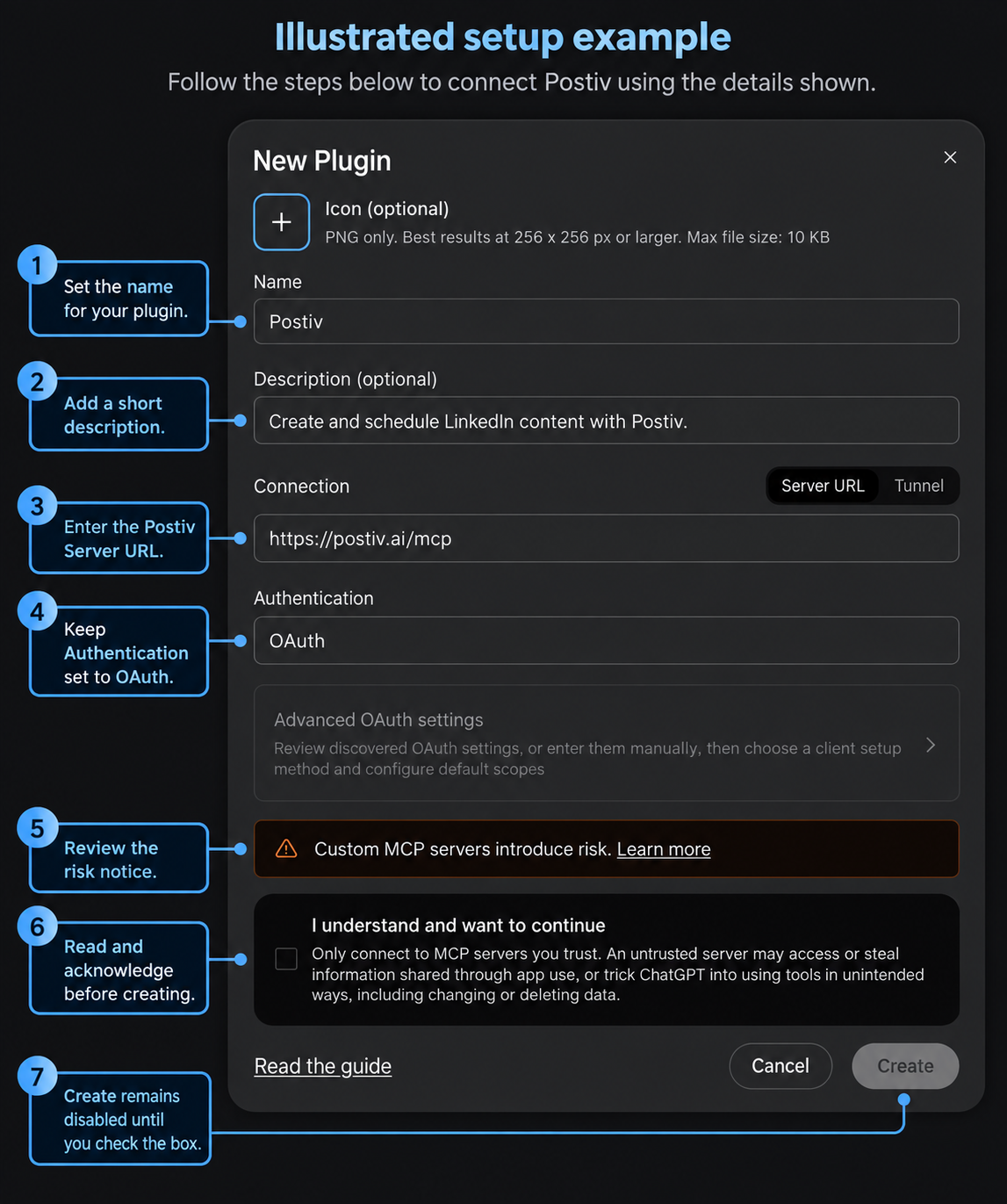
The second image is an illustrated example, so your interface may look slightly different as ChatGPT changes its menus.
You do not need an API key for ChatGPT. API keys are for other clients and the REST API. The step-by-step version with screenshots lives in the ChatGPT section of the hosted MCP docs.
A safe first prompt
Start with a read-only check so you know the connection works and points at the right workspace:
Confirm my Postiv workspace and list my connected LinkedIn profiles. Do not create or change anything.
If ChatGPT names the right workspace and your profiles, you are connected.
What ChatGPT can do once connected
Postiv exposes more than 80 tools, grouped by job. You do not call them by name. You describe what you want and ChatGPT picks the tools. Here are the four jobs most people start with.
Draft posts in your voice
Postiv holds a trained writing style for each profile, plus your knowledge base. ChatGPT can read both before it writes, so drafts start closer to how you actually sound.
Read my writing style and my knowledge base. Write three post drafts about why we moved our onboarding from video calls to a checklist. Save them as drafts, do not schedule anything.
Create carousels and images
Postiv's visual tools are available through the connection, including carousels, infographics and generated images. Review the copy first, then ask for the render.
Turn the second draft into a 7-slide carousel. Show me the slide outline before you render it.
If you want to see what the carousel side looks like on its own, try the LinkedIn carousel generator.
Schedule with approvals
ChatGPT can schedule a post for a connected profile or Company Page, as long as the time is at least 2 minutes ahead. If the profile has approvers, the post waits for them. ChatGPT cannot bypass that step.
Schedule the approved draft for next Tuesday at 8:30 in my timezone. If it needs approval, tell me who it is waiting on.
This is the main difference from a plain chat: the post lands in a real schedule with a real approval queue. See also the LinkedIn post scheduler.
Analyze what worked
Through Postiv, ChatGPT can read the cached analytics for your connected profiles, including summaries, top posts and numbers for a single post.
Compare my last 30 days to the 30 days before. Which three posts did best, what did they have in common, and what should I test next week?
For how this fits with dedicated reporting tools, see our overview of LinkedIn analytics.
Connecting LinkedIn Company Pages to ChatGPT
Company Pages work the same way as profiles. Connect the page to Postiv, then ChatGPT can draft and schedule for it when the page is available in your workspace.
Agencies and teams can keep each client in its own workspace. When you connect, you choose which workspace ChatGPT sees, so a conversation about one client does not pull in another. If you manage several profiles, see how agencies run LinkedIn for clients.
What ChatGPT can and cannot see on your LinkedIn
Be clear on this before you connect anything.
ChatGPT can see:
- The workspace you chose when you connected.
- Posts, drafts and schedules in that workspace.
- Your writing style and knowledge base entries for connected profiles.
- Cached analytics that Postiv has imported from LinkedIn.
- Comments on posts, if you use the engagement tools.
ChatGPT cannot do:
- Read live data straight from LinkedIn. Analytics come from Postiv's imports.
- Send direct messages or connection requests.
- Search for or look up arbitrary LinkedIn members. That is what LinkedIn's own app is for.
- Publish around your approvers.
- Access any workspace you did not select.
On Read & write, ChatGPT can create, edit, delete, schedule and publish content, and run approvals and engagement actions. Read only limits it to research and reporting. If you are unsure, start with Read only.
Security checklist before you connect
- Use OAuth. Never put a password or session cookie into an AI tool.
- Start with Read only and move to Read & write when you trust the workflow.
- Connect one workspace, not everything.
- Keep approvers on profiles where a mistake would be costly.
- Treat any key or URL containing a key like a password. ChatGPT does not need one.
- Review connected apps in Postiv from time to time and revoke any you no longer use.
- Read OpenAI's notice for custom MCP servers before you continue. It exists for a reason.
Troubleshooting
I do not see "Create MCP App"
Enable Developer mode in ChatGPT under Settings, then Security and login. On some accounts it sits under Apps, then Advanced settings. Availability depends on your ChatGPT plan and your workspace policy, so a workspace admin may need to allow it.
Postiv connected but no tools show up
Start a new chat and make sure Postiv is enabled for it. If it still looks empty, remove the app and add it again, then repeat the safe first prompt.
ChatGPT is using the wrong workspace
Ask it to confirm the workspace first. If it is wrong, disconnect the app, then reconnect and pick the right workspace on the "Connect workspace" step.
I want to disconnect
Manage connected apps in Postiv, or remove the app in ChatGPT. Either way, you can start fresh at any time.
More quick answers
Can I connect my LinkedIn to ChatGPT?
Yes. You can connect it for lookups with LinkedIn's app in ChatGPT, or connect your own profile and Company Pages for writing, scheduling and analytics through an MCP connector such as Postiv.
Does the official LinkedIn app in ChatGPT write or schedule posts?
Not according to OpenAI's page for it. The app is described as a way to look up professionals and see their title, company, location and follower count. OpenAI's page does not list posting, scheduling or analytics for your own account.
Which ChatGPT plan do I need to connect LinkedIn?
It depends on the method. OpenAI says plugin availability depends on the plugin, your plan and your workspace settings, and that some connections need admin approval. Custom MCP apps also need Developer mode, which not every plan or workspace allows. Check your own ChatGPT settings.
Can ChatGPT schedule LinkedIn posts?
Not on its own. With a connector such as Postiv's, ChatGPT can create a draft and schedule it at least 2 minutes ahead on a connected profile or Company Page. If approvers are configured for that profile, the post waits for approval.
Can ChatGPT read my LinkedIn analytics?
ChatGPT cannot read your account by itself. Through Postiv it can read cached analytics imported from LinkedIn, such as summaries, top posts and single-post numbers. These are imports, not live scrapes, so they can lag behind LinkedIn.
Is it safe to connect ChatGPT to LinkedIn?
It is safest when the connection uses LinkedIn's official API and an OAuth sign-in you can revoke, not your password or a browser session. With Postiv you choose the workspace and a Read only or Read & write level, and you can disconnect the app at any time.
Does connecting ChatGPT to Postiv let it send DMs or connection requests?
No. Postiv's MCP is built for content workflows. It does not include direct messages, connection requests, job search or lookups of arbitrary members.
Where this fits in your workflow
Connecting ChatGPT is one piece of running LinkedIn with an AI assistant. If you want the bigger picture, including a built-in agent that plans your week, read our guide to running an AI agent for LinkedIn content.
Try it
Connect ChatGPT to your LinkedIn content workflow in a few minutes. Start your 7-day free trial and follow the steps above.