Best Canva Alternatives for Social Media Content in 2026
The best Canva alternatives for social media content start with Postiv at #1, followed by Adobe Express, Visme, Figma Buzz, VistaCreate, Contentdrips, Snappa, Desygner (now automo designer) and Pixlr.
Canva is a strong general design tool, and plenty of teams are right to stay with it. This list is for teams that publish B2B social content, where LinkedIn content creation means posts, carousels and infographics on a brand that more than one person schedules and approves. Facts about every vendor come from that vendor's own pages, checked October 2026.
Every pick covers what it does well for B2B teams, a good first workflow, plan notes, strengths and limits. Prices are left out on purpose, because they change and vary by plan.
Picks at a glance
| # | Tool | Best for | Why it made the list |
|---|---|---|---|
| 1 | Postiv | Design to publish in one workspace | Carousels, infographics and images on your brand, then scheduling and approvals in the same place |
| 2 | Adobe Express | Scheduling to many networks | Content Scheduler on its Free plan, LinkedIn included |
| 3 | Visme | Infographics and presentations | A dedicated infographic maker and a scheduler that lists LinkedIn |
| 4 | Figma (Figma Buzz) | Locked brand templates | Designers publish templates, teammates edit only approved fields (beta) |
| 5 | VistaCreate | Instagram, Facebook and Pinterest graphics | Free Starter plan, multi-page designs, scheduling to those three networks |
| 6 | Contentdrips | LinkedIn PDF carousels | Branded carousels from a URL, video or CSV, published to LinkedIn |
| 7 | Snappa | Quick graphics without a designer | Format presets and one-click resize, with scheduling through Buffer |
| 8 | Desygner (now automo designer) | Template-heavy design on a free plan | Brand kit, team seats and a scheduler |
| 9 | Pixlr | Photo editing and AI images | A browser editor with AI image generation |
What counts as a Canva alternative for social media?
A Canva alternative for social media does the same basic job (branded graphics from templates, in a browser, without a designer) and adds something your team needs more: publishing to a specific network, approvals, locked brand templates, or a format such as the LinkedIn PDF document. Canva's own pricing page describes a general-purpose editor with 1,000+ design types, so alternatives to Canva usually win by being narrower or by sitting closer to the publish button.
For a B2B reader the field splits into three groups. Design-first editors (Adobe Express, VistaCreate, Snappa, Desygner and Pixlr) look like Canva and compete on templates, AI and file output. Specialists (Visme for infographics and presentations, Figma Buzz for locked brand templates, Contentdrips for LinkedIn and Instagram carousels) go deep on one kind of asset. A workspace such as Postiv treats the design as one step between an idea and a scheduled, approved post.
Social media content here means posts, carousels and infographics. The test is simple: can a teammate take a draft, put it on the brand and get it published on the network where your buyers read?
Comparison table
Cells say "check their docs" where a vendor's pages did not confirm a detail. Prices are left out on purpose.
| Tool | Schedules or publishes | LinkedIn PDF carousel | AI | Approvals | Free plan or trial |
|---|---|---|---|---|---|
| Postiv | LinkedIn profiles, Company Pages and X, one calendar | Yes, a PDF that publishes as a document post | Bob plans and writes; edit slides by asking | Approvers per profile | 7-day free trial |
| Adobe Express | Seven networks including LinkedIn | Not documented (images, video, GIF) | Daily generations on Free; AI Assistant in beta | Template approval on Teams and Enterprise | Free plan; Premium 30-day trial |
| Visme | Scheduler lists LinkedIn; tier unclear | Check their docs | AI Designer, AI Writer, AI Resize | Enterprise tier; scheduler drafts for team approval | Basic is free |
| Figma Buzz | Check their docs (not described) | Check their docs | Background removal, text rewrite, image generation | Check their docs | Starter plan; Buzz in beta |
| VistaCreate | Facebook, Instagram, Pinterest; not LinkedIn | No LinkedIn publishing | Pro only | Check their docs | Starter is free; Pro 14-day trial |
| Contentdrips | LinkedIn and Instagram | Yes, a PDF document post | Carousel generator and design agent, credit-metered | None shown | 7-day trial with 50 AI credits |
| Snappa | Through Buffer; direct LinkedIn not confirmed | Not documented | Check their docs | Check their docs | Starter is free |
| Desygner (automo designer) | Scheduler mentioned; networks unconfirmed | Check their docs | Metered in Automo credits | Guide mentions approving designs | Free plan |
| Pixlr | Not described | Not described | AI image, video and audio generation | Check their docs | Free in the browser |
| Canva (for reference) | Pro and Business; LinkedIn handling unclear | Only JPG documented for LinkedIn | Magic Design, Canva AI 2.0 | Tier unclear (Business or Enterprise) | Free plan; Pro and Business trial |
How to choose a Canva alternative for social media
Nine tools will not all fit one team. These are the checks we run before moving a social workflow away from Canva.
What file does the network receive? On LinkedIn a carousel is a PDF document. Canva's help center documents JPG for LinkedIn sharing, and Adobe Express lists images, video and GIF in its LinkedIn spec. Postiv and Contentdrips are the two picks here that produce a PDF document post, so test the real output before you commit.
Can it publish where you post? Adobe Express schedules to seven networks, LinkedIn included. VistaCreate schedules to Facebook, Instagram and Pinterest business accounts and not to LinkedIn. Snappa goes through Buffer, while Figma Buzz and Pixlr describe creating and exporting assets rather than publishing.
Who has to approve? Approvals sit on different tiers: Teams and Enterprise at Adobe Express (for templates), Enterprise at Visme, and a tier that is unclear between Business and Enterprise at Canva. Postiv sets approvers per profile. Contentdrips, VistaCreate, Snappa, Figma Buzz and Pixlr do not document an approval workflow.
How many brands, profiles and people? Count Brand Kits and seats. Canva allows 1 Brand Kit on Free, 5 on Pro and 100 on Business. VistaCreate Pro covers up to 10 seats, Snappa Team has 5 users, and Contentdrips gives Starter 3 brands and Pro unlimited brand profiles. Postiv keeps every profile and Company Page in one workspace.
How is AI metered? Most tools meter AI in credits or monthly allowances that change by plan, so a generous-looking free plan may not cover a month of carousels. Read the AI row of the plan card before you rely on it.
Is the licence right for work? Microsoft Designer is not in the ranking: its own FAQ says it is licensed for personal, non-commercial use, and its pages document no scheduling.
What else do you make? If decks, reports and proposals matter as much as posts, Visme or Canva itself covers more ground than a social-first tool. If you are also weighing AI tools for the rest of your marketing, see the best AI marketing tools.
The 9 best Canva alternatives for social media
1. Postiv
Best for: founders, in-house B2B teams, freelancers and agencies who want to design and publish social content in one workspace.
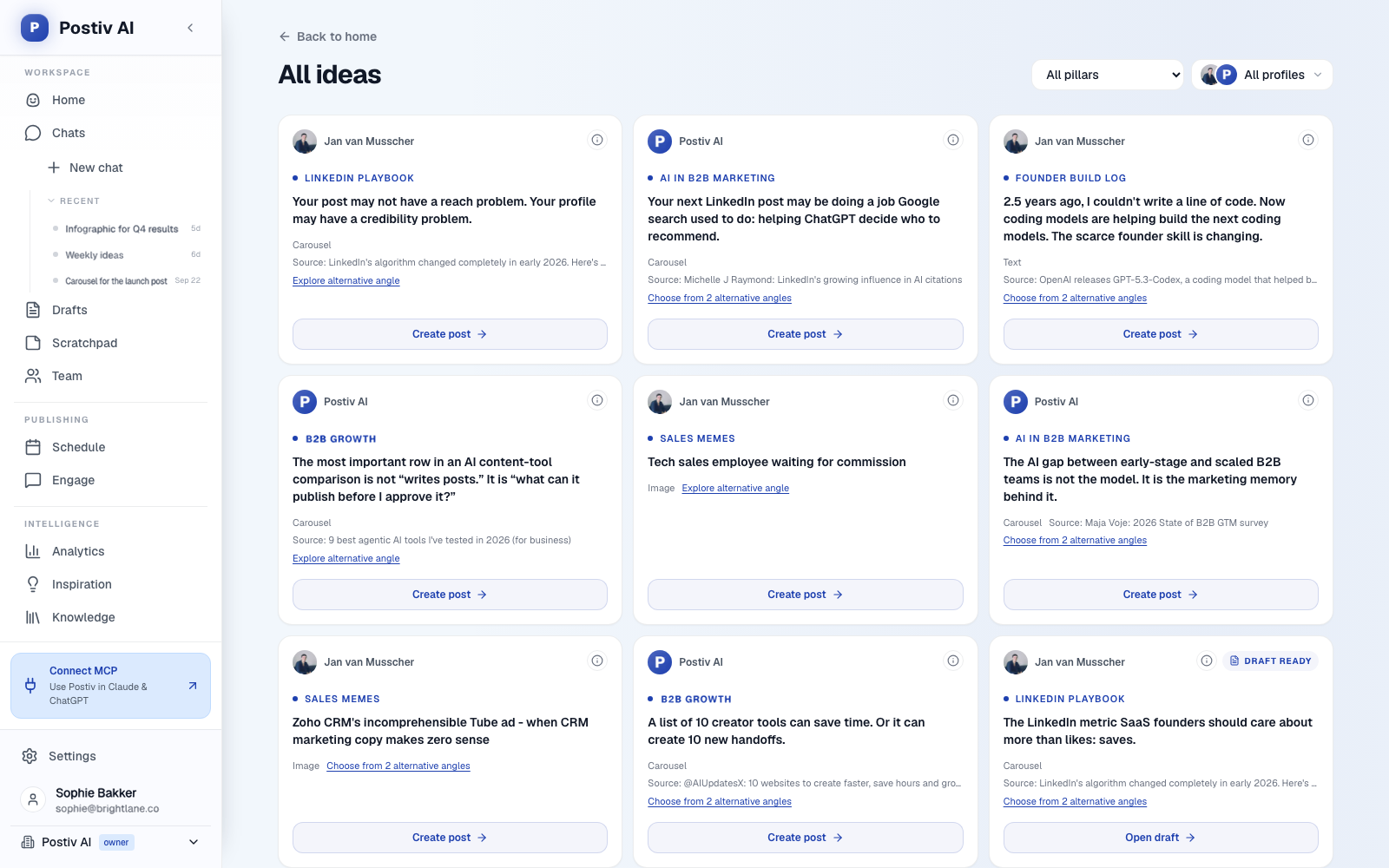
Postiv is a social workspace for you, your team and your AI agent. Bob, its planning and writing agent, plans each week's posts from your content pillars, sources and past results, then works through them with you. The design tools sit inside that flow: a carousel editor, an infographic maker and an image generator that all start from your brand. A post that began as an idea on Monday reaches the calendar as a finished carousel, infographic or image without a trip through another app.
Postiv publishes to LinkedIn personal profiles, Company Pages and X accounts. LinkedIn publishing goes through LinkedIn's official API, so there is no password, session cookie, scraping or browser automation involved.
What it does well for B2B teams:
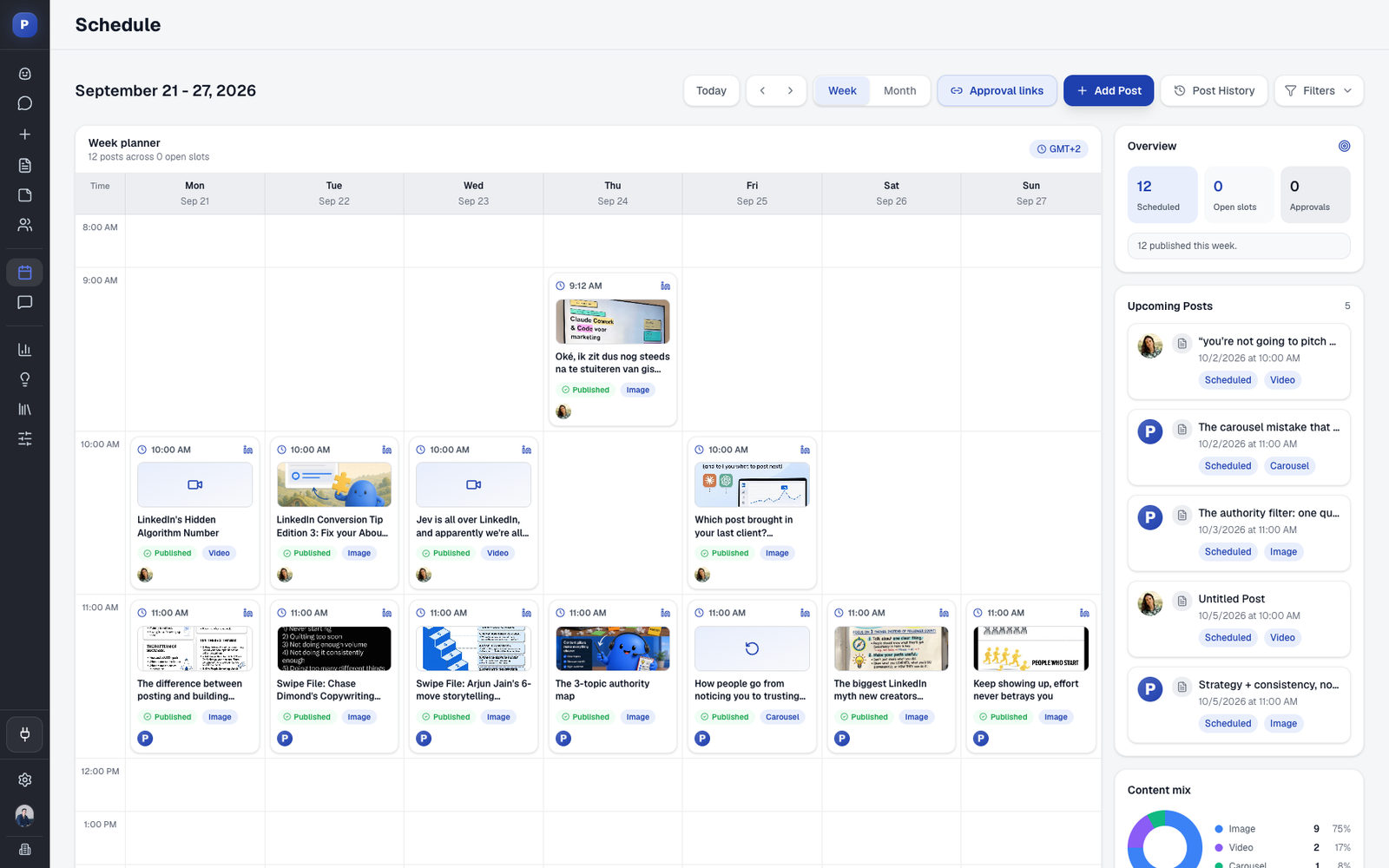
One place instead of a relay. If you have been making LinkedIn carousels, infographics and post images in Canva and scheduling them somewhere else, Postiv puts those steps in one workspace. The design, the calendar and the approval sit together, so the person who reviews a post opens the same item that the designer finished.
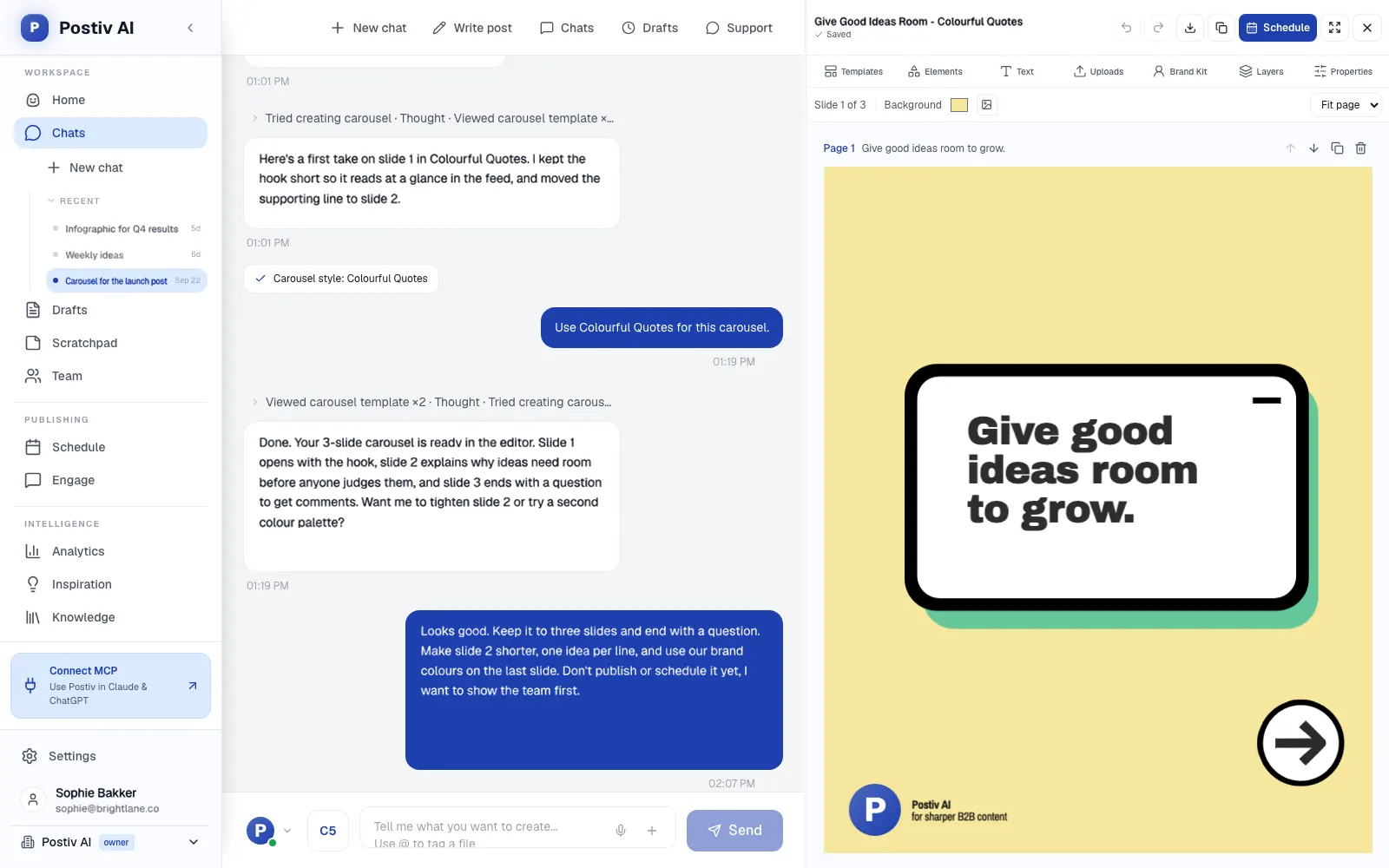
Carousels. The carousel editor works on a 1080 by 1350 canvas with templates, text, elements, uploads, layers and your brand kit, up to 30 slides, with undo and PDF export. The PDF publishes as a LinkedIn document post. You can edit on the canvas, or ask Bob to rewrite a slide, change colors or fonts, or restyle the whole carousel. Magic Apply moves an existing carousel into a new template or your brand kit and keeps your text; you preview it first, then apply. The same editor is available as a standalone tool on the LinkedIn carousel generator page.
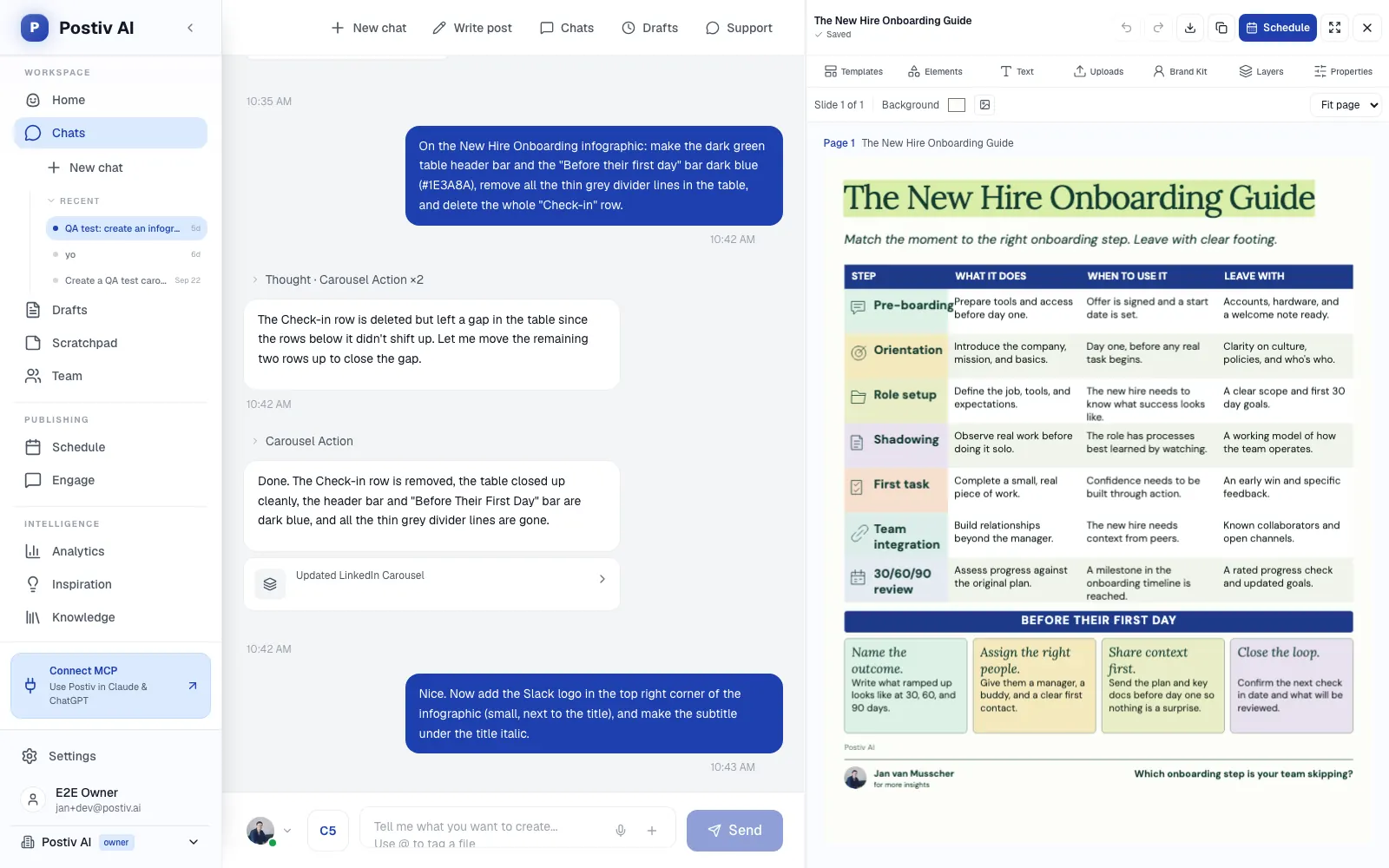
Infographics. Infographics are built from the numbers you provide, and only those numbers: stat grids, timelines, processes, comparisons, funnels and checklists, in styles such as data-driven, process flow, comparison, timeline, framework and stat highlight. You edit them by asking in chat, next to the editor. The LinkedIn infographic maker page shows the styles in more detail.
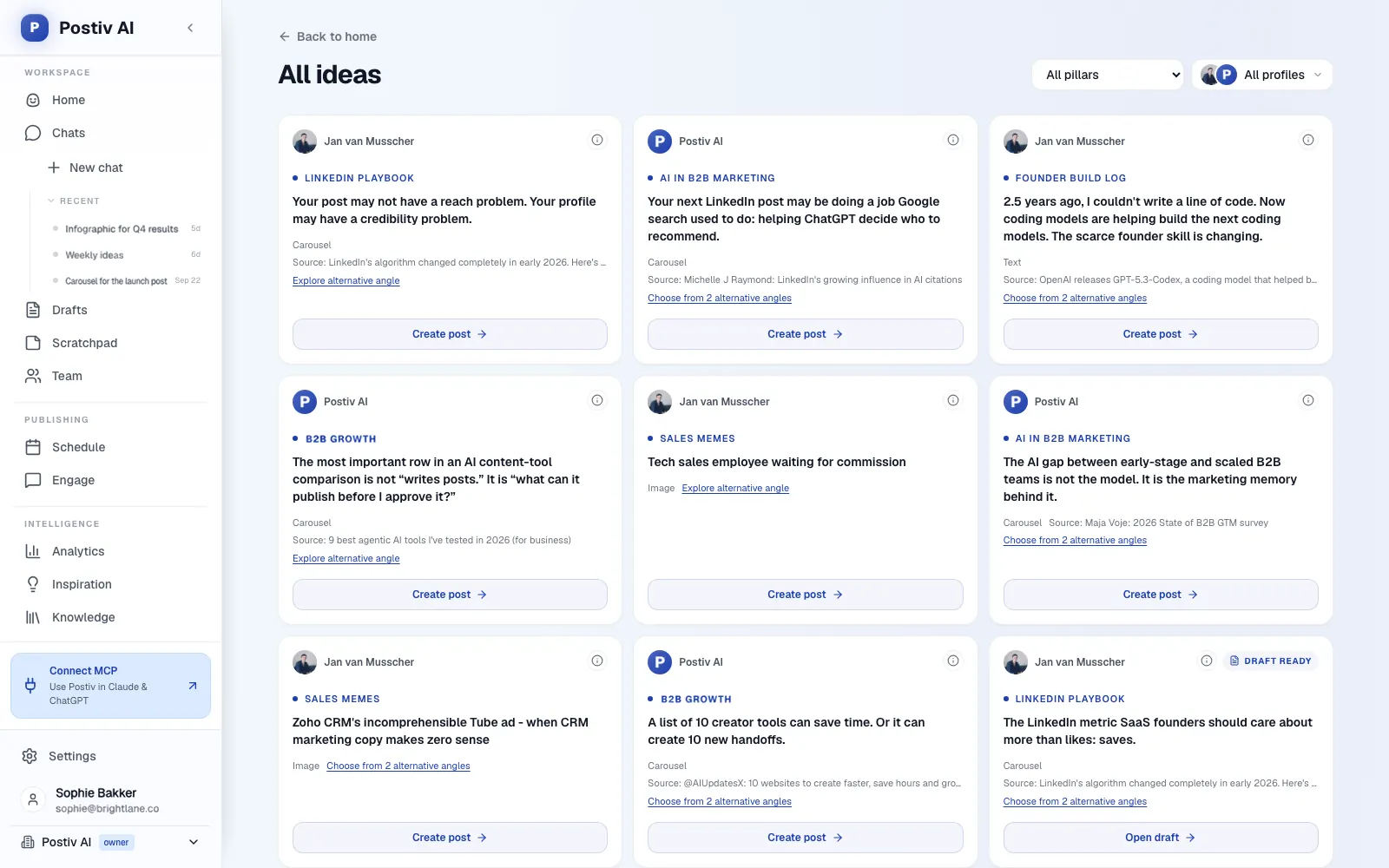
Images. Post images come in styles such as quote cards, whiteboard and notebook infographics and tweet images, or you describe your own. Your brand kit is applied by default, you can edit an image by asking, and every version is kept.
Planning and writing. Ideas come from Bob's weekly plan or from the inspiration library of LinkedIn posts taking off in your niche, and your knowledge base (your website, documents, YouTube, Notion and newsletters) keeps drafts tied to real material. You can draft from a chat message, a voice note or a screenshot, and each profile has a writing style that Bob follows. Because Bob's plan keeps the week's posts tied to your content pillars, the design work starts from a topic you chose on purpose.
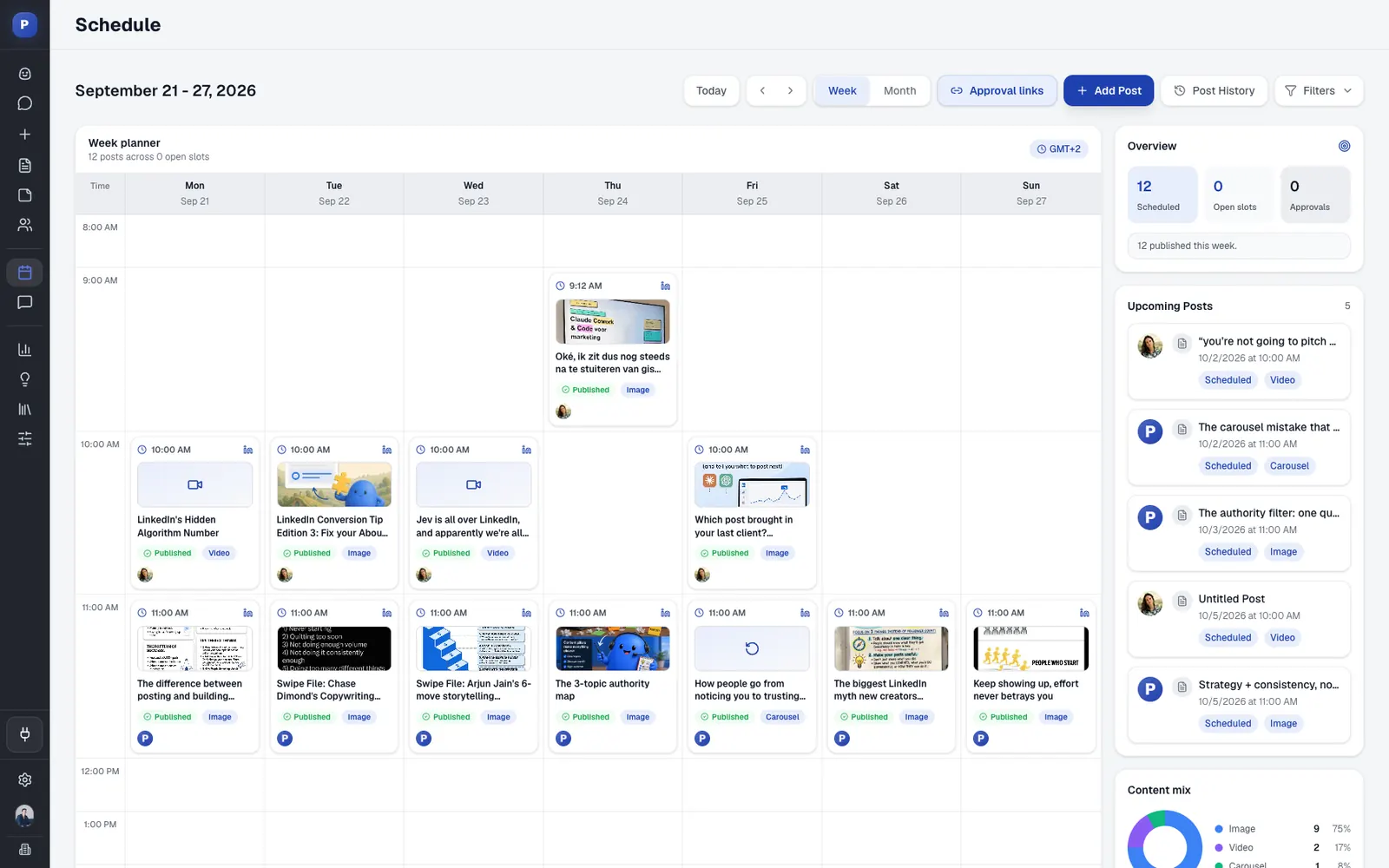
Scheduling and approvals. One calendar covers every profile, Company Page and channel, with posting slots and an automatic first comment (see LinkedIn post scheduling). On a profile with approvers, a scheduled post waits for approval, and approvers can approve, request changes or deny.
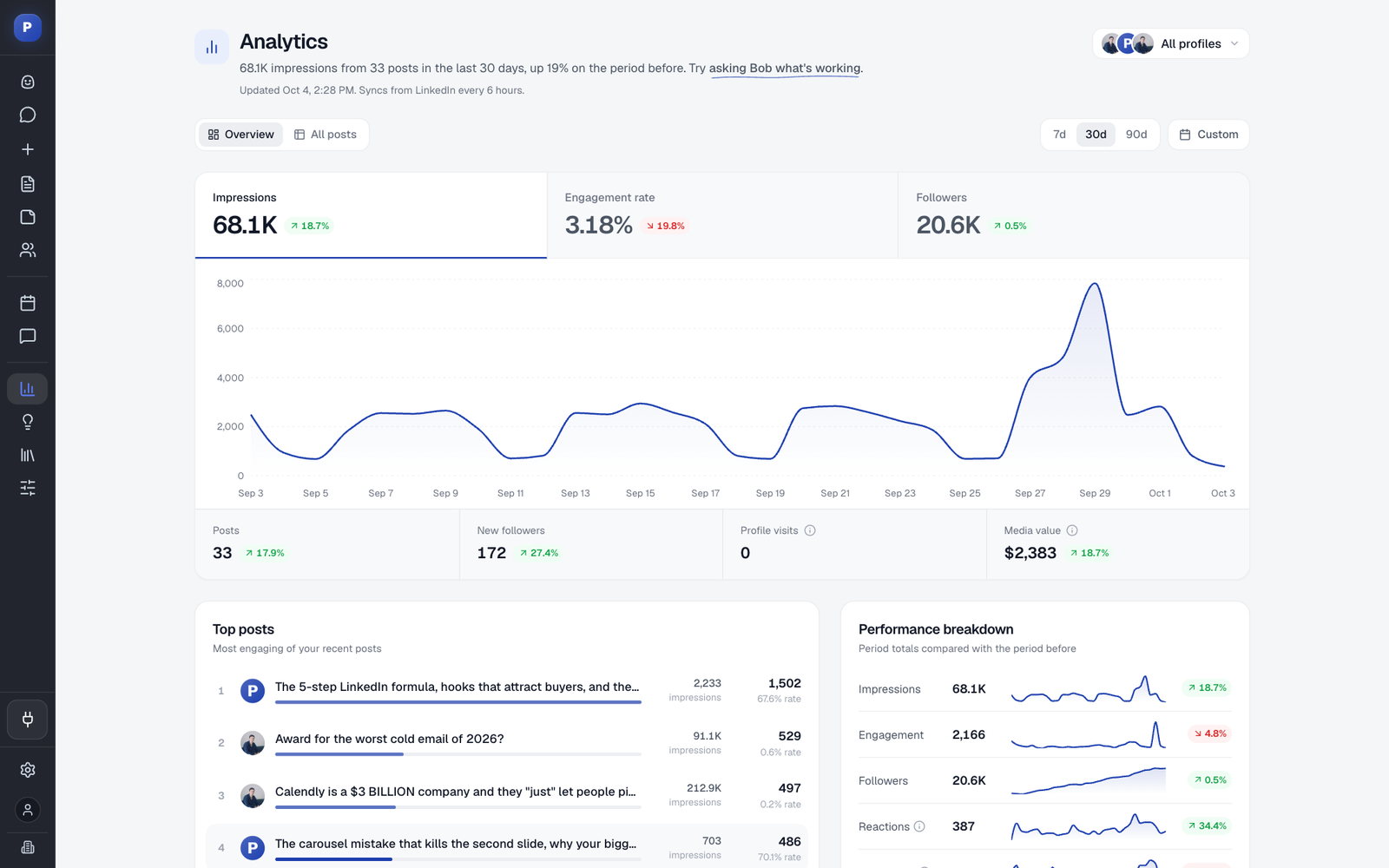
Teams and agencies. Every profile and Company Page lives in one workspace with roles, approvers per profile and a Team Hub; the team management page has the detail. Agencies keep each client in its own workspace. Comments from every profile land in one inbox, and analytics show reach, engagement and followers per post and per profile.
Good first workflow: Connect one LinkedIn profile or Company Page, set up the brand kit, then ask Bob for one carousel and one infographic from material you already have, such as a recent customer call or a set of numbers. Check both at phone size, then schedule them on a profile with an approver so you see how the review step feels for your team. Start with the format you post most, since the brand kit and templates you set up carry straight into the next one.
Setup and plan notes: Postiv has a 7-day free trial. Add the brand kit first, because carousels, infographics and images all start from it. Then set approvers per profile and roles for the people who edit. Claude, ChatGPT and other AI apps can also work in the workspace through Postiv's hosted MCP server.
Strengths:
- Design, calendar and approvals sit in one workspace, so the file never leaves the tool it was made in.
- Carousels publish as PDF document posts, and edits can be made on the canvas or by asking.
- One brand kit styles carousels, infographics and images across every profile.
Limits:
- It is a paid product, with a 7-day free trial.
- It is built for content, not outreach: direct messages and connection requests are left out by design.
- Analytics are scheduled imports, not live reads.
2. Adobe Express
Best for: teams that want one editor and a scheduler that reaches many networks, starting on a free plan.
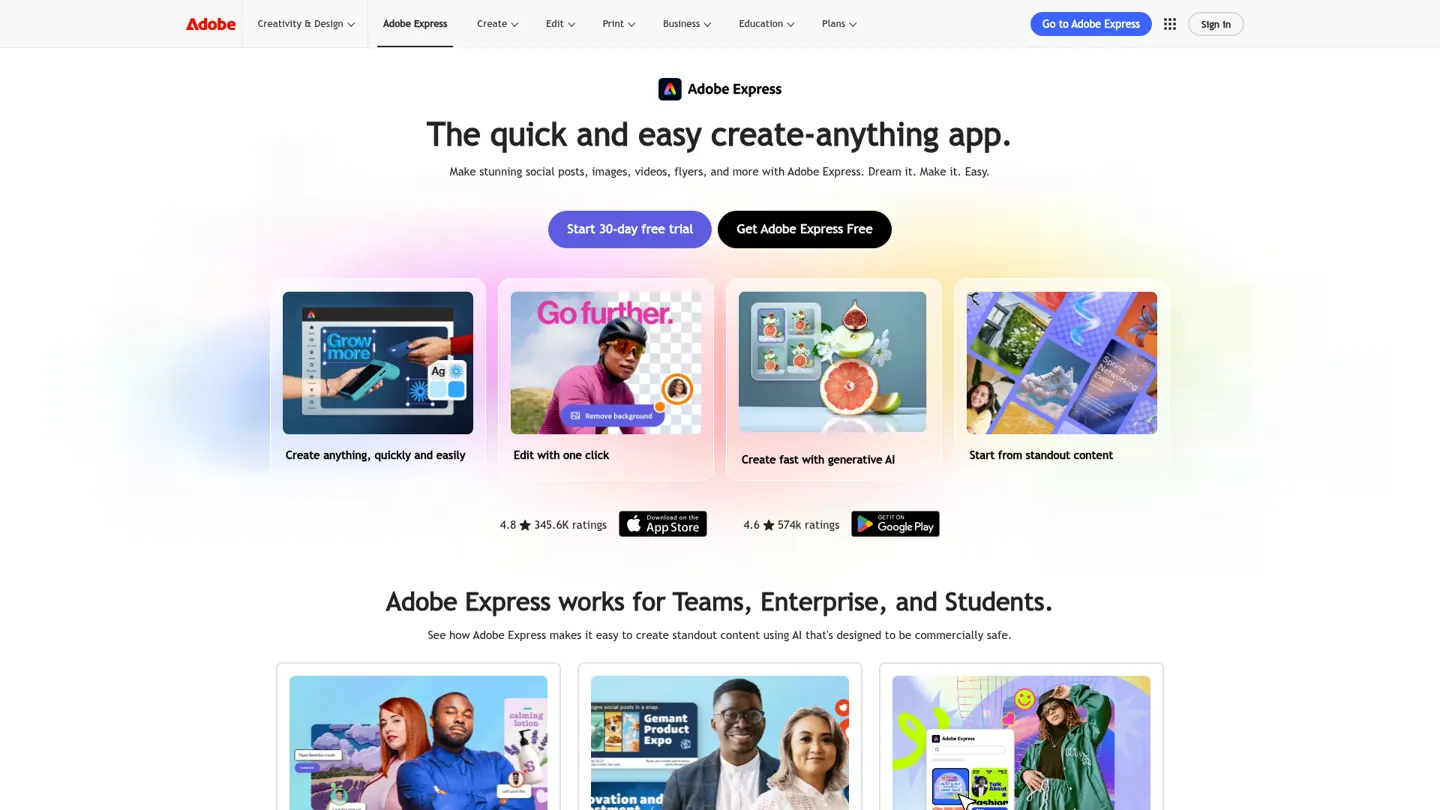
Adobe describes Express as a create-anything app for social posts, images, videos, flyers and documents, sold to individuals, Teams, Enterprise and students. For social work the part that matters is the Content Scheduler, which publishes to Instagram, Facebook, X, Pinterest, LinkedIn, YouTube and TikTok. It is on the Free plan, with one connected account per network and up to 1,000 posts a month. A template gallery for LinkedIn carousel posts also exists.
Adobe is putting AI into the editor too. AI Assistant is a beta conversational agent that creates and edits designs from prompts, and Adobe says the rollout is gradual, so it may not be available to everyone yet.
What it does well for B2B teams:
- Schedules to seven networks, LinkedIn included, from the Free plan. Premium connects up to three accounts per network, and one message can go to three LinkedIn accounts, for example a Company Page and a personal profile.
- Handles LinkedIn posts of up to 3,000 characters, with up to nine images, one video and one GIF.
- Lists brand kits on Premium, and its Teams page adds brand controls and template locking. Free users can use branded templates, while Premium and up can create them.
- Writes social captions with AI inside the Content Scheduler. Free includes daily generations for images, text effects and templates, and Premium includes 250 generative credits a month.
- Runs review and approval workflows for templates, sent to Workfront Proof, on Teams and Enterprise plans.
- Lists one-click Resize and format-aware Safe Zones for campaigns, so check which plan includes them.
Good first workflow: Connect your Company Page and your own LinkedIn profile, then rebuild your three most-used post layouts as branded templates. Plan one week of image posts, caption them with the AI helper and schedule them from the Content Scheduler. Preview a multi-image post on your phone before you commit to that format, because Adobe's LinkedIn spec lists images, video and GIF only.
Setup and plan notes: Individual plans are Adobe Express Free, Adobe Express Premium and Adobe Firefly Pro, and business plans are Teams and Enterprise. Free says no credit card required, Premium has a 30-day free trial and Firefly Pro a 7-day free trial. Free includes one shared social calendar, and Premium and Firefly Pro include three. Analytics run through the free Metricool add-on, but Metricool requires its Premium access for X and LinkedIn.
Strengths:
- Scheduling to seven networks on a free plan is wide reach for a template editor.
- Brand kits, locked templates and template approvals exist for teams.
Limits:
- There is no documented path for a LinkedIn PDF carousel, since the LinkedIn spec lists images, video and GIF only.
- LinkedIn analytics through the Metricool add-on need Premium access in Metricool.
- AI Assistant is in beta with a gradual rollout.
3. Visme
Best for: teams that make infographics, presentations and reports and want social posts from the same brand.
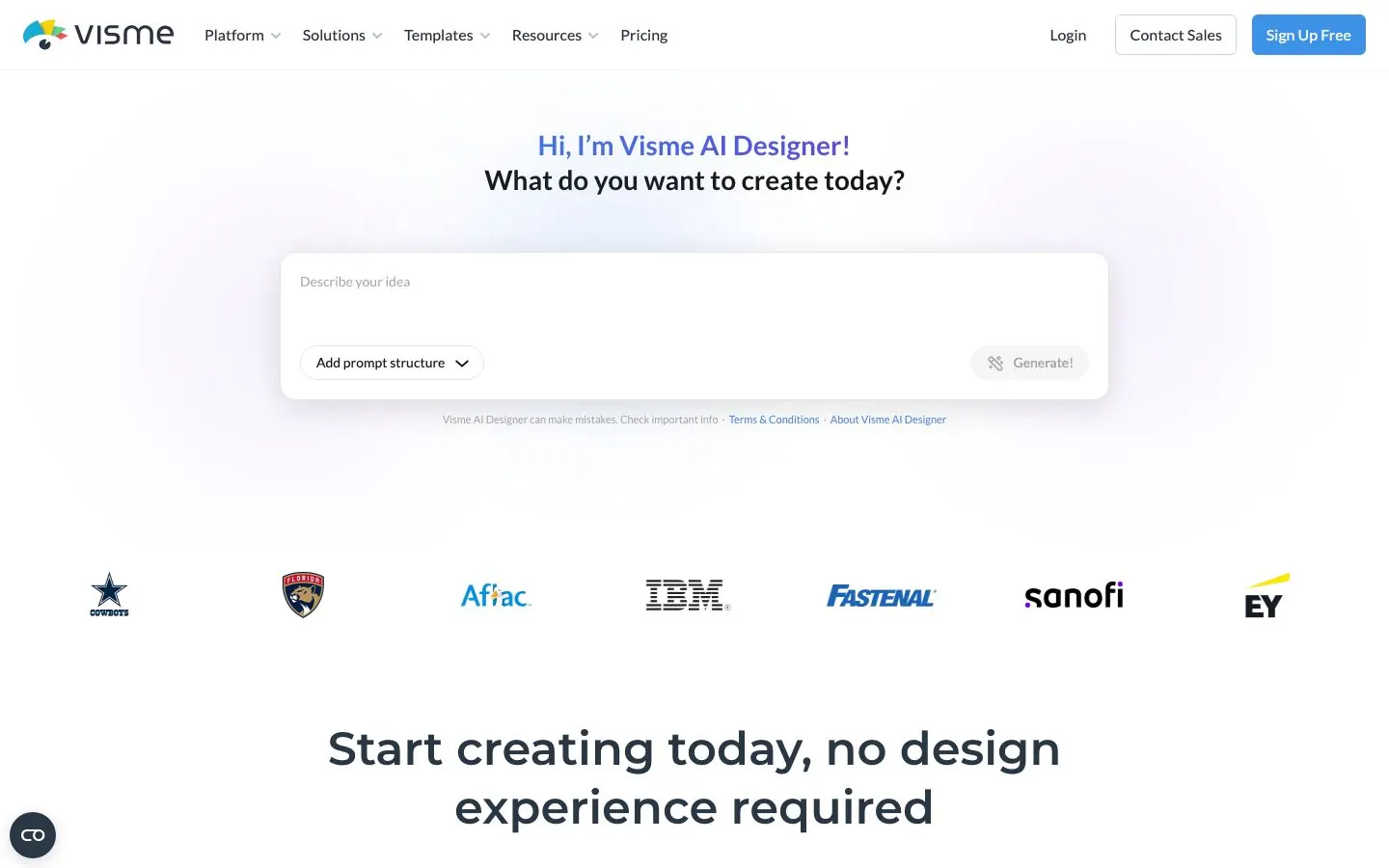
Visme calls itself an AI content system for teams, built for branded presentations, reports, proposals and visual content at scale. It has a dedicated infographic maker with statistical, timeline, process and comparison layouts, and its social formats include LinkedIn posts and headers, Instagram posts and stories, Facebook, Pinterest, Twitter and YouTube. For a wider look at infographic tools, see our comparison of the best LinkedIn infographic makers.
Visme's help center says AI Designer is for presentations, documents and printables, up to 10 pages per project, and it does not name social graphics or carousels. The social media scheduler connects to Facebook, Instagram, LinkedIn, Twitter, Pinterest and Slack.
What it does well for B2B teams:
- Offers infographic layouts for statistics, timelines, processes and comparisons, which suits data-heavy B2B content.
- Offers Brand Kit and Brand Wizard, which builds a kit from a website URL, as Business-tier features.
- Includes AI Designer, AI Writer, AI Resize and AI text-to-image, with monthly credits that grow by tier.
- Lets you save a scheduler post as a draft for approval from your team, and shows every scheduled post in the Visme calendar.
- Lets you choose which slides of a multi-page design to post. Pages per project are capped at 50 on Basic and unlimited on paid tiers.
- Downloads as video and GIF, plus PPTX and HTML5, on the Business card.
Good first workflow: Take a report or a set of numbers you already have, build one infographic from the layout that fits it, and cut it into a short LinkedIn post. Then connect LinkedIn in the scheduler and save the post as a draft for a colleague to approve. On the first post, check what the scheduler actually sends to LinkedIn.
Setup and plan notes: Pricing-page tiers are Basic (free, no credit card), Starter, Business and Enterprise (from 10 users). Visme's help center still uses older names (Basic, Starter, Pro, Pro for Teams and Enterprise), so use the pricing-page names when you compare. Basic has unlimited projects with limited templates and assets, and downloads are a paid feature. Project approval and workflows are on the Enterprise tier. Which tier includes the content calendar and scheduler is not confirmed, so check their docs.
Strengths:
- Strongest here on infographics, presentations and documents.
- The scheduler lists LinkedIn next to five other destinations.
Limits:
- AI Designer is documented for presentations, documents and printables, not social graphics.
- Whether the LinkedIn path posts a PDF document or multiple images is not confirmed.
- Plan names differ between the pricing page and the help center.
4. Figma (Figma Buzz)
Best for: design-led teams where designers lock brand templates and everyone else fills them in.
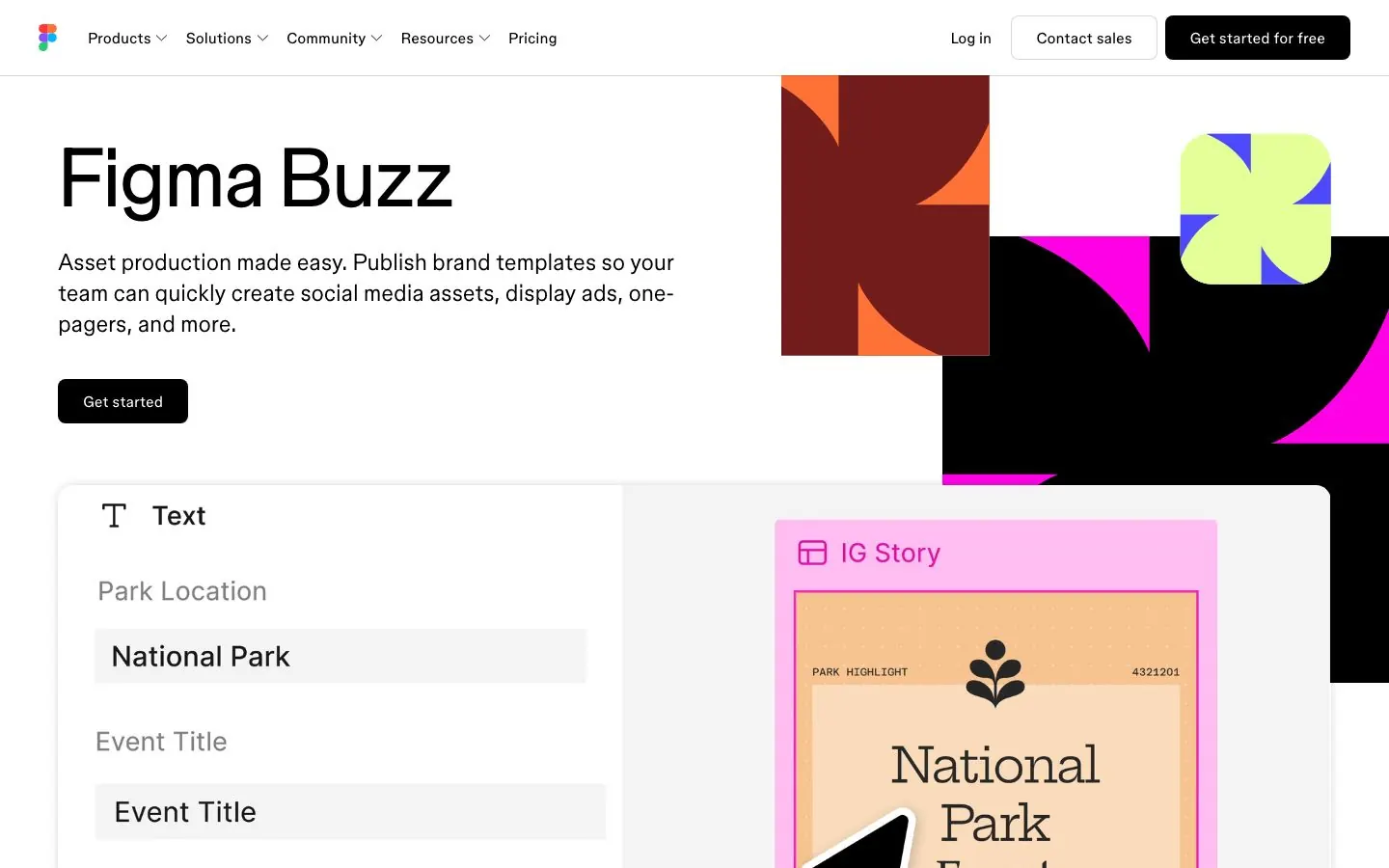
Figma Buzz is Figma's asset-production product. Figma pitches it as a way to publish brand templates that a whole team can use to make social assets, ads and one-pagers, and its help center calls it a way for teams to make on-brand static assets together using Figma Design's tooling. It is in beta, and Figma says it is available on all seats and plans while it stays there.
The idea behind Buzz is control. A designer builds the layout, locks the elements that should not change and publishes the template. Colleagues then edit only the approved fields, so a whole campaign of social tiles can come from one template without a trip to the designer for each one.
What it does well for B2B teams:
- Locks elements in published brand templates, so teammates edit only approved fields.
- Offers social media post templates for multiple platforms and sizes, in organic and paid versions.
- Creates assets in bulk from a .csv or .xlsx file, one asset per row.
- Includes AI tools to remove image backgrounds, combine images, boost resolution, and rewrite, shorten or translate text. Image generation runs through built-in gpt-image-1 and Gemini integrations.
- Imports mp4 and .mov files for trimming, and exports assets as PNG, JPG, PDF or MP4.
- Lets Full, Dev and Collab seats all use Buzz.
Good first workflow: Ask your designer to build three templates in Figma, such as a cover, a stat tile and a quote card, then publish and lock them. Colleagues fill in text and images, export the files and publish with the scheduler you already use. Try the spreadsheet route with a list of webinar sessions or customer stories to see the bulk output.
Setup and plan notes: Figma plans are Starter (free), Professional, Organization and Enterprise. Publishing templates is available on all paid plans, and Professional teams can create five team templates. AI is credit-metered per plan, and Starter has a daily and a monthly cap.
Strengths:
- Locked templates keep output on brand without a designer in every request.
- Bulk creation turns a spreadsheet into a set of assets.
Limits:
- Buzz is in beta and documents individual static assets. Multi-page carousel support is not confirmed.
- Its product and help pages describe creating and exporting assets, not scheduling or publishing to social networks, plus plugins for a DAM or a translation system.
- Approvals inside Buzz and a separate brand kit feature are not confirmed.
5. VistaCreate
Best for: small teams that make graphics for Instagram, Facebook and Pinterest and want scheduling to those networks.
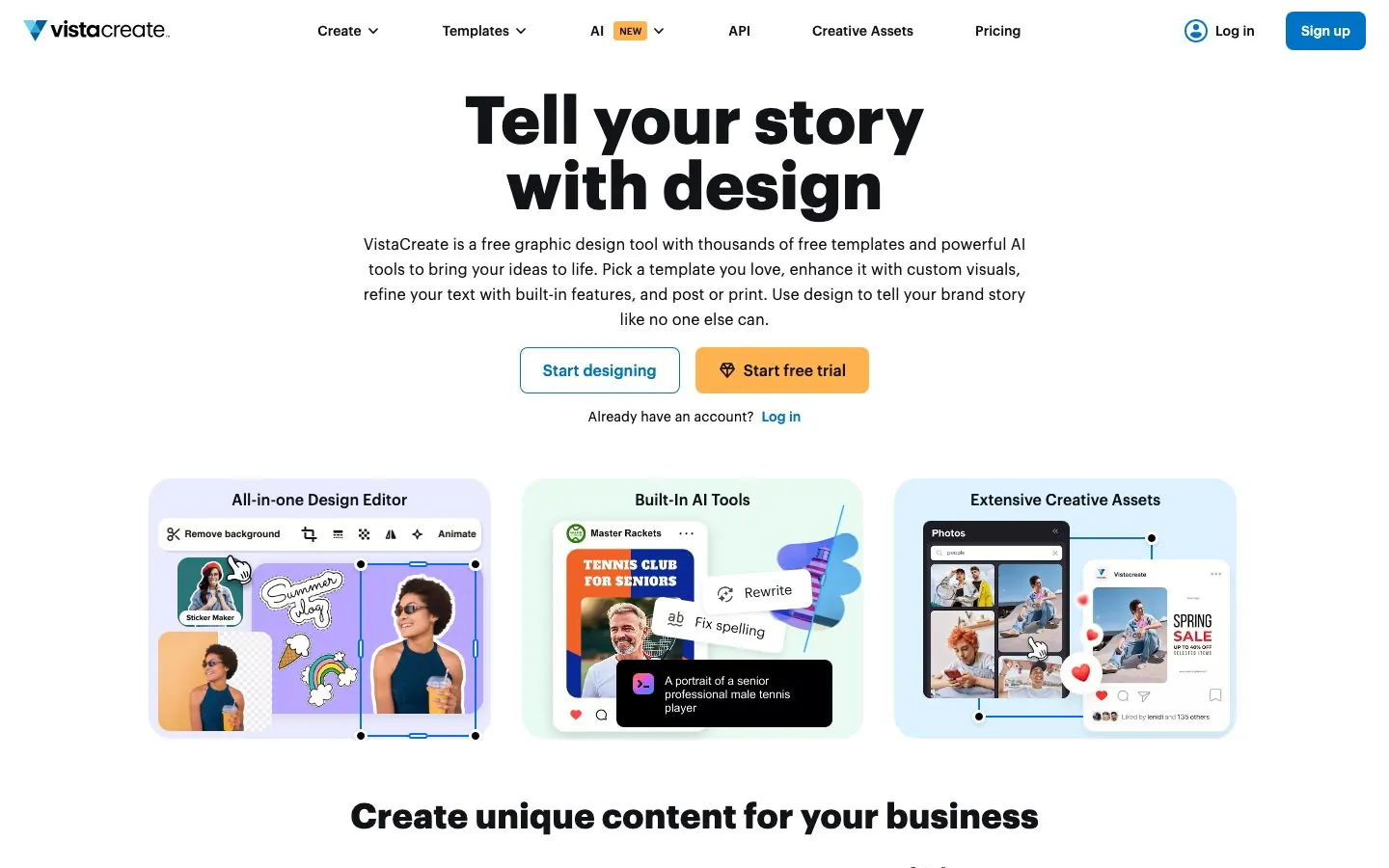
VistaCreate calls itself a free graphic design tool with templates and AI tools, aimed at businesses creating content. It has free templates for LinkedIn posts and graphics, as well as Instagram, Facebook, Pinterest, TikTok and YouTube. The Starter plan lists 100K+ design templates and Pro lists 200K+.
Its scheduler is where it differs from LinkedIn-first tools. VistaCreate schedules and publishes directly to Facebook, Instagram and Pinterest business accounts. Its own scheduler FAQ names those three and says only business accounts can be posted to, so it does not schedule to LinkedIn.
What it does well for B2B teams:
- Adds "Pages" to a design to create multiple artboards that can be scheduled as one carousel publication. The help center notes Instagram allows up to 10 visuals per carousel.
- Offers 1 Brand Kit on Starter and unlimited Brand Kits on Pro, plus a Styles tool that applies colors from templates.
- Includes AI Image Generator, AI Writer, Object Remover, Background Remover and Object Grabber on Pro.
- Lists One-click Resizer, Sticker Maker and version history as Pro features.
- Makes video posts with animated text, transitions and objects.
- Covers up to 10 seats on Pro.
Good first workflow: Pick the network you post to most among Instagram, Facebook and Pinterest, and build three branded layouts for it. Use Pages for a multi-slide post, schedule it from the VistaCreate scheduler and look at how it lands. For LinkedIn, design in VistaCreate and publish through another tool.
Setup and plan notes: There are two plans. Starter is free with no time limit and one seat, and Pro covers up to 10 seats with a 14-day free trial. Pro adds the AI tools, unlimited Brand Kits, more templates and assets, and team seats. Plan gating for the scheduler is ambiguous: the homepage lists Social Media Scheduling under Starter, the plans page lists it in the Pro bullets, and the feature page calls it a free social media scheduler. Confirm in the app which one you get.
Strengths:
- A free plan with no time limit, and a Pro plan with team seats.
- Multi-page designs can be scheduled as one carousel on Instagram.
Limits:
- No LinkedIn scheduling or publishing; only Facebook, Instagram and Pinterest business accounts.
- AI tools are Pro only.
- Approval workflows are not confirmed.
6. Contentdrips
Best for: solo creators and small agencies that mainly need LinkedIn and Instagram carousels, produced fast and published directly.
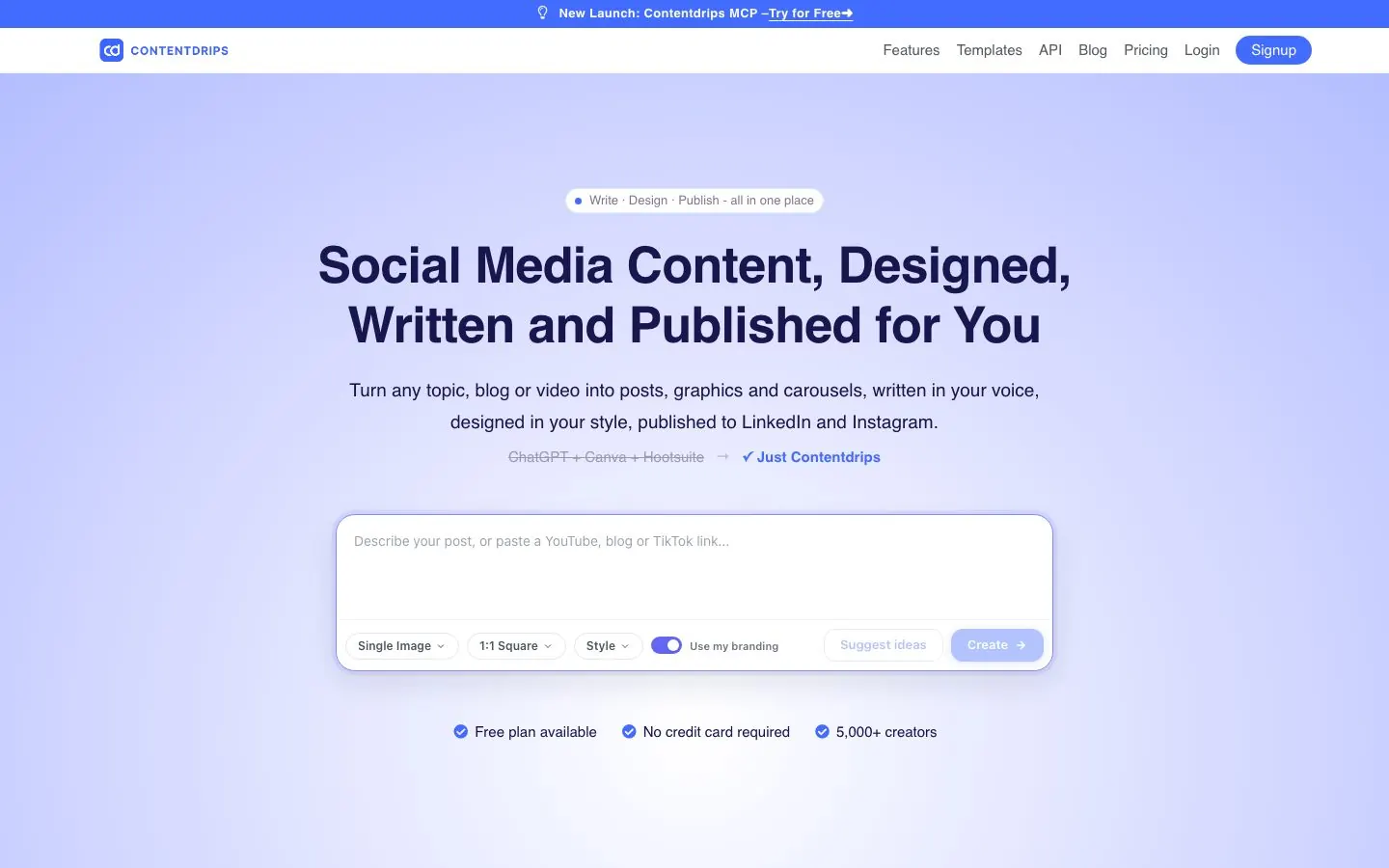
Contentdrips is an AI carousel, graphic and post designer that publishes to LinkedIn and Instagram, with a REST API and an MCP server. It is a design-first tool with a scheduler attached, built around carousels rather than a full social suite. For a longer look at the category, see our guide to Contentdrips alternatives.
What it does well for B2B teams:
- Generates a carousel from a topic, blog URL, YouTube video, tweet or thread, CSV or text, into an editable canvas, plus an AI Design Agent.
- Outputs a PDF document post for LinkedIn (1080 by 1350 or 1080 by 1080), and also exports PNG, GIF and MP4. Its carousel page says 5 to 15 slides work best.
- Applies your brand kit of fonts, colors and logo automatically.
- Schedules with a date and time picker, a content calendar and a Bulk Post Planner that fills two weeks at once, publishing to LinkedIn personal profiles and Company Pages and to Instagram.
- Learns your voice from past posts with Match My Style, and suggests topics with a Trending Ideas Finder.
- Offers a REST API and an MCP server with 24 tools, so carousels can be generated from Claude, Cursor or another MCP client.
Good first workflow: Paste a blog URL or a customer-story transcript, generate a carousel, and fix the brand kit before you generate a second one. Use the Bulk Post Planner to lay out two weeks, then publish to a Company Page. Count credits as you go, because every AI generation draws from the monthly allowance.
Setup and plan notes: Tiers are Starter, Pro and Ultimate. Starter has 2 social channels, up to 2 collaborators and 3 brands with no API access. Pro has all channels, API and MCP access, unlimited brand profiles and unlimited team members, and Ultimate adds more API calls and credits. AI is credit-metered: one AI carousel generation costs 10 credits. The pricing page describes a 7-day trial with 50 AI credits. TikTok is listed on the pricing page, but the scheduler page says TikTok scheduling is coming soon.
Strengths:
- Branded LinkedIn PDF carousels from a URL, video or CSV in one step.
- A bulk planner, an API and an MCP server.
Limits:
- No approval workflow, analytics or isolated client workspaces are shown anywhere on the site.
- Credit metering caps how many carousels the plan can generate.
- Only two channels on Starter.
7. Snappa
Best for: quick, simple graphics for social media, ads and blogs by people who are not designers.
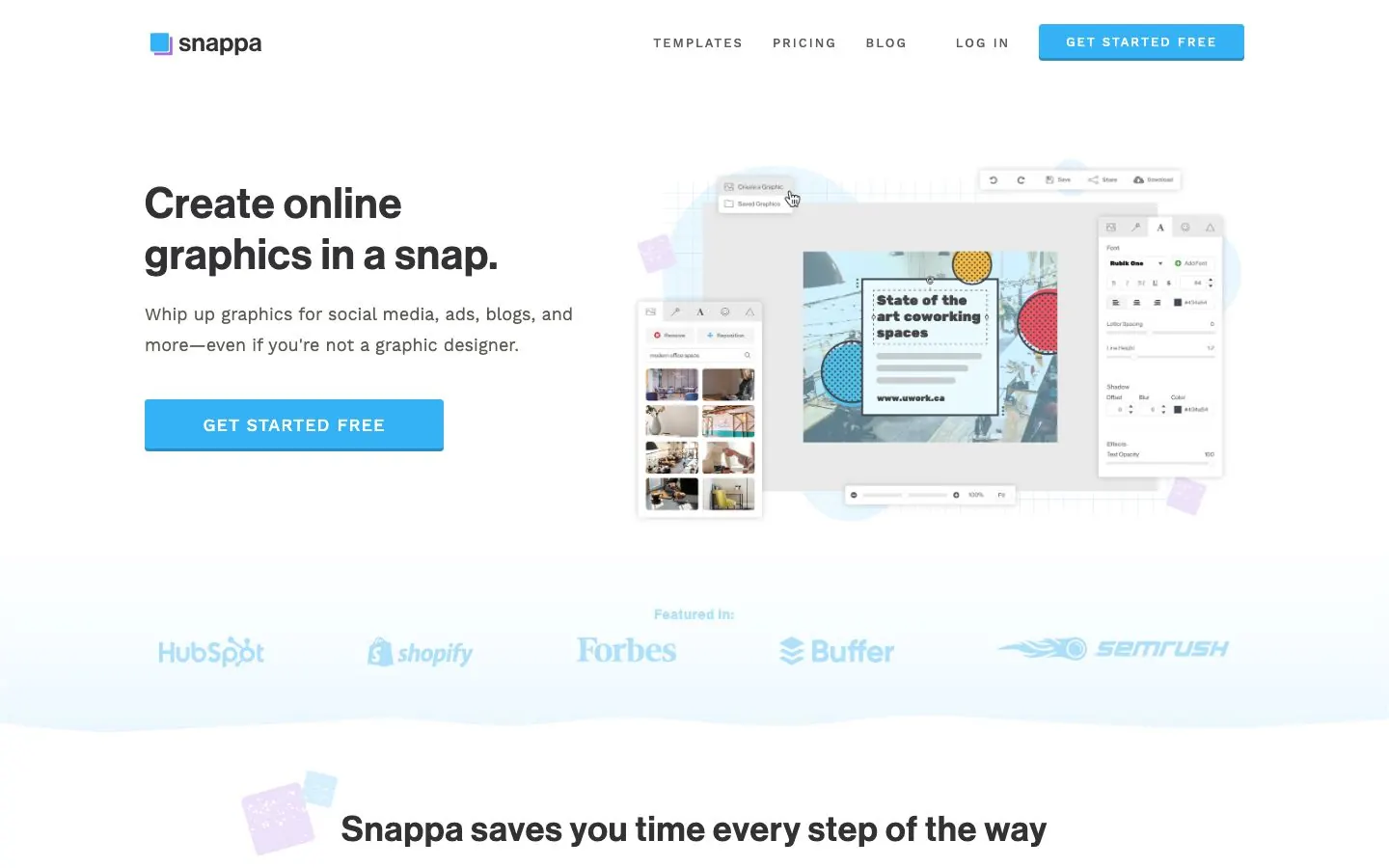
Snappa describes itself as a quick online graphics maker for social media, ads and blogs, even if you are not a graphic designer. It lists 6,000+ templates, 5,000,000+ HD photos and graphics, and clickable image-dimension presets for social media, display ads, blogs and emails. One-click resize moves a design between formats, and one-click background removal is a Pro and Team feature.
For publishing, Snappa shares graphics to Facebook, Twitter and other social platforms, and it pre-schedules posts when a Buffer account is connected. Direct LinkedIn publishing is not confirmed on its pages. The help article on the Buffer route says it was last updated in August 2020, so verify the connection before you build a workflow around it.
What it does well for B2B teams:
- Starts from size presets, so a post, an ad and a blog header come out at the right dimensions.
- Resizes a finished design to other formats in one click.
- Offers custom font uploads on Pro.
- Lets teams on the Team plan share logos, fonts and team colors, with 5 users sharing designs and folders.
- Starts every account on the free plan with no credit card required.
Good first workflow: Set up the Team plan for a small marketing group, build five shared layouts with your logo, fonts and colors, and make the week's graphics from them. Download the images and queue them through Buffer or the scheduler you already use. Treat Snappa as the design step and publish elsewhere until you have confirmed LinkedIn works for you.
Setup and plan notes: Tiers are Starter (free, with 3 downloads per month), Pro (unlimited downloads, Buffer and social integrations, custom fonts, background removal) and Team (5 users with team collaboration). A named brand kit feature is not confirmed, but Pro offers custom fonts and Team shares logos, fonts and colors.
Strengths:
- Simple enough for people who do not design for a living.
- Size presets and one-click resize save time across formats.
Limits:
- The free plan is capped at 3 downloads a month.
- AI generation, carousels and video are not documented on its pages.
- Publishing depends on Buffer, and approvals are not confirmed.
8. Desygner (now automo designer)
Best for: small teams that want a template-heavy editor on a free plan and are comfortable with a product in transition.
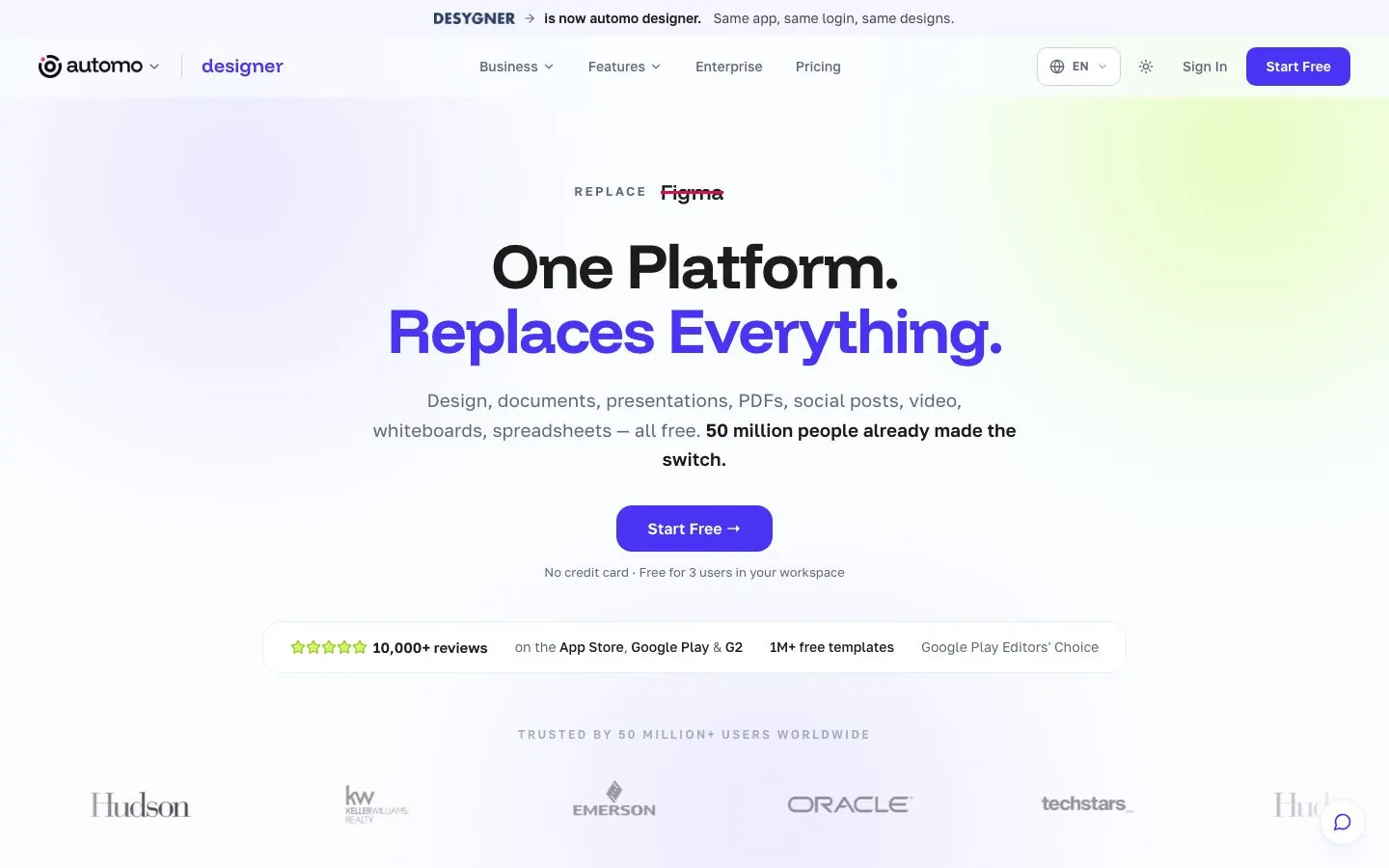
Desygner has a new name. Its own site banner says it is now automo designer, with the line "Same app, same login, same designs." The site positions it as a free one-platform Canva replacement for design, documents, presentations, PDFs, social posts and video, and claims 50 million users. The rebrand sits inside a wider Automo business suite, and plenty of older review content still says Desygner.
What it does well for B2B teams:
- Meters AI in Automo credits: Free 20 per month, Starter 500, Business 2,000 and Scale 20,000. Background remover and AI image tools start at Starter, and advanced AI image and video tools at Business.
- Applies brand colors and fonts through a Brand Kit, and the Scale tier lists shared brand kits across the team.
- Lets you invite team members to edit, comment or approve designs and lock elements such as logos, according to a vendor guide dated September 2024.
- Mentions a social scheduler: the guide says it can publish straight to social media, and the pricing headline refers to it too.
- Scales team size by tier: Free 1 member, Starter 3, Business 20 and Scale 100.
Good first workflow: Set up the Brand Kit, lock the logo on three templates and invite two colleagues to review. Before you rely on the scheduler, connect a LinkedIn account and see whether it appears, because the supported networks are not confirmed on its pages. Keep a fallback for publishing.
Setup and plan notes: Tiers are Free, Starter, Business, Scale and Automo Enterprise. The free plan's seat count is inconsistent on its own pricing page: the headline says free for 3 users and the Free card says up to 1 member. Template counts also differ between pages, so do not plan around one number. A team that wants the approval and locking features from the 2024 guide should check in the app that they are still there.
Strengths:
- Covers design, documents, presentations and social posts on a free starting plan.
- Team seats and shared brand kits scale with the tier.
Limits:
- Which networks the scheduler supports, including LinkedIn, is not confirmed.
- Multi-page carousels and animation are not confirmed on the pricing or home pages.
- Inconsistent counts and the rename make claims harder to verify.
9. Pixlr
Best for: photo cleanup and AI image generation that feed into your social workflow.
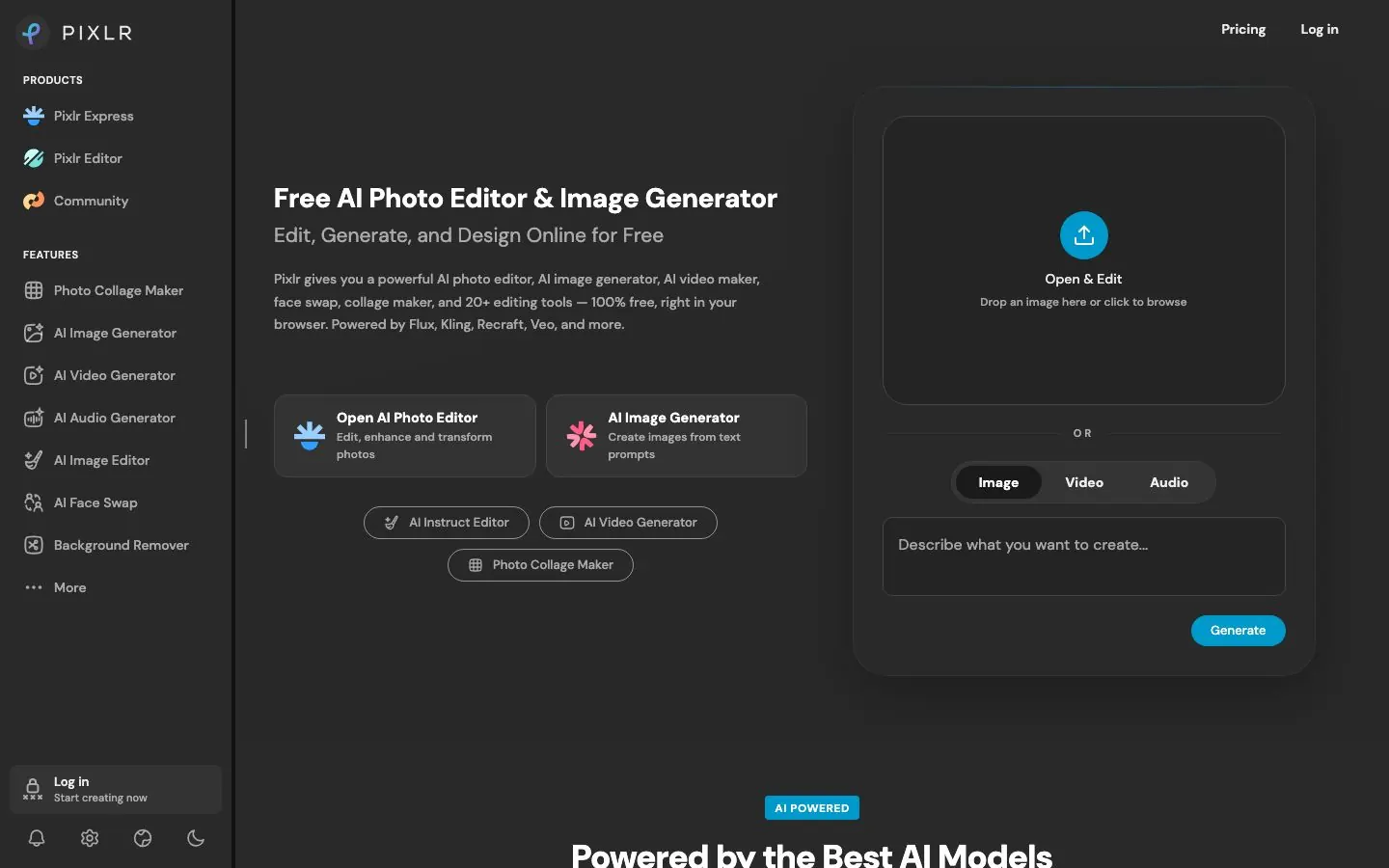
Pixlr describes itself as a free AI photo editor and image generator that runs in the browser, with AI image, video and audio generation. It lists models including Flux, Kling, Recraft and Veo. That makes it a photo editor and image generator first, which is why it ranks last for social content workflows. Its Pixlr Express editor has output-size presets for Facebook, Instagram and Twitter posts and stories.
What it does well for B2B teams:
- Runs in the browser, with free use described as 100% free.
- Generates images with AI across several models, with credits per plan: Plus 80 monthly, Premium 1,000 monthly and Ultra up to 10,000 monthly.
- Offers size presets in Pixlr Express for posts and stories on Facebook, Instagram and Twitter.
- Lists a big library of fonts, templates, elements and animations on the Premium plan.
Pick Pixlr when the bottleneck is the image itself, such as a product shot that needs a new background or a founder photo that needs retouching, rather than the layout around it. If the bottleneck is layout, brand templates or publishing, one of the picks above fits better.
Good first workflow: Use Pixlr upstream of the tool that builds and schedules the post. Clean up a founder portrait or a product photo, generate a background, resize for the network and upload the finished file into whichever tool assembles the carousel or post. That keeps Pixlr doing what its pages describe.
Setup and plan notes: Free use is offered right in the browser. Paid tiers are Plus, Premium and Ultra, with an Ultra MAX option. AI credits depend on the tier. Beyond the pricing and Express pages, detail on Pixlr is thin, so test the specific feature you need.
Strengths:
- Free to start in the browser, with AI generation from several models.
- Useful for photo work that a template editor does not cover.
Limits:
- Brand kit, multi-page carousels, collaboration and approvals are not mentioned on its pages.
- Scheduling or publishing to social networks is not described.
- It is a photo editor first, so a social content workflow needs another tool beside it.
Why teams look for a Canva alternative
Canva is a general-purpose design editor. Its pricing page cites 1,000+ design types, 1.6M+ templates on Free and 3.6M+ on Pro and Business, Brand Kits (1 on Free, 5 on Pro, 100 on Business), Magic Design for turning a text prompt into a design, multi-page designs, and real-time collaboration with comments and task assignment. It also has a template gallery for LinkedIn carousels. If your team designs decks, print, video and social in one place, that breadth is a fair reason to stay.
Canva is moving fast on AI, too. Canva AI 2.0, announced in April 2026 as a research preview, covers conversational design, connectors, recurring AI tasks (such as generating a batch of social content every Friday), web research and brand intelligence.
B2B teams that publish mostly to LinkedIn tend to look elsewhere for reasons that come straight from Canva's own pages:
- LinkedIn sharing is documented as JPG. Canva's help center lists JPG as the supported LinkedIn file type, with a 10MB image limit and a 1300-character message limit. LinkedIn carousels are PDF documents, and publishing one from Canva is not documented.
- Scheduling depends on the plan and the page you read. Social content scheduling is on Pro and Business, and the Free plan card does not list it. Each design schedules to one social platform at a time, and Instagram scheduling has to be done from a desktop browser. Canva's Content Planner article lists LinkedIn among the networks, while its sharing article lists LinkedIn under image and video designs and marks only Instagram and Facebook as schedulable in Content Planner. Check before you rely on it.
- Approvals are hard to pin to a tier. The Business plan card mentions approvals, while a help article describes approval as set up by Canva Enterprise admins.
- Plan names shift. Canva's pricing FAQ says Pro is for one person and Business is for growing teams. "Canva Teams" is no longer a plan on the pricing page, although some help articles still use the name.
- AI is metered. The shared monthly allowance starts at up to 20 uses of Standard or Premium AI on Free, with higher allowances on paid plans and AI Pass as an add-on.
None of this makes Canva a poor choice. If your posts are mostly images for Instagram or Facebook, or you design far more than you publish, Canva's breadth wins. The reasons above bite when the output is LinkedIn-first and several people have to approve it. The carousel side of that question has its own guide: Canva against a LinkedIn-native tool for carousels.
Which Canva alternative for which job
| Job | Best fit | Why |
|---|---|---|
| LinkedIn PDF carousels | Postiv, then Contentdrips | Both produce a PDF that publishes as a LinkedIn document post; Postiv adds scheduling, approvals and team features in the same workspace |
| Infographics | Visme or Postiv | Visme has a dedicated infographic maker with statistical, timeline, process and comparison layouts; Postiv builds infographics from the numbers you give it |
| Quick social graphics | Adobe Express, VistaCreate or Snappa | Template editors with resize tools, and size presets for social formats |
| Video | Adobe Express, VistaCreate or Figma Buzz | Adobe Express lists video up to 30 minutes on Free and 2 hours on Premium, VistaCreate makes video posts with animated text and transitions, and Figma Buzz imports, trims and exports mp4; Postiv lets you attach your own video, up to 200MB, to a post |
| Photo editing and AI images | Pixlr | A browser photo editor with AI image, video and audio generation; Figma Buzz also removes backgrounds and boosts resolution |
| Brand templates for a team | Figma Buzz, Adobe Express Teams or Postiv | Locked templates in Figma Buzz, brand kits and template locking on the Adobe Express Teams page, and a brand kit applied to carousels, infographics and images in Postiv |
| Design to publish in one place | Postiv | Design, calendar, approvals and roles in one workspace; Adobe Express also schedules to seven networks, for images, video and GIF |
If carousels are your main format, our comparison of the best LinkedIn carousel makers goes deeper than this table.
How to move your brand from Canva
You do not need a big migration project. This order keeps the work small and shows problems early.
- Export the brand basics. Open your Brand Kit in Canva and copy the hex codes, font names and logo files into one document. Canva keeps 1 Brand Kit on Free, 5 on Pro and 100 on Business, so if you run several brands, make one document per brand and name it after the profile it belongs to.
- Rebuild three templates first. Pick the three layouts your team reuses most, for example a carousel cover, a stat slide and a quote card, and rebuild only those in the new tool. Three working templates teach you more than a migrated library, and the rest of your files can stay in Canva.
- Test a carousel and an infographic end to end. Build one of each from real content, then export or schedule it the way you would for a real post and open the result on a phone. Check the file type LinkedIn receives (a PDF document for a carousel), the text size at phone width and where the logo sits.
- Set approvals before the first real post. Decide who signs off on which profile and write the rule down in one line. In Postiv approvers are set per profile and a scheduled post waits for them. Adobe Express has template approval on Teams and Enterprise, and Visme has project approval on its Enterprise tier.
- Move one profile, then the rest. Keep Canva for what it still does well for you, such as decks or print, and shift social content one profile at a time. After a month, archive the Canva templates nobody has opened.
More quick answers
Is there something better than Canva?
It depends on the job. Canva is a strong general design tool, and for decks, print and mixed design work it may be the right call. For B2B social content, teams pick something closer to the publish step: Postiv for LinkedIn carousels, infographics, scheduling and approvals in one workspace, Adobe Express for scheduling to seven networks on its Free plan, or Visme for infographics.
Why don't professional designers use Canva?
Canva's own pages do not address that, so treat any answer as opinion. What they show is a general-purpose editor with 1,000+ design types. Some teams prefer the opposite approach: a designer builds locked brand templates and colleagues only edit approved fields, which is how Figma Buzz describes its workflow.
What replaces Canva?
For social media content, Postiv replaces Canva when the goal is LinkedIn carousels, infographics and images that go straight onto a calendar with approvals. Adobe Express, VistaCreate, Snappa and Desygner (now automo designer) are the closest template editors, Visme suits infographics, and Figma Buzz suits locked brand templates. Pick by where the post is published.
Which app is like Canva but free?
Several tools have a free plan: Adobe Express Free, VistaCreate Starter, Visme Basic, Snappa Starter (capped at three downloads a month), Desygner's Free plan, Figma Starter and Pixlr in the browser. Free plans limit features, so check AI, brand kits and downloads before you commit. Postiv has a 7-day free trial.
Which Canva alternative is best for B2B social media teams?
Postiv, when the work is LinkedIn posts, carousels and infographics. It holds every profile and Company Page in one workspace, with roles, approvers per profile, one calendar and your brand across formats. Adobe Express suits teams that want broad network scheduling, and Visme suits teams that mostly make infographics and presentations.
Is there a Canva alternative without AI?
Several keep AI optional. VistaCreate's free Starter plan lists its AI tools as not included, and Snappa's home and pricing pages do not mention AI generation. Most of the rest meter AI in credits or monthly allowances, so check what your plan includes before you pay for it.
Which Canva alternatives can publish PDF carousels to LinkedIn?
Postiv exports a carousel as a PDF that publishes as a LinkedIn document post, and Contentdrips outputs a PDF document post for LinkedIn as well. In their help pages, Canva documents JPG for LinkedIn sharing and Adobe Express lists images, video and GIF. For Visme, whether the LinkedIn path posts a PDF is not confirmed, so check their docs.
Is Microsoft Designer a good Canva alternative for business?
Microsoft's own FAQ says Designer is licensed for personal, non-commercial use with a Microsoft account, so we left it out of the ranking. Its pages describe downloading, copying or sharing a design rather than scheduling it to social networks. Check Microsoft's terms for your use before putting a business workflow on it.
Which Canva alternative has approvals for a team?
Postiv lets you set approvers per profile, and a scheduled post waits for approval; approvers can approve, request changes or deny. Adobe Express offers template approval on Teams and Enterprise plans, and Visme lists project approval on its Enterprise tier. For Canva, the tier that gets design approval is unclear between Business and Enterprise.
Design and publish in one place
If you want to build the carousel, infographic or image on your brand, put it on the calendar and send it for approval without switching tools, start a 7-day free trial of Postiv and connect your first profile.